When creating your property in Travia, you also need to set up a cancellation policy. It is possible to create one cancellation policy for all travel agencies or multiple cancellation policies for different travel agencies.
Cancellation policy can be setup as a Standard cancellation policy or a Non-Refundable cancellation policy.
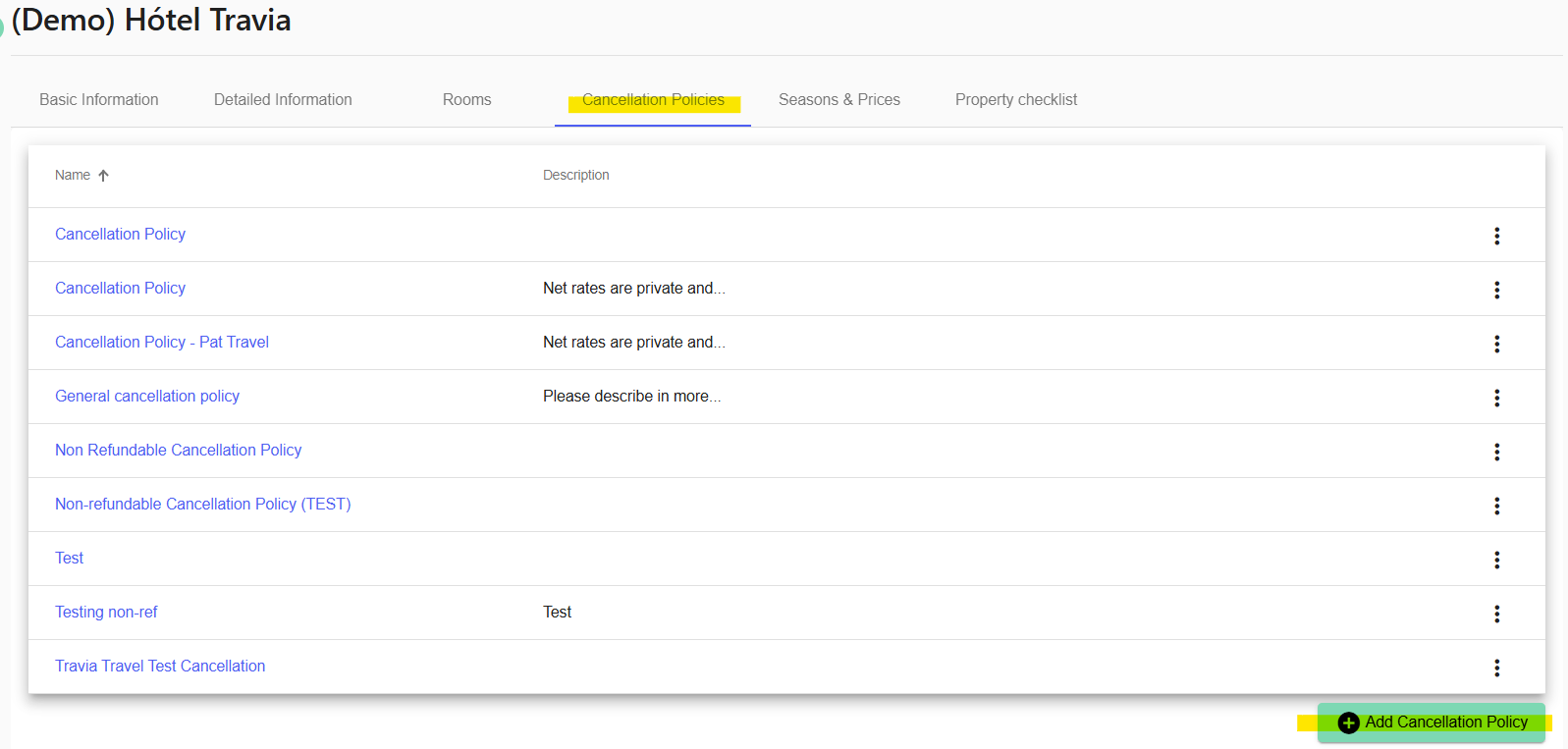
To create a cancellation policy, go to My Properties, click on your property, and open the Cancellation Policies tab. Then click Add Cancellation Policy.
Create a Standard cancellation policy.
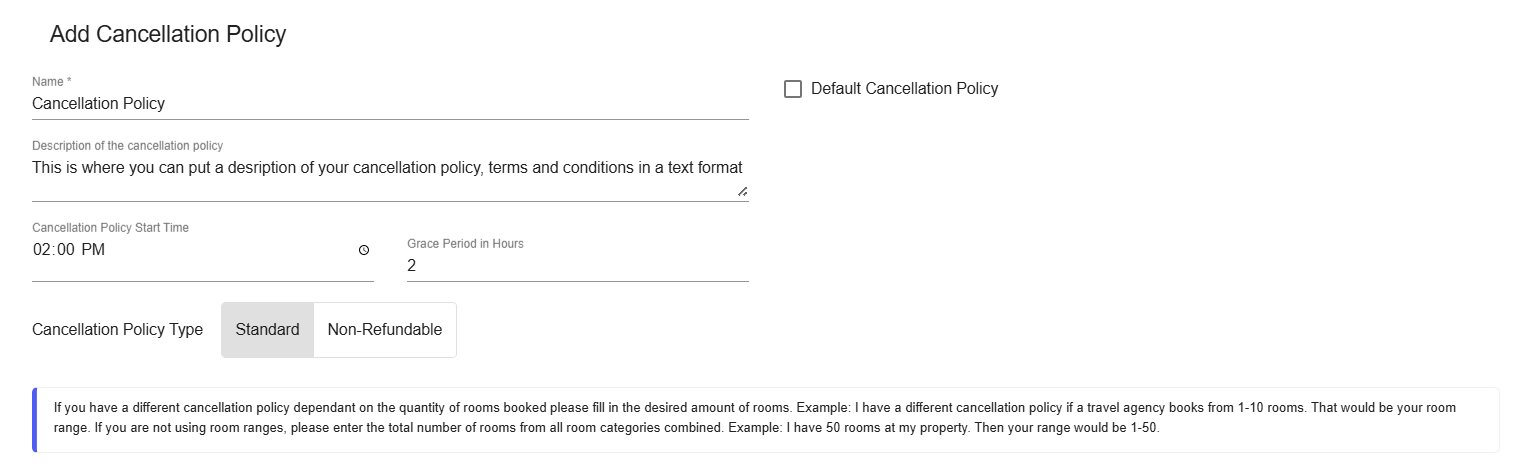
1. Select Cancellation Policy Type "Standard". The active setting is shown in gray.
2. Enter a Name and a short Description of the cancellation policy.
3. Set the Cancellation Policy Start Time. You can align the policy with your check-in time. If no start time is added, the cancellation policy will apply from midnight.
4. If needed, add a Grace Period. This allows a booking to be cancelled without a fee within a certain period after it was created. During the grace period, the normal cancellation policy does not apply.
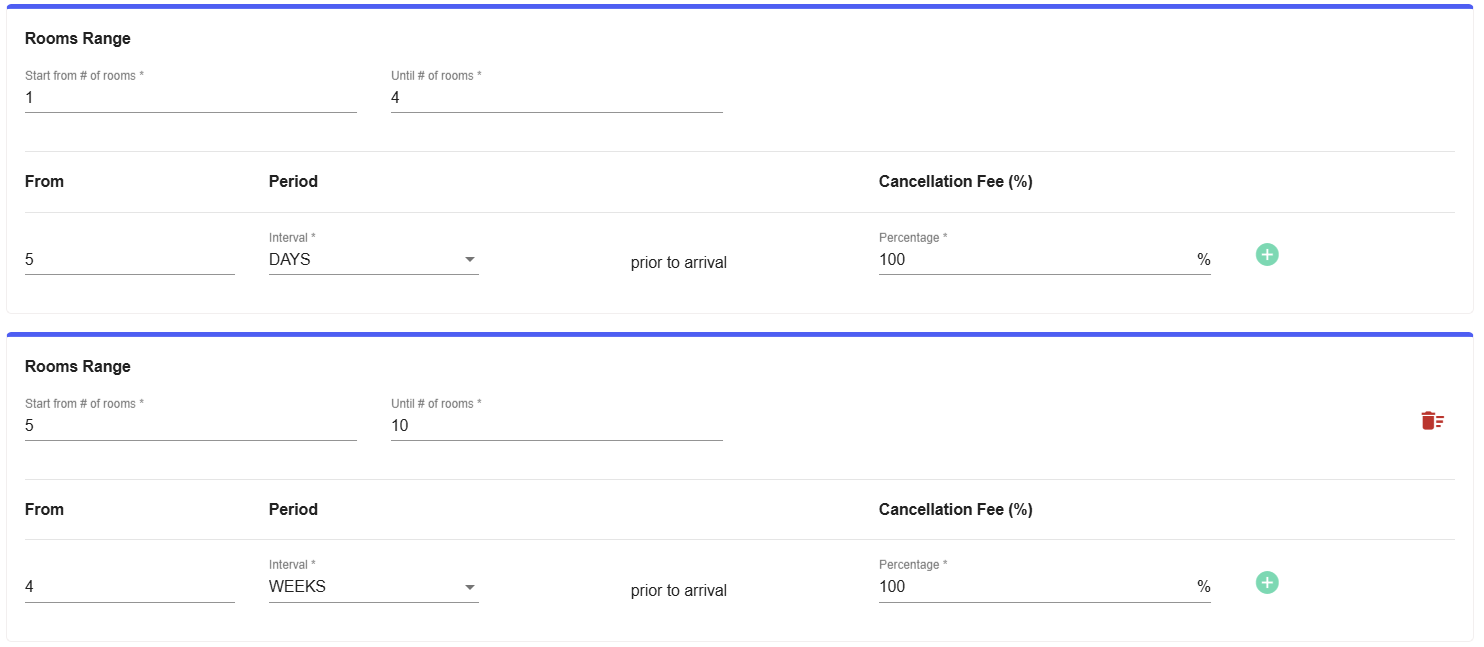
Under Room Range, choose how the policy should apply.
Property can create one standard policy valid for all rooms. Property can also create different rules based on the number of rooms or the time before arrival when the booking is cancelled.
If the policy should depend on room range or time range, click New Range. You can then define room ranges, such as 1–4 rooms and 5–10 rooms, and assign cancellation periods in hours, days, weeks, or months.
You can add multiple time rules within the same room range by clicking the green + icon.
To add the remaining rooms of your property, click New Range again. Travia will automatically add the remaining rooms, and you can adjust them if needed.
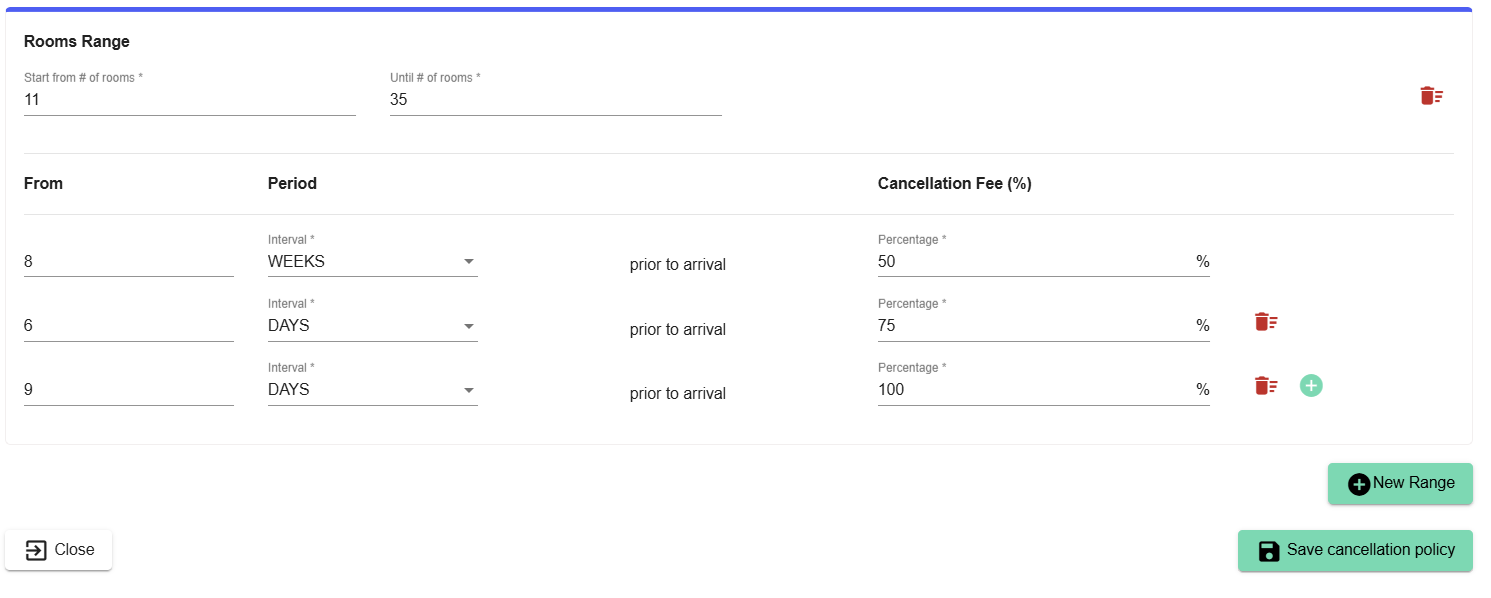
When the cancellation policy is complete, click Save cancellation policy.
Create a Non-Refundable cancellation policy.
1. Select Cancellation Policy Type "Non-Refundable". The active setting is shown in gray.
2. Enter a Name and a short Description of the cancellation policy.
3. If needed, add a Grace Period. This allows a booking to be cancelled without a fee within a certain period after it was created. During the grace period, the normal cancellation policy does not apply.
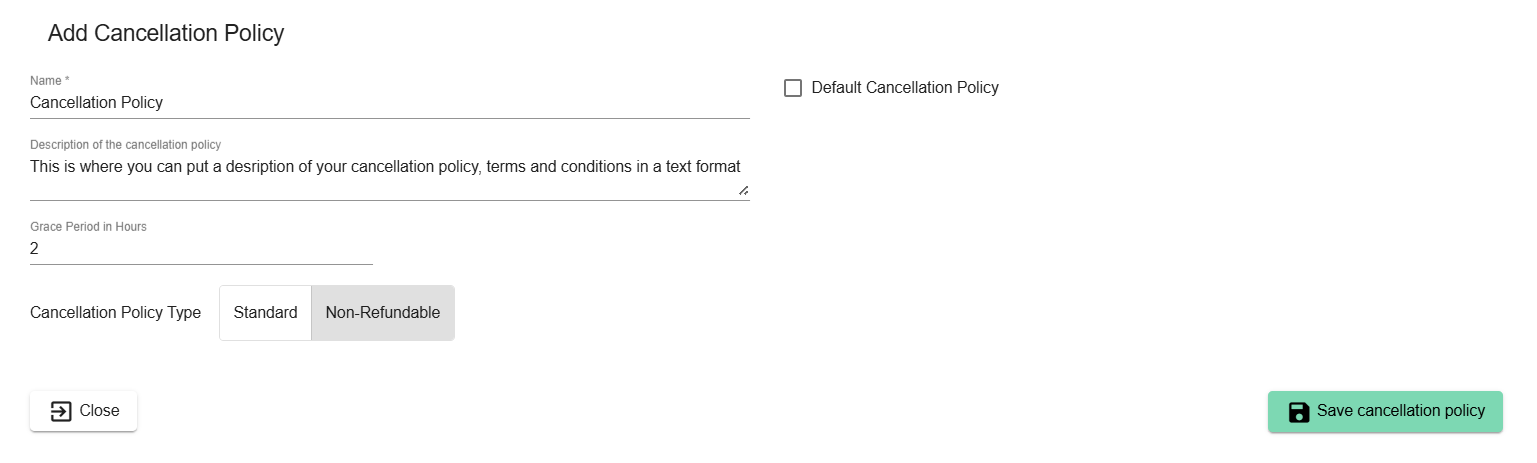
When the cancellation policy is complete, click Save cancellation policy.
Please note: An existing cancellation policy cannot be changed from Standard to Non-Refundable.
Next Article - Seasons & Prices
Was this article helpful?
That’s Great!
Thank you for your feedback
Sorry! We couldn't be helpful
Thank you for your feedback
Feedback sent
We appreciate your effort and will try to fix the article