Click on Detailed information.
On this page, you need to fill out detailed information about your property. This information is visible to travel agencies in Travia.
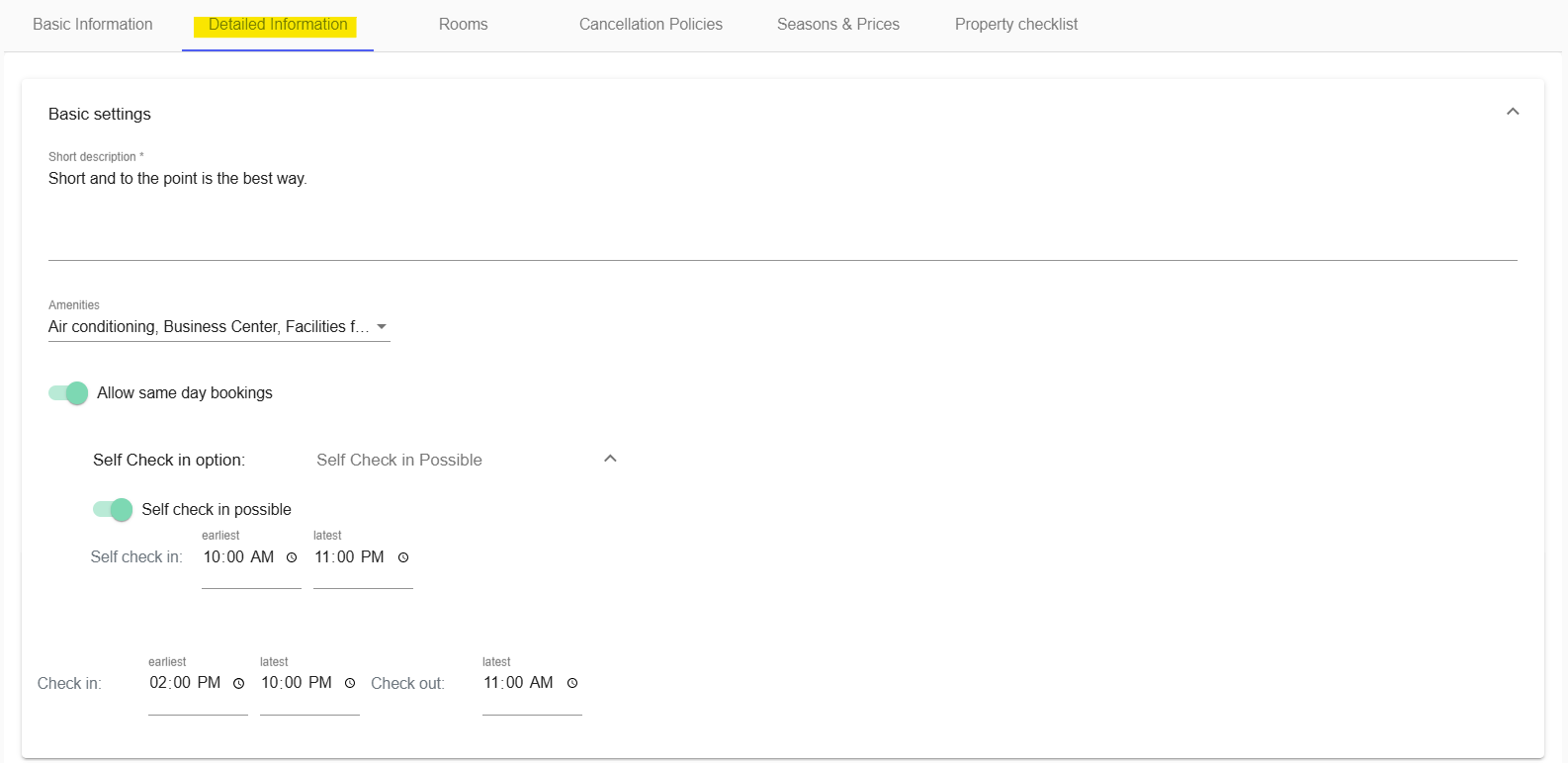
- Write a Short description of your property.
- Click on Amenities. Here, you can add the amenities included at your property.
- Enter your Check-in and Check-out times. If you allow same-day bookings, click Allow same-day bookings.
- You can also select Self Check In option whether the property is Self Check-in only or Self Check-in possible.
If you want to add other items or services available at your property, you can do that later under Property Products.
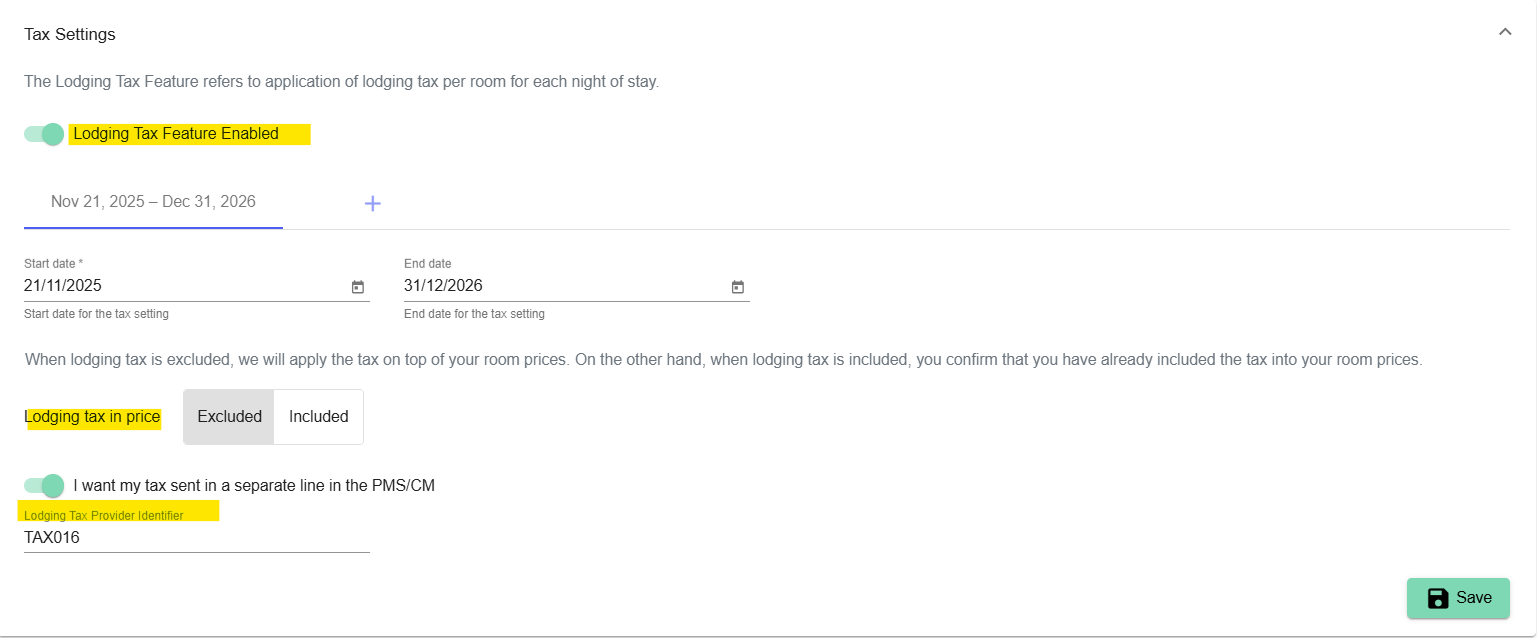
Under Tax Settings, you can manage how lodging tax is applied to your property. The lodging tax feature applies tax per room for each night of stay.
- To enable this feature, turn on Lodging Tax Feature Enabled.
- After enabling it, you can define the date range for the tax setting. You can also add additional date periods by clicking the + icon. This allows you to create different lodging tax settings for different date ranges.
- Under Lodging tax in price, choose whether the tax is Excluded or Included in your room price. If Excluded is selected, the tax will be added on top of the room price. If Included is selected, the tax is already part of the room price.
- There is also an option called I want my tax sent in a separate line in the PMS/CM. If enabled, the tax will be sent as a separate line to your PMS or Channel Manager.
- Enter the product ID used for accounting purposes in your PMS or Channel Manager under Lodging tax provider indentifier. This identifier is used to map the lodging tax correctly in your system.
- When you have finished your changes, click Save.
For detailed setup instructions, see Lodging tax settings.
Under Property Photos, you can upload your property logo and photos of the property. These images help present your property more clearly in Travia.

Under Age Group Configuration, you can enable custom age groups if your property uses different child pricing based on age. Once enabled, a default infant age group is created automatically.
To use this feature for your property in Travia, please request access by contacting hello@travia.is.
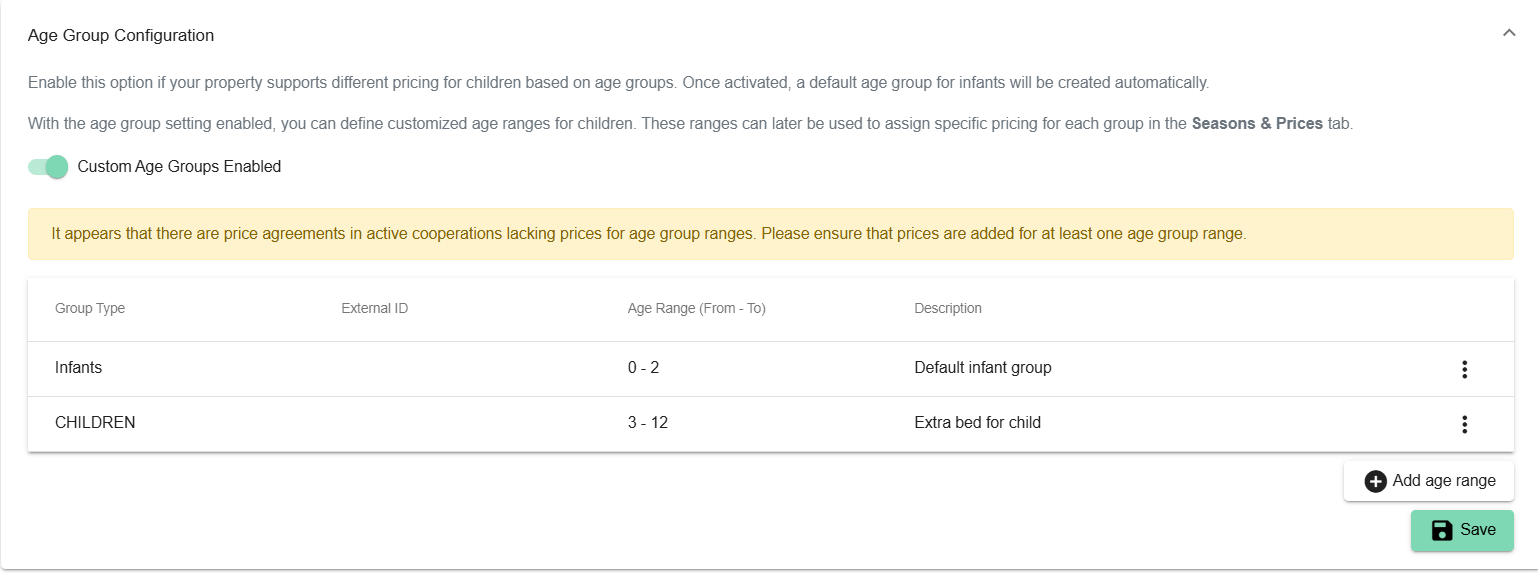
You can then define age ranges for children and use them later when setting prices in Seasons & Prices.
For step-by-step instructions, see Age Groups.
Next Article - Rooms
Was this article helpful?
That’s Great!
Thank you for your feedback
Sorry! We couldn't be helpful
Thank you for your feedback
Feedback sent
We appreciate your effort and will try to fix the article