After sending a group request, you can check its progress in the Property Group Requests overview. The list shows each request’s status, name, travel agent, property, and check-in and check-out dates.
Use the Filter field to narrow the list, or filter by Status, Travel Agents, or Properties.

The Status filter lets you select one or more statuses.
Common statuses you may see:
Requested - your request has been sent and is waiting for the property to respond.
Offered - the property has responded with an offer and is waiting for your acceptance.
Confirming - the confirmation is being processed.
Confirmed - both sides have confirmed and the request is now a confirmed group booking.
Rejected - the request or offer has been rejected by one side.
Cancelling - a cancellation has been initiated and is being processed.
Cancelled - the group booking has been cancelled.
Not Synchronized - the booking has not yet been synchronized with the property's system.
Modified - a change has been proposed or made to the booking.
Expired - no action was taken for 30 days and the request has expired automatically.
Once a property has confirmed your request, the status will change from Requested to Offered. You will also receive an email notification.
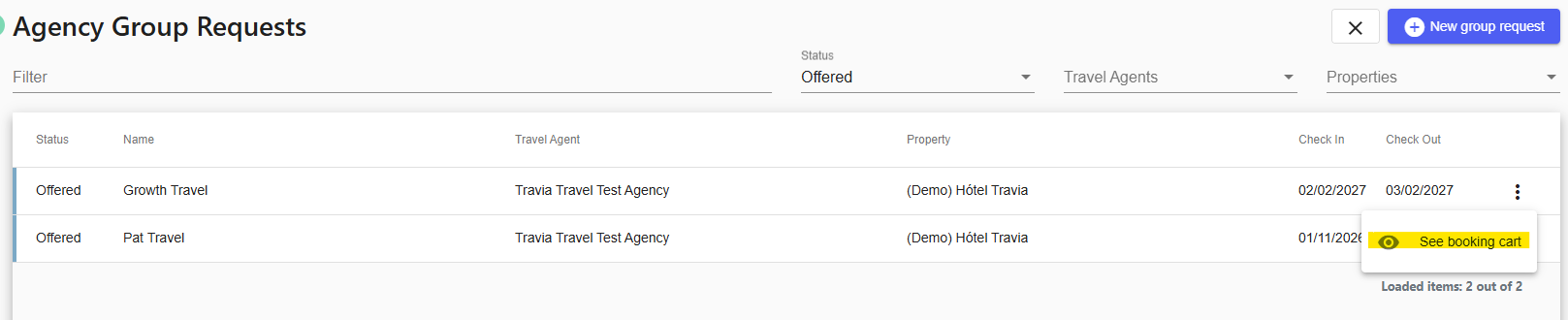
To review the offer, go to Agency Group Requests and find the request with the Offered status and click the three dots (⋯) on the right-hand side and select See booking card.
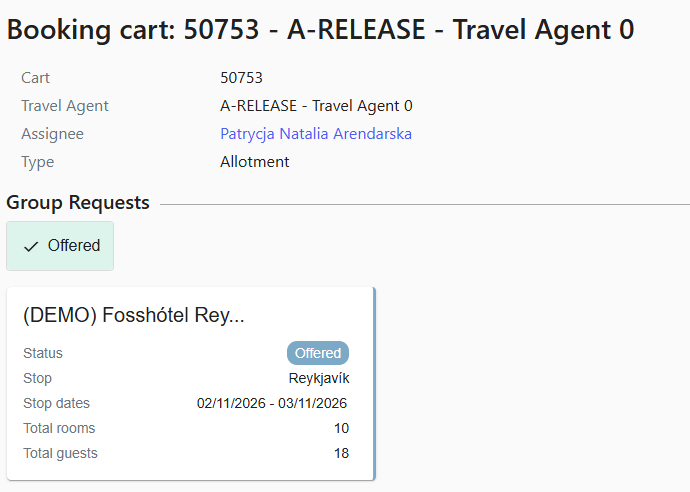
The booking cart opens with the full offer. At the top, the cart shows the cart number, travel agent, assignee and type, together with the Offered group request, its stop, stop dates, total rooms and total guests.
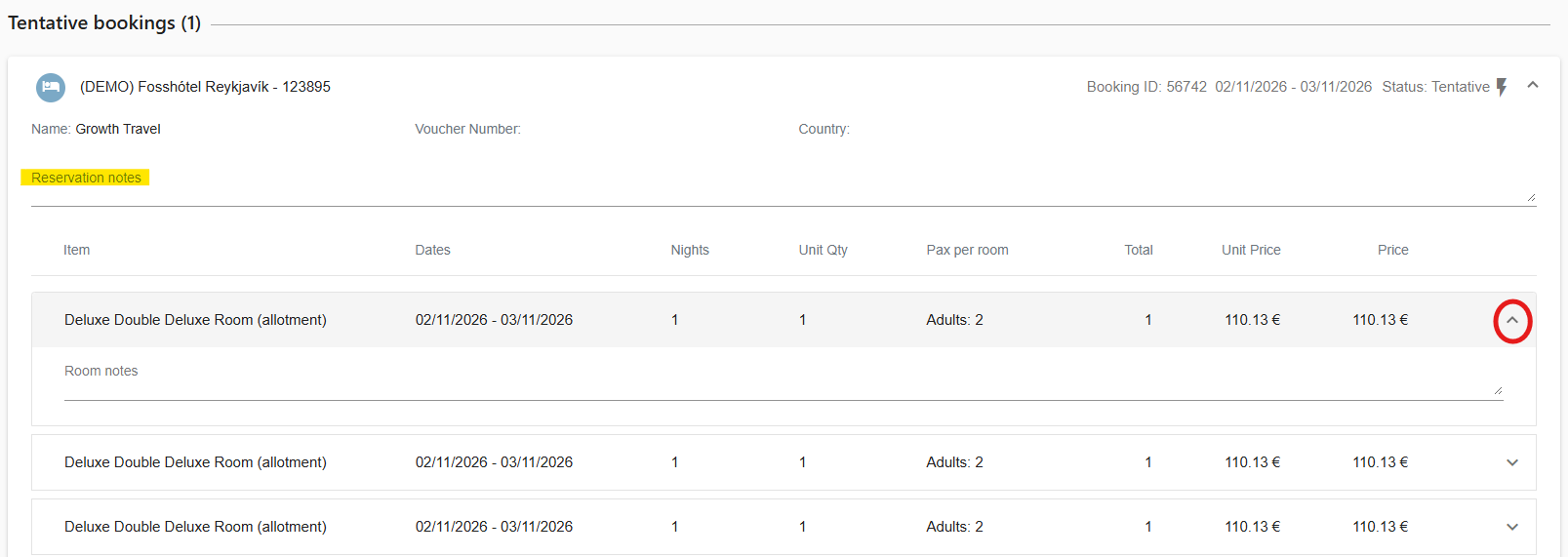
Under Tentative bookings, each booking shows the booking ID, dates, status and group name, followed by the rooms the property has offered, with their dates, nights, unit quantity, guests per room and prices.
Click a room card to expand it and add Room notes for that room. You can also add Reservation notes for the whole booking.
The Attrition Updates & Reminders section shows the release and reminder schedule the property has setThere you can also see the total number of guests and the total price, together with the allotment's original price.
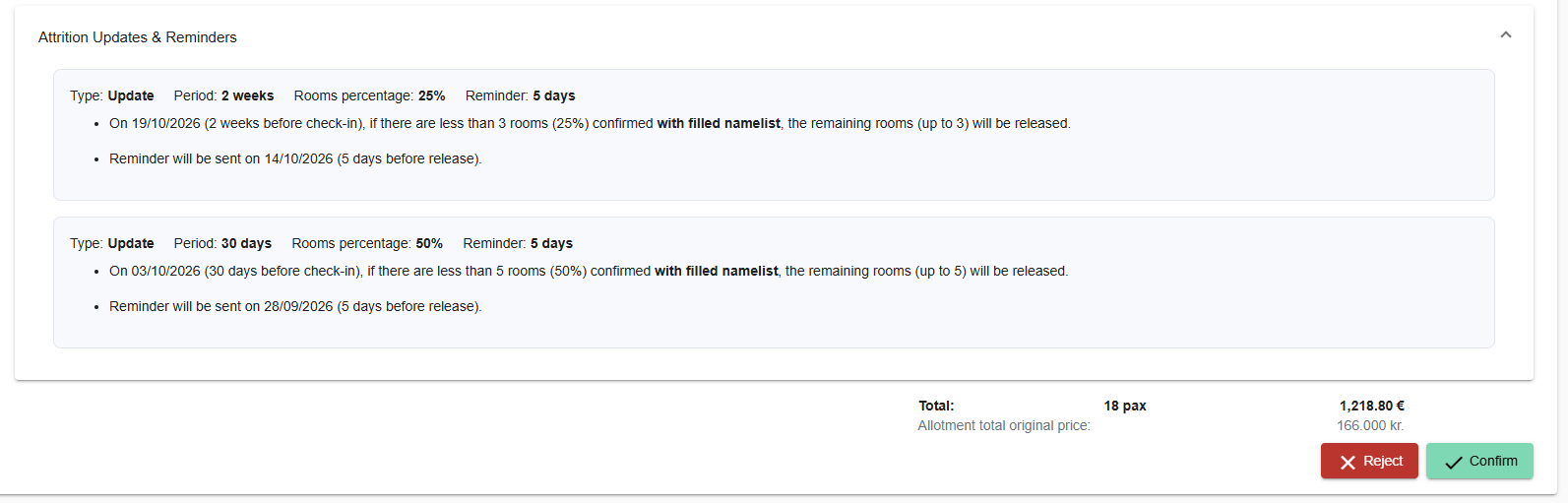
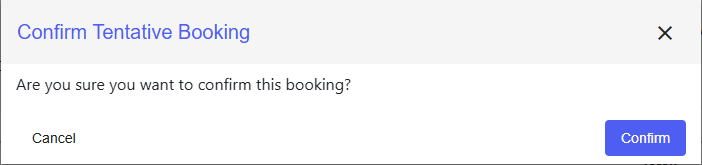
Respond to the offer. Choose Confirm to accept the offer or Reject if it doesn’t meet your group’s needs.
After you click Confirm, the request is added to the booking cart as a tentative booking. You can review the booking details there. Once the confirmation process is complete, it becomes a confirmed group booking.
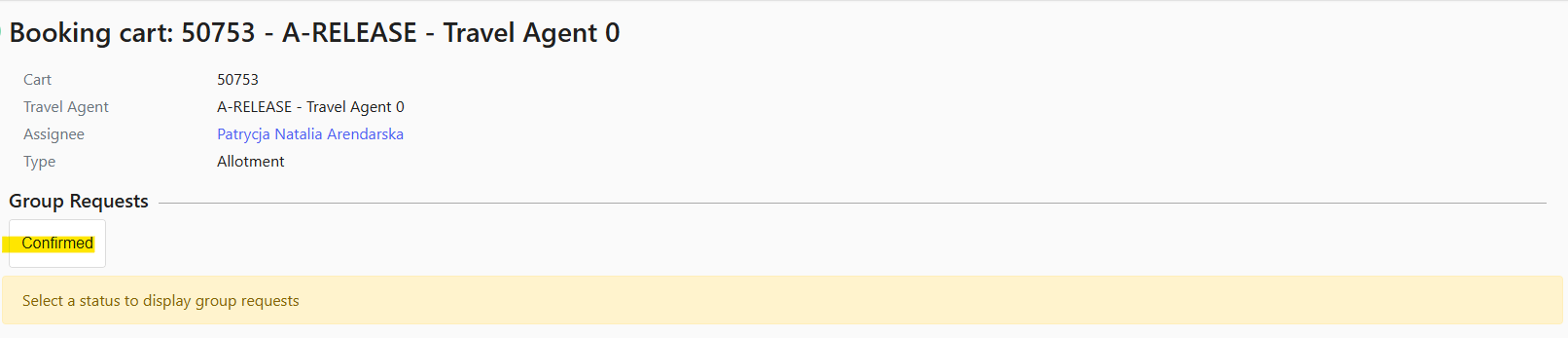
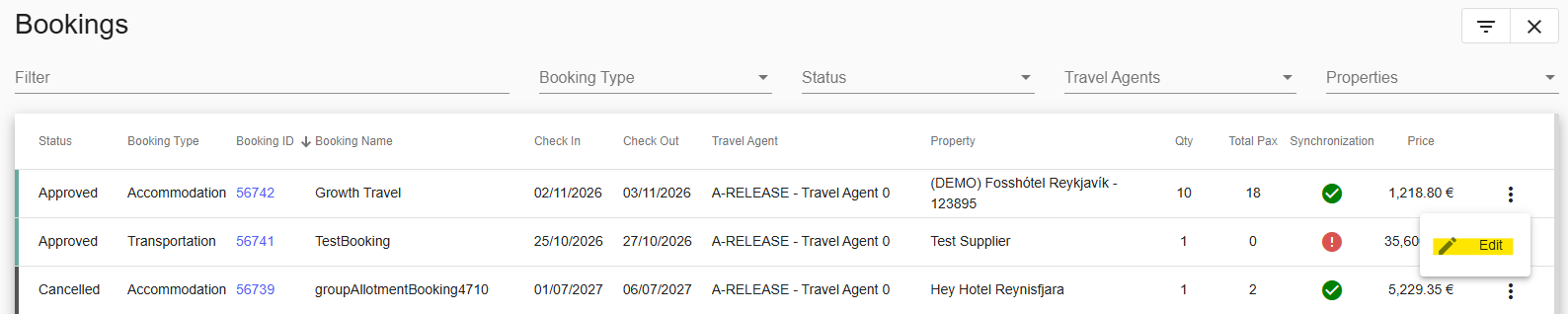
If you need to manage a confirmed booking, open it from Agency Group Requests or Agency Bookings and click the three-dot menu (⋯) next to the booking and select Edit.
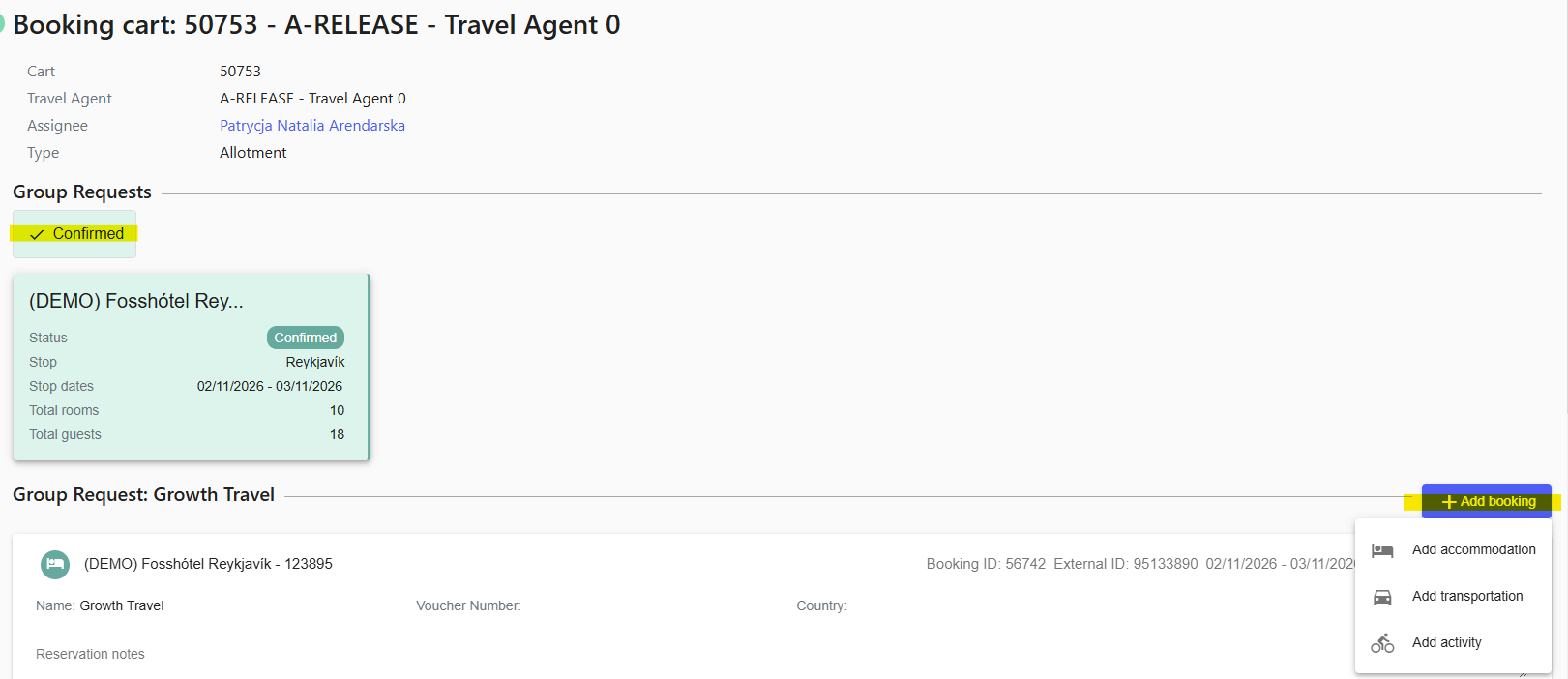
The booking cart opens with the Group Requests section showing the request and its status. From here you can review the group request and the bookings it contains.
To add accommodation, transportation, or an activity to the same booking cart, click + Add booking. This adds the new item to the booking cart only. It does not add it to the group request itself.
If the booking card contains more than one hotel for the same tour, select the applicable hotel before you continue.
On the bottom, you can find the Actions button. Click it to open a menu with:
- Messages – send and read messages about the booking.
- NameList – open the guest name list for the booking.
- Activity Panel – see the activity log for the booking.
- View Cancellation Policy – check the cancellation policy that applies to the booking.
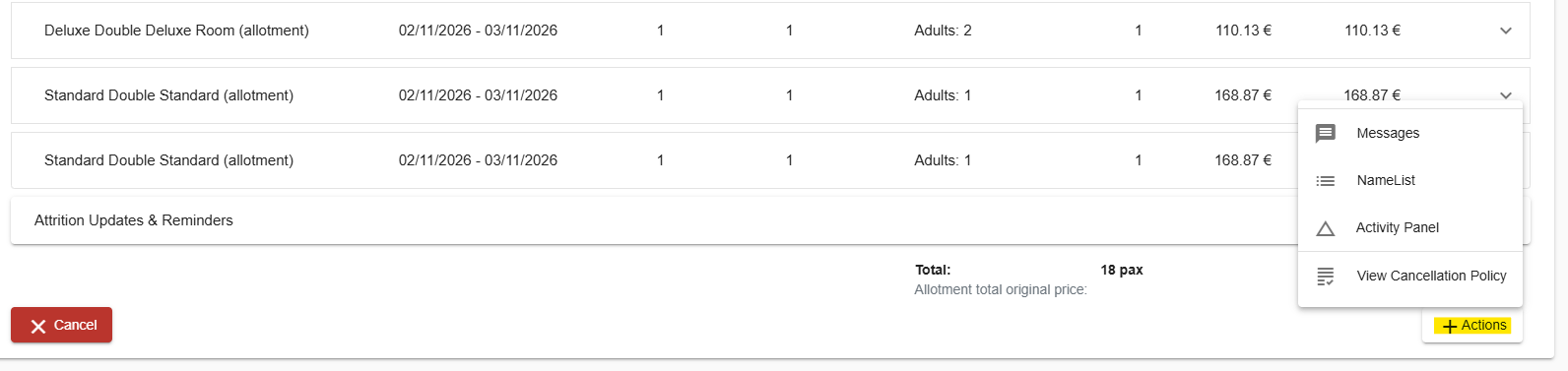
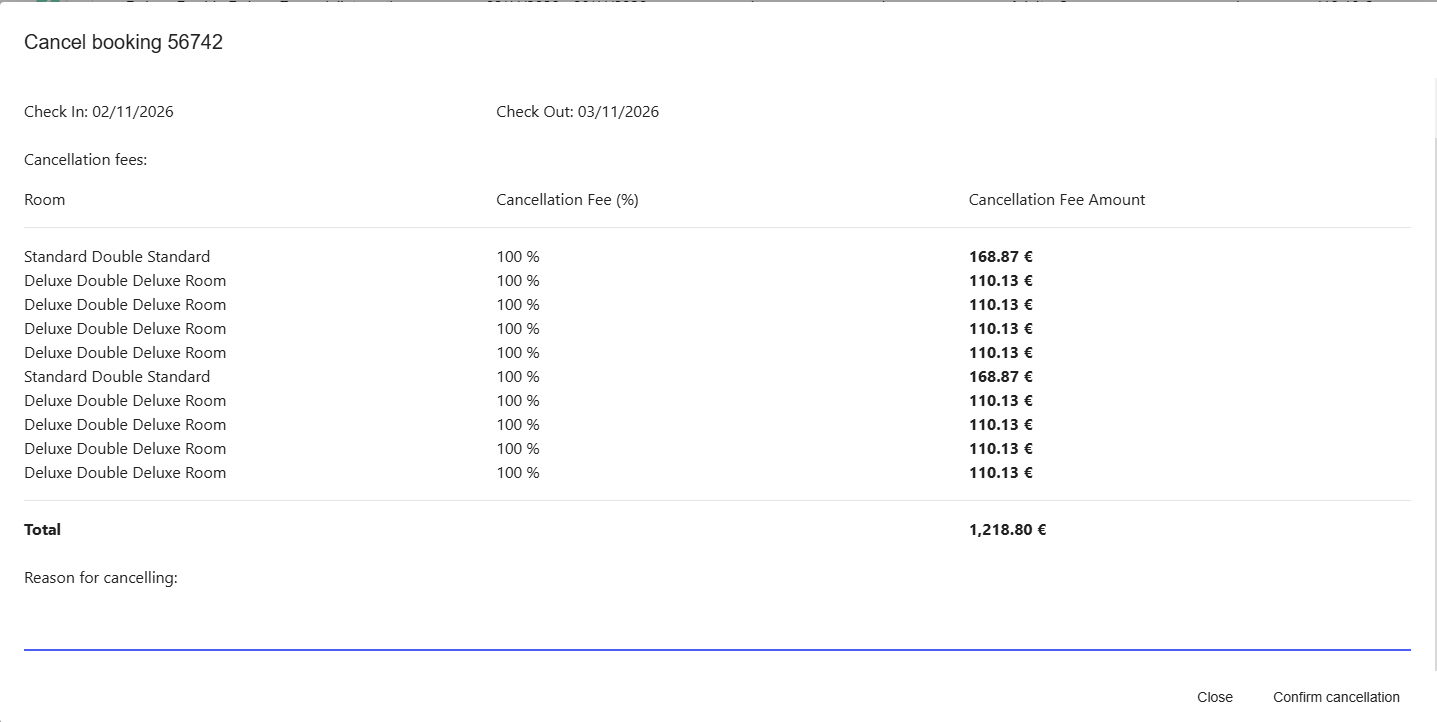
If you want to cancel the request, click on the Cancel button next to it. It starts the cancellation process described below.
Was this article helpful?
That’s Great!
Thank you for your feedback
Sorry! We couldn't be helpful
Thank you for your feedback
Feedback sent
We appreciate your effort and will try to fix the article