Use age groups if your property applies different child prices based on age.
To use this feature for your property in Travia, please request access by contacting support@travia.is.
To find this feature, go to My Properties, open your property, and click Detailed Information tab. At the bottom of the page, you will find Age Group Configuration.
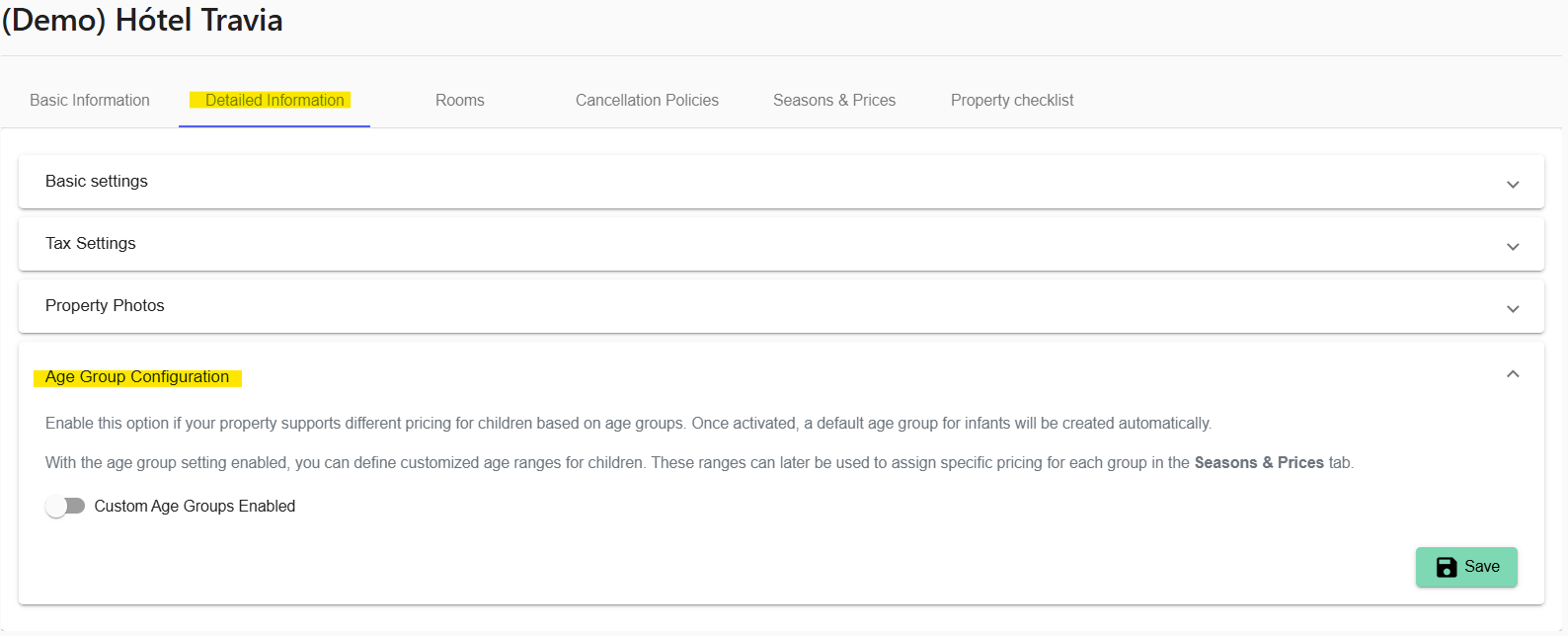
When the feature is enabled, a default Infant age group is created automatically.
1. To edit the default infant age group click the three dots next to Infants.
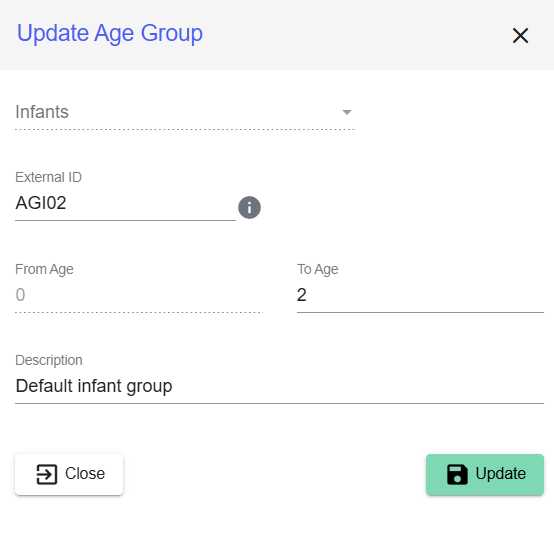
2. Select Edit. A panel will open on the right side of the screen.
3. Update the age range and add the External ID from your PMS if needed.
4. Click Save.
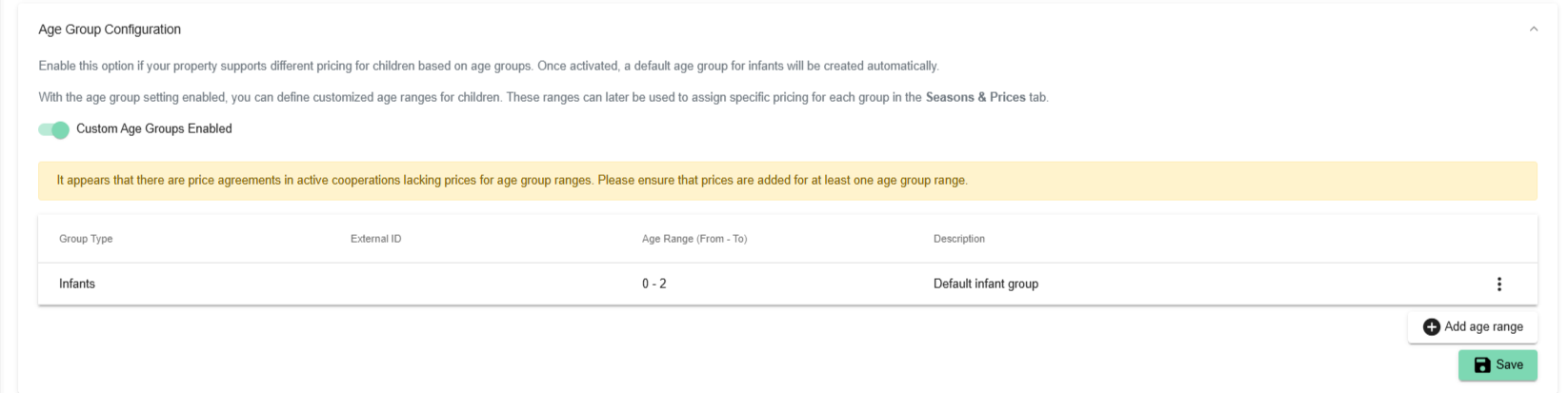
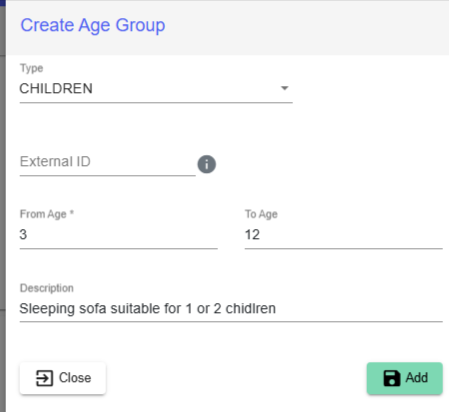
5. To add a new age group click Add Age Range. A panel will open on the right side of the screen.
6. Enter the age group details.
7. Click Add.

To save the changes press Save in the lower right corner.
After creating your age groups, you need to complete the setup in Rooms and Seasons & Prices.
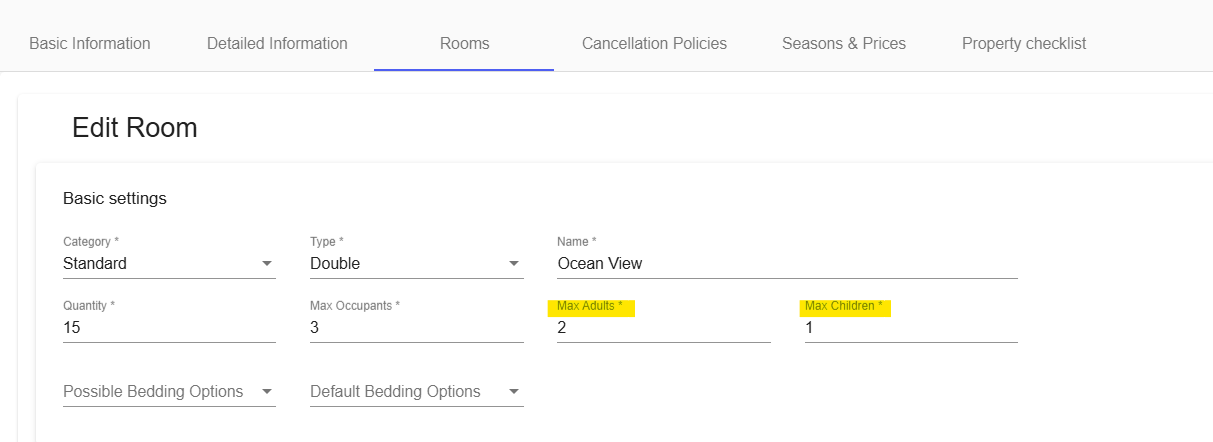
1. Go to Rooms and open each room type.
2. Set the maximum number of children allowed for the room type and save your changes.
3. Go to Seasons & Prices.
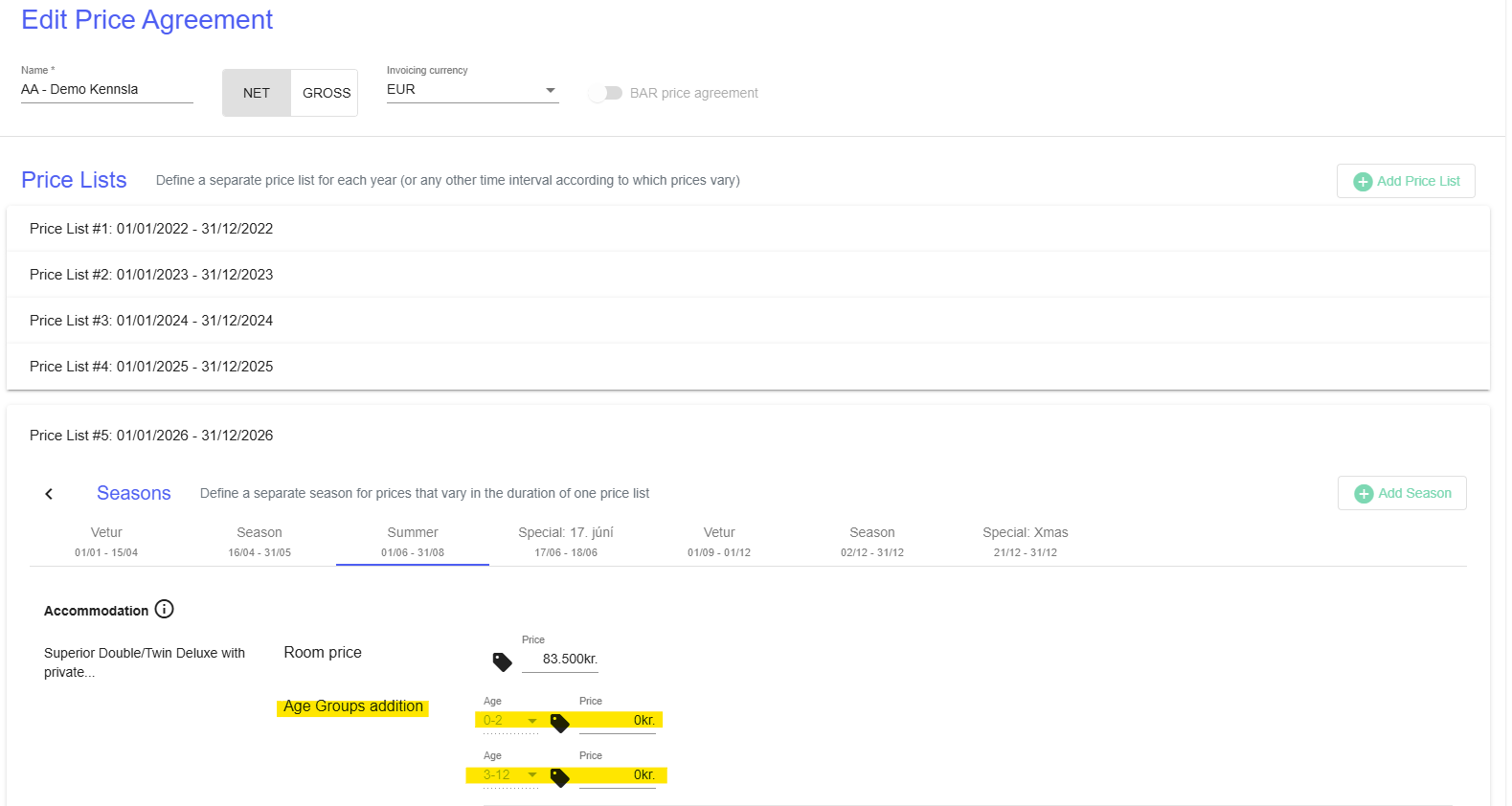
4. Open your price agreement and Edit Price Agreement.
5. Insert different prices for each age group in your Price List.
Was this article helpful?
That’s Great!
Thank you for your feedback
Sorry! We couldn't be helpful
Thank you for your feedback
Feedback sent
We appreciate your effort and will try to fix the article