Time and date dependent Property Products are add-ons or services that are only available on specific dates, seasons, weekdays, or times of day.
This can be useful for products such as dining services, spa or wellness access with bookable time slots, activities or experiences available only during certain seasons, products that are only available on selected weekdays or add-ons with limited daily availability.
If your product or service should only be available on specific dates or at specific times, the Travia Support team can enable time and date dependency for your property. To request access, contact support@travia.is.
If the product is available at any time and does not require a selected date or time slot, you should use a standard Property Product instead.
For general instructions on how to create a property product, see Property Products.
1. Navigate to Property Products.
2. Edit existing product or create new product as explained in the standard Property Products article.

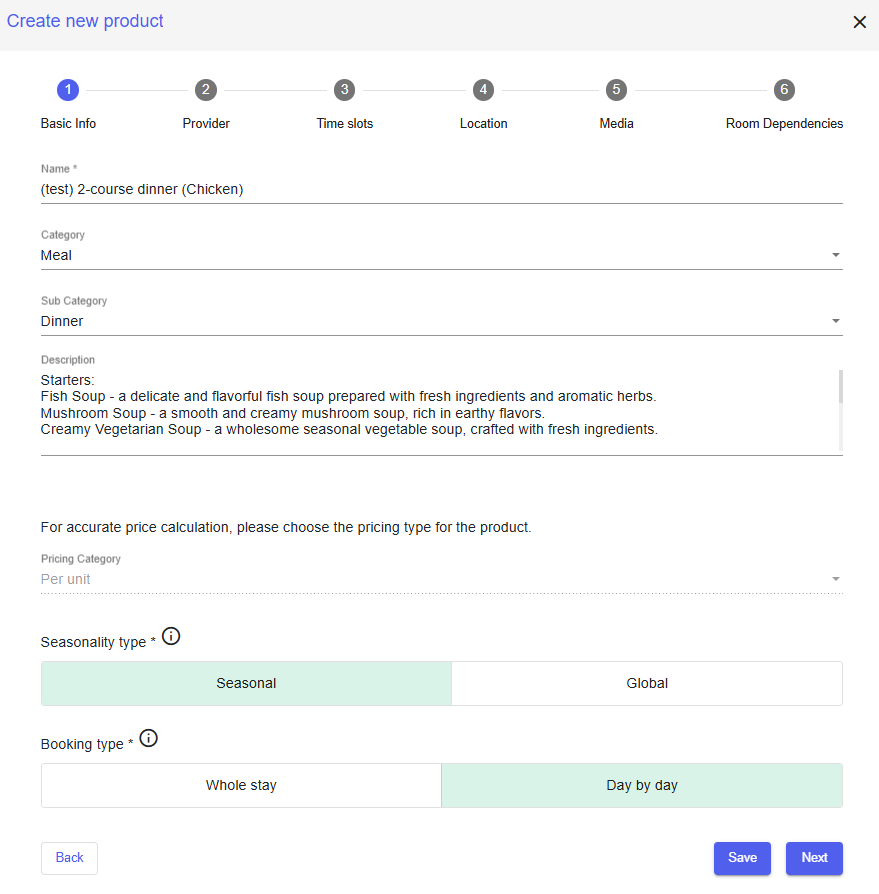
3. In the Basic Info step, choose whether the product should be Global or Seasonal.
- use Global if the product is available all year round.
- use Seasonal if the product is only available during specific dates or seasons.
For example, if dinner is only served from 1 May to 30 September, it is recommended to set the product as Seasonal. This allows you to control availability and pricing only for the dates when the product is actually offered.
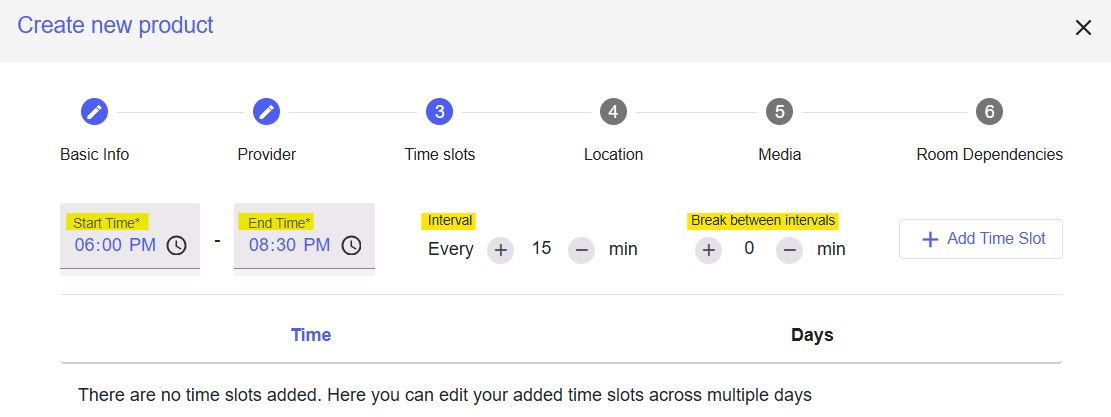
4. In the Time slots step, define when the product can be booked. The time slots control the first and last bookable time of the day, how often time slots appear, breaks between available time slots and different availability for different weekdays.
5. Enter the Start Time and End Time to define the first and last bookable time slot. For example, if dinner can be booked from 18:00 to 21:00 the start time should be 18:00 and the end time should be 21:00.
6. Enter the Interval minutes to define how often available time slots should appear. For example, if the product should be bookable every 30 minutes, enter 30.
7. Add Break between intervals if there should be a gap between bookings. This can be useful when time is needed between groups or bookings. For example, a restaurant may need a break between dinner groups before the next group can be seated. If no break is needed, leave this field empty or set it according to your setup.
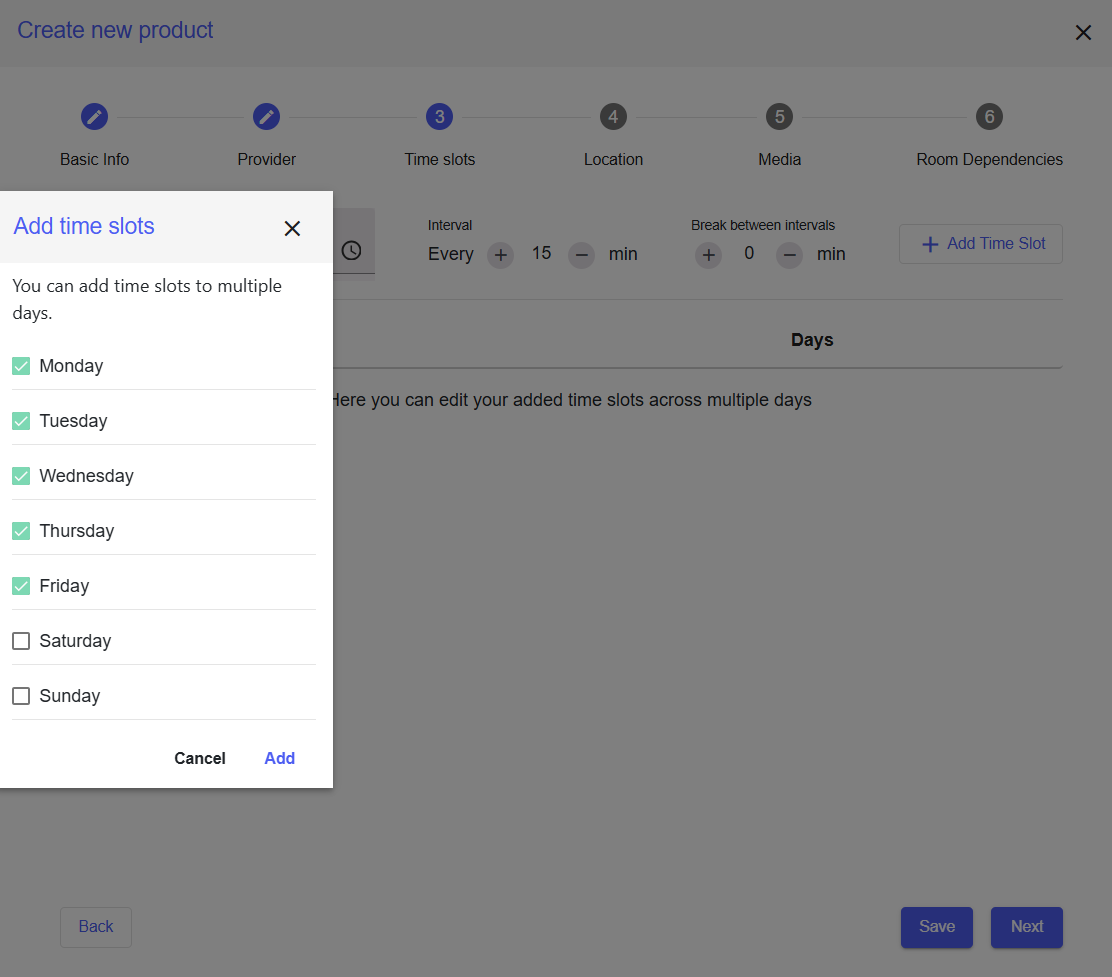
8. Add Time Slot to edit it across multiple days. Use this if the product has different availability depending on the weekday. For example, the restaurant is closed on weekends.
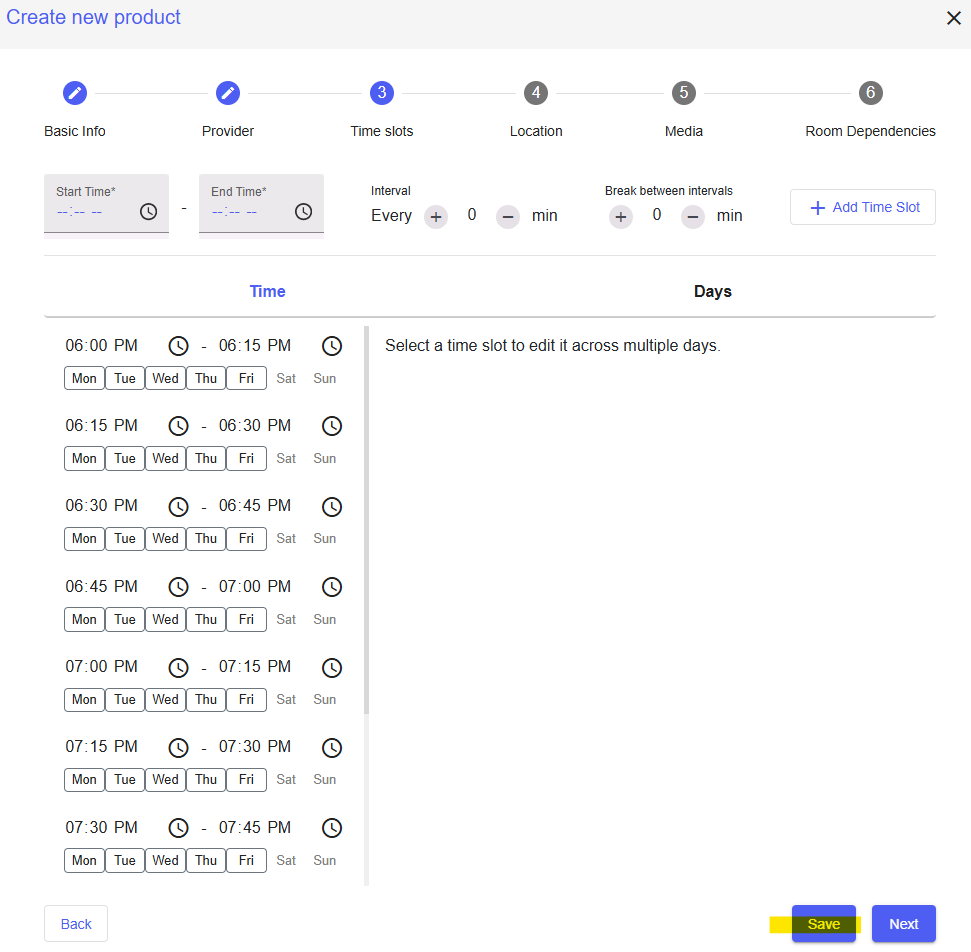
9. Update the time slots for each applicable day.
10. Save the time slot setup before clicking Next.
11. Continue with the remaining property product setup as explained in the standard Property Products article. This includes Location, Media, Room Dependencies, enabling the add-on for applicable room types and adding prices in Seasons & Prices.
For time and date dependent products, keep in mind that day-by-day add-ons cannot be mandatory.
If the product is Seasonal, only enter prices for the dates when the add-on should be available and leave prices empty for dates when the add-on should not be available.
Was this article helpful?
That’s Great!
Thank you for your feedback
Sorry! We couldn't be helpful
Thank you for your feedback
Feedback sent
We appreciate your effort and will try to fix the article