Agency Group Requests let travel agencies request a block of rooms from a property for a group stay.
In Travia, a Group Request is always started by the travel agency. You create the request and send it to one or more properties. The property then reviews your request and either confirms it by adding room types, rates, and a release schedule, or rejects it.
To request a group request:
1. Navigate to Agency Group Requests section from the main navigation menu.
2. Click on New group request.
This will open the request so you can enter the group details.
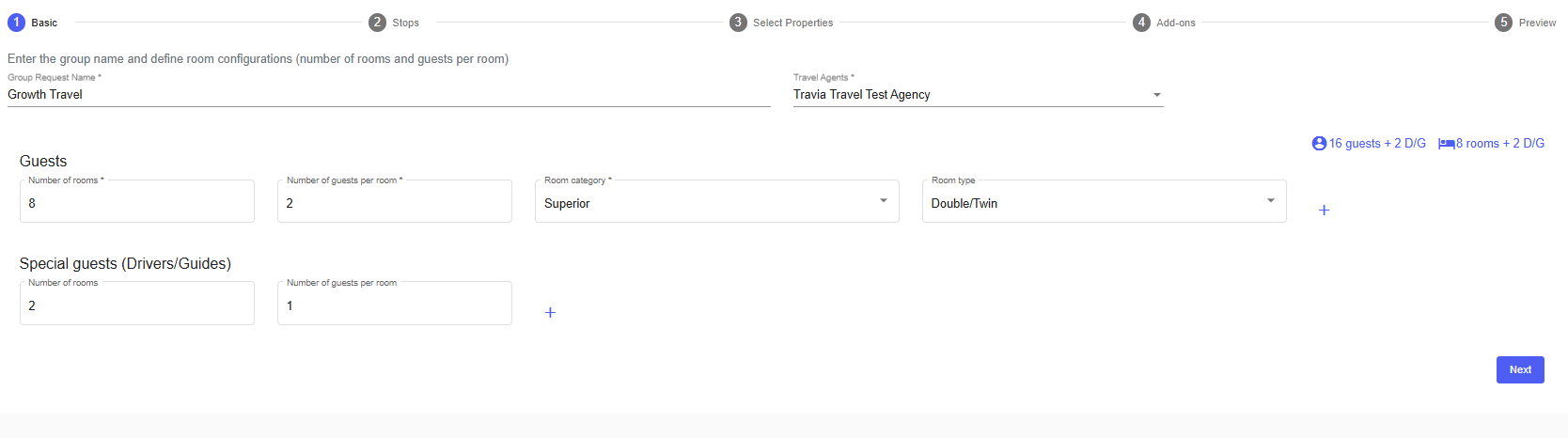
1. Enter Basic information for the group, including group name, number of rooms, travel dates and any general notes or information about the group.
2. Add the destination or trip Stops for the group's journey. At the top, set the Start date for the trip.
If you need to add more stops, click the + sign at the bottom of the stop list. Travia will automatically set the next stop's start date to the day after the previous stop ends.


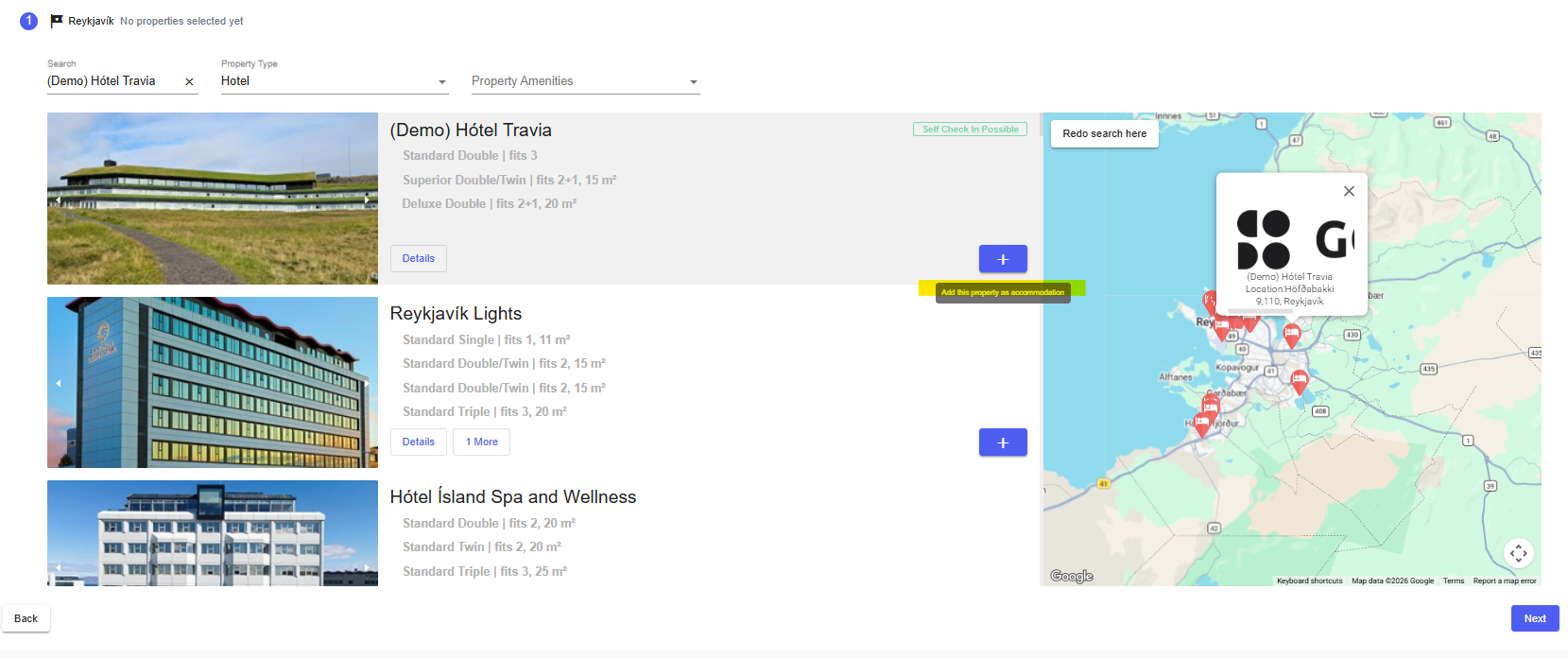
3. Select Properties you want to send the request to. You can select multiple properties at once.
4. To add a property to your request, click the + button on the right-hand side of the property card. You can add multiple properties for the same stop.
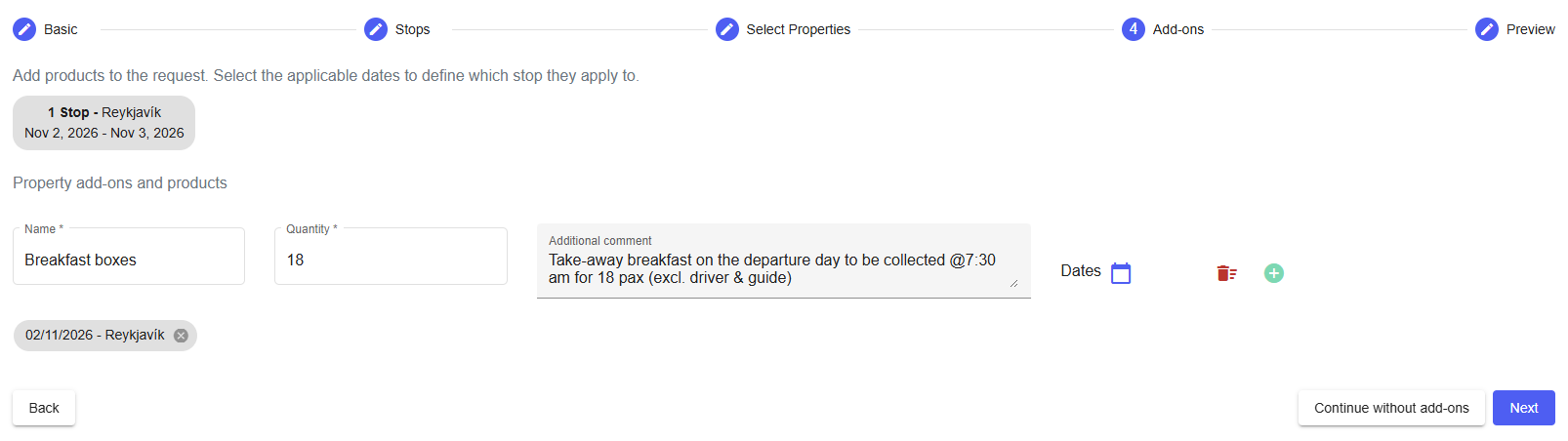
1. Add-ons are optional - you can proceed without adding any. If you would like the property to include extras in the offer, specify them here, such as breakfast or other services.
Name - the name of the product or extra (e.g. Breakfast boxes).
Quantity - the amount of units needed.
Additional comment - any extra details or instructions for the property (e.g. dietary requirements, collection time, or special notes).
2. Click the Dates calendar icon to select the specific date or dates the add-on applies to. Once selected, the date and stop location will appear as a tag below the field.
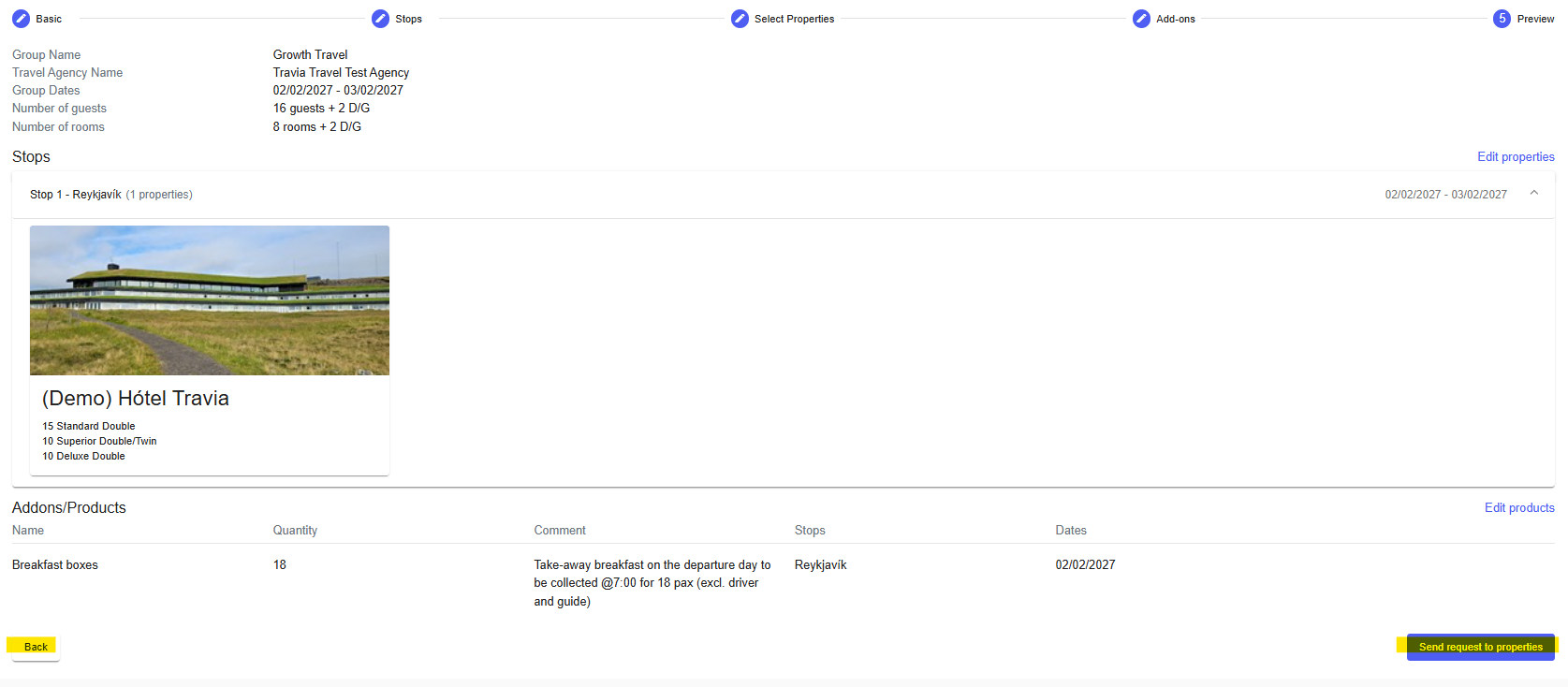
Review all the details of your request. If you need to make any changes, you can go back to a previous step using the Back button.
When you are happy with everything, click Send request to properties. Your request will be sent to all selected properties and they will be notified to review and respond.
Next Article - Track and manage your group request
Was this article helpful?
That’s Great!
Thank you for your feedback
Sorry! We couldn't be helpful
Thank you for your feedback
Feedback sent
We appreciate your effort and will try to fix the article