Use Closed contract prices when you need to temporarily stop specific travel agencies or price agreements from booking contract prices for a selected period. This can be useful during high season, special events, or other periods when contract rates should not be available.
1. Go to My Properties.
2. Open the action menu for the correct property.
3. Click Closed contract prices.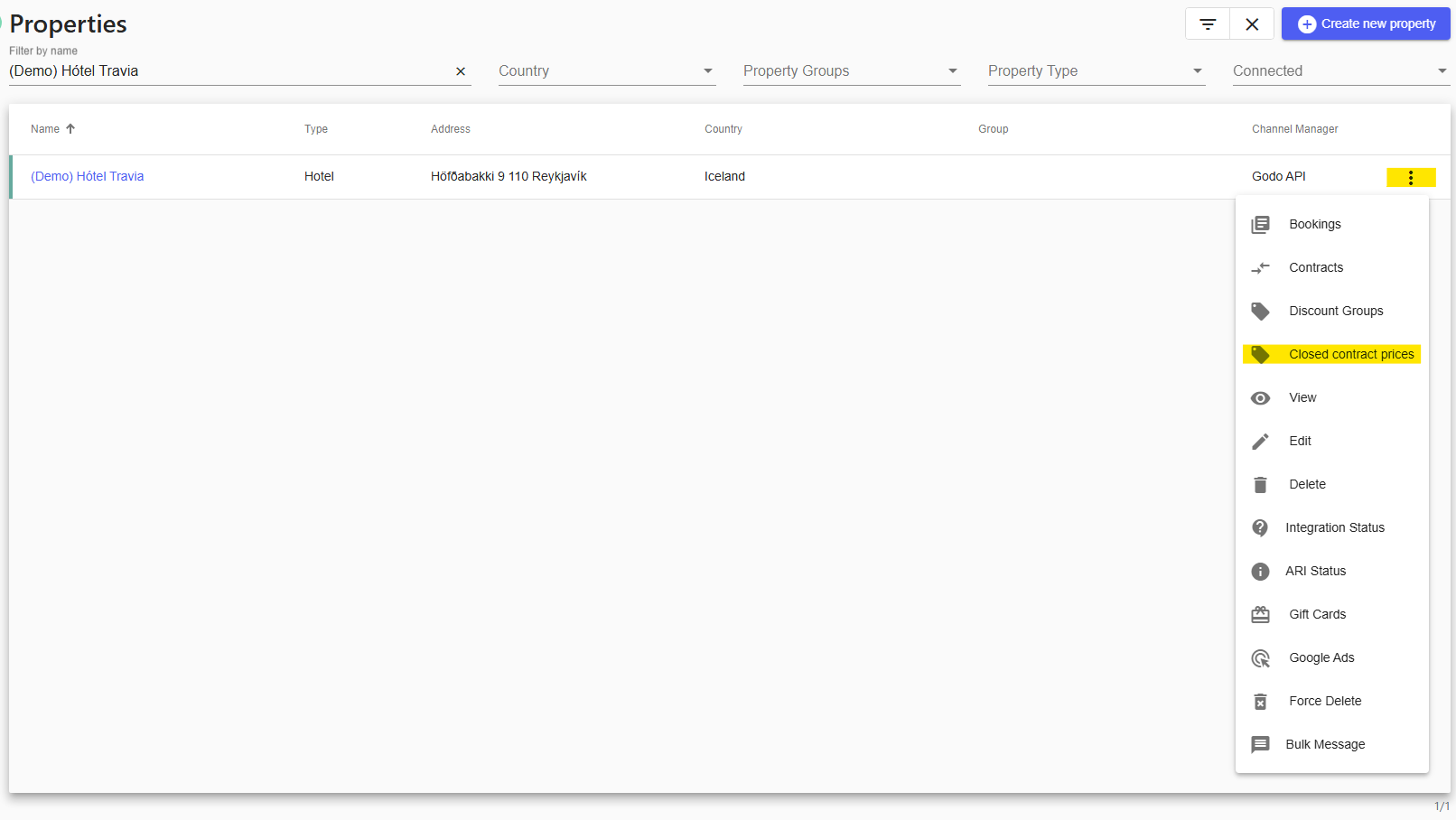
4. Click on Create closed contract price period.
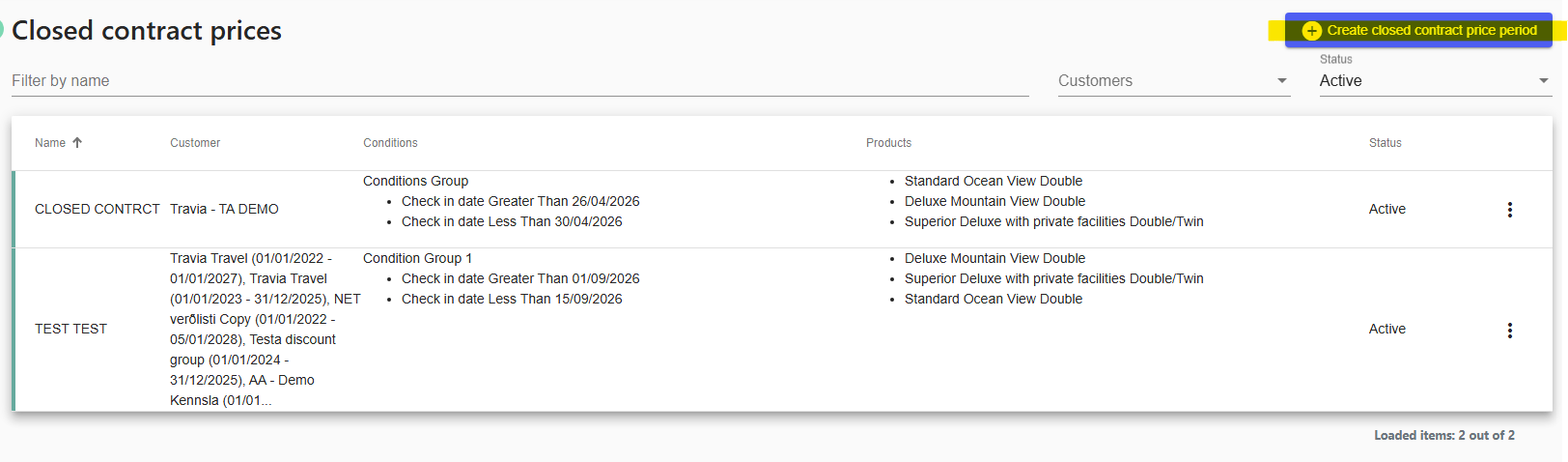
Choose how you want to create the closed contract prices period:
Based on travel agents - select the travel agencies you want to include.
Based on price agreements - select the price agreements you want to close temporarily.
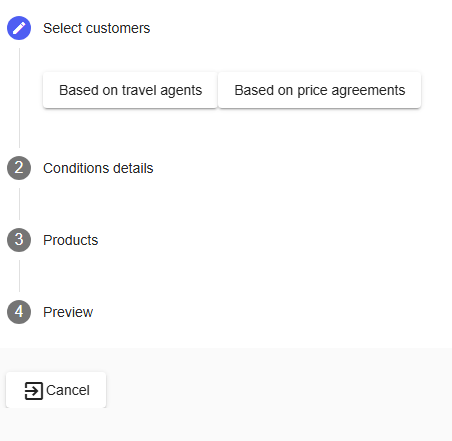
When you have made your selection, click Next.
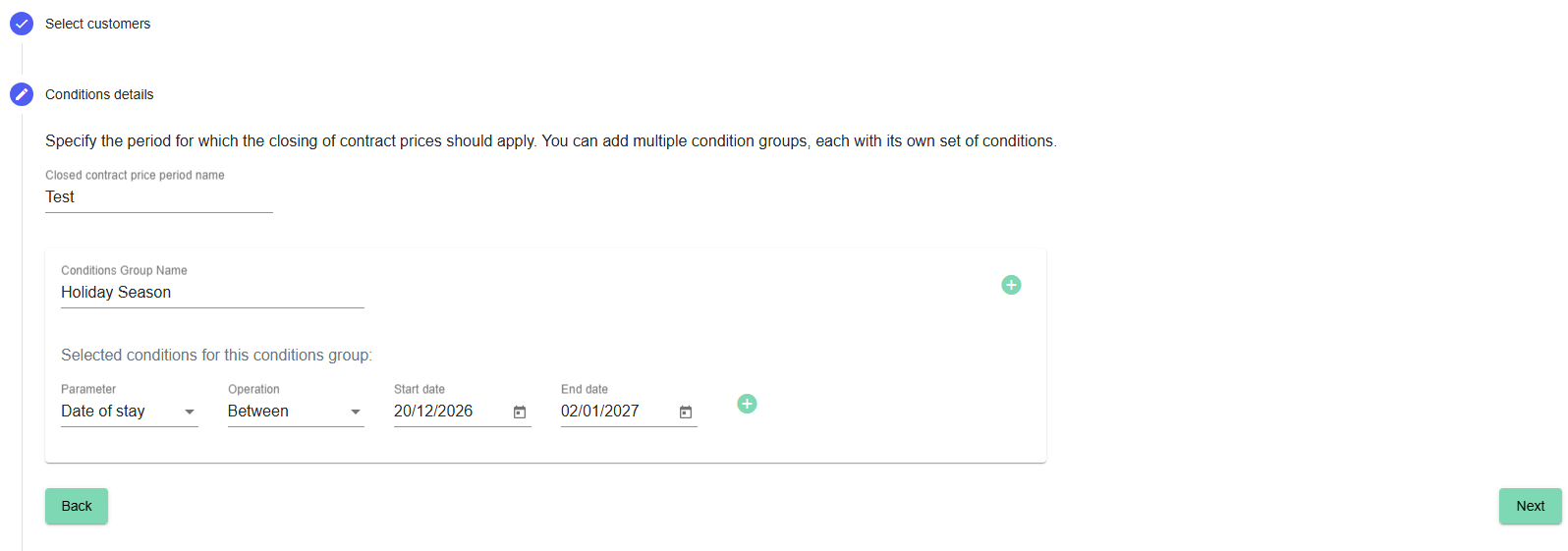
Specify Conditions details. In this step, define the rules for the closed contract prices period.
1. Fill in Closed contract price period name and Conditions Group Name.
2. Apply desired Parameter and Operation, such as Date of Stay, Start/End date.
3. When you have added the details, click Next.
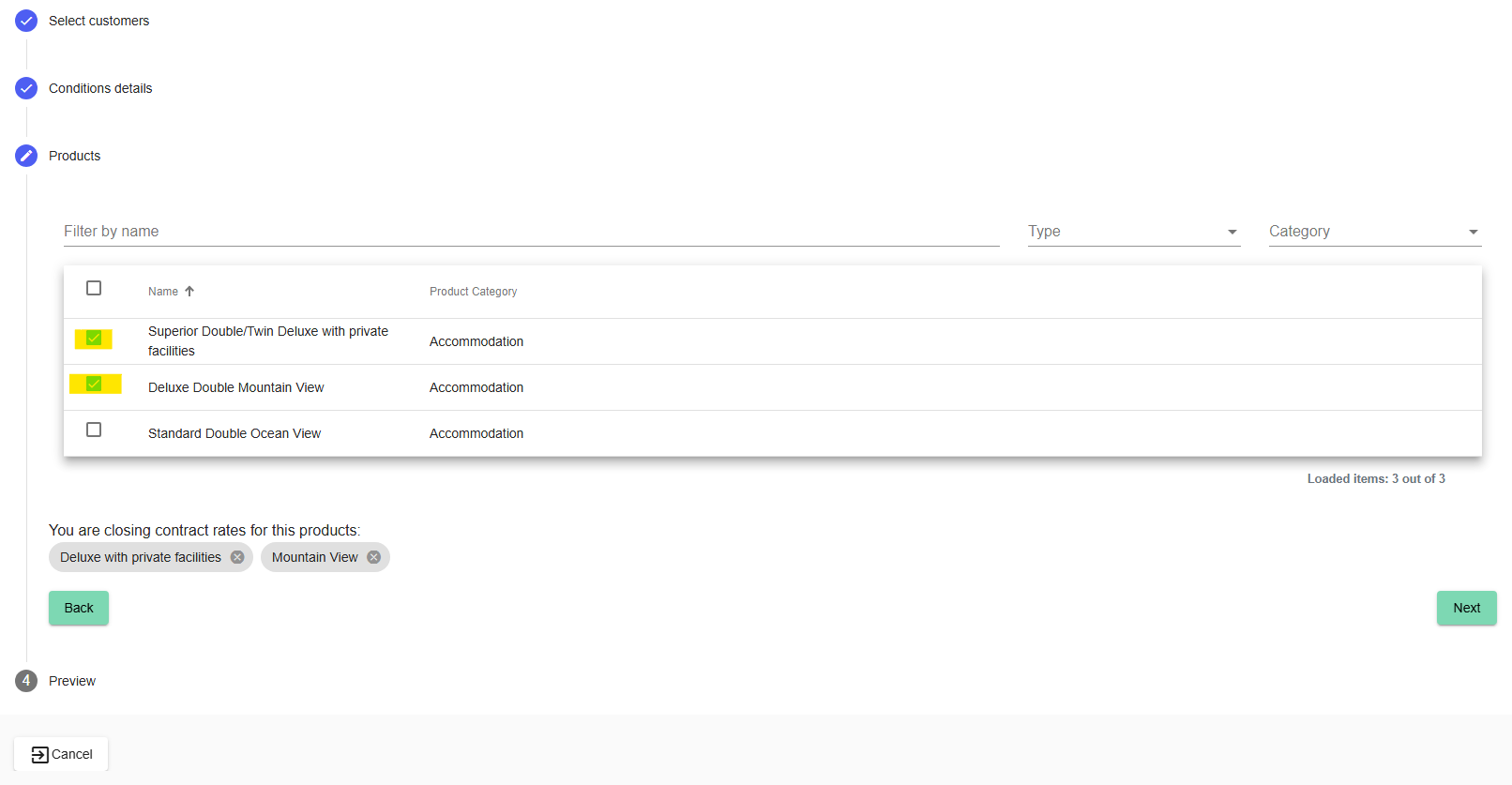
Select the room types or products that should be included in the closed contract prices period.
After selecting the relevant products, click Next.
Review the setup before saving. When you are happy with everything, click on Finish.
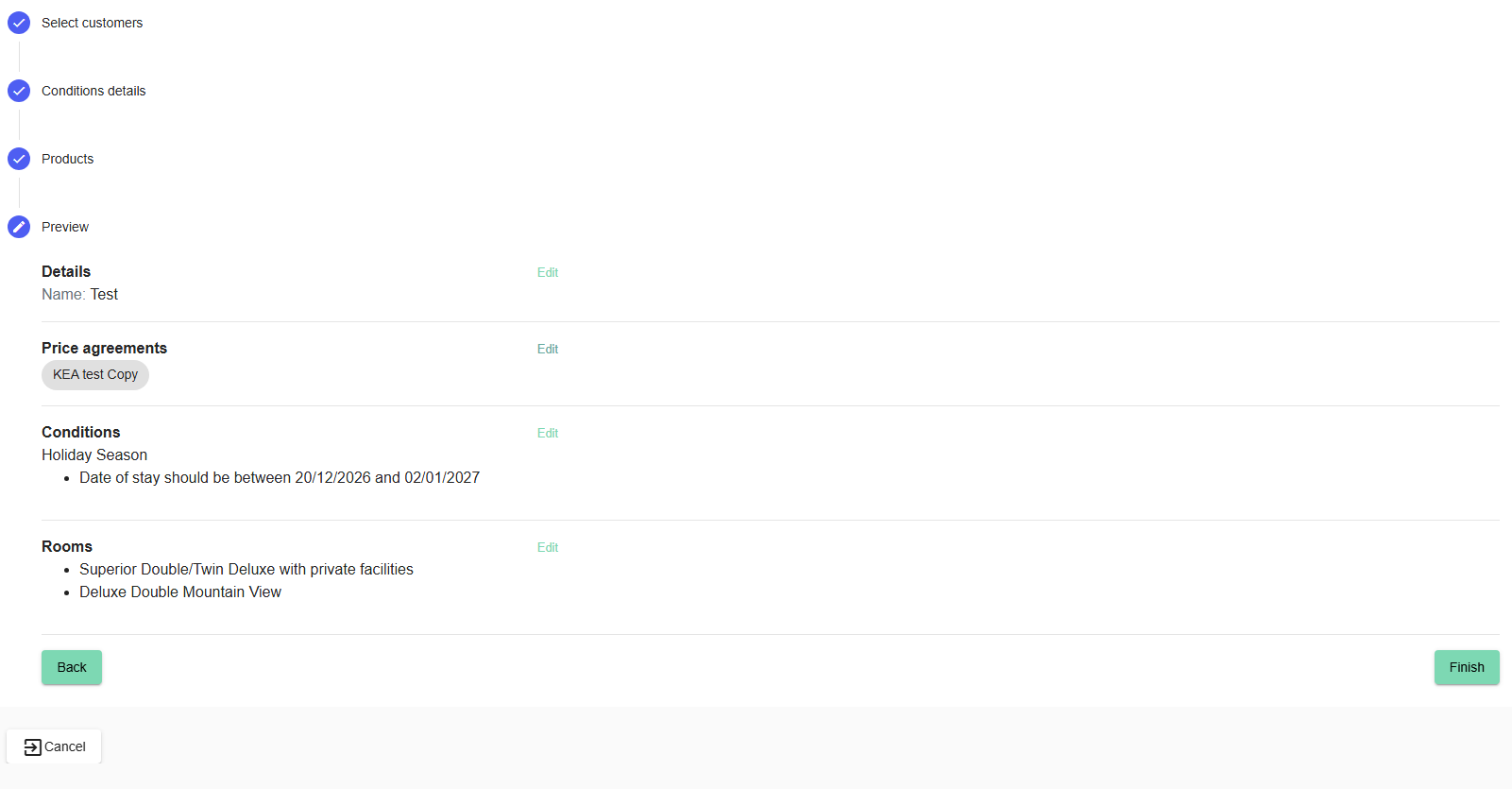
After you finish the setup, the selected contract prices will be closed for the defined customers, products, and date period.
Was this article helpful?
That’s Great!
Thank you for your feedback
Sorry! We couldn't be helpful
Thank you for your feedback
Feedback sent
We appreciate your effort and will try to fix the article