Rate codes are managed from the Rate Codes menu. Use this menu to create, view, edit, or delete rate codes for a property.
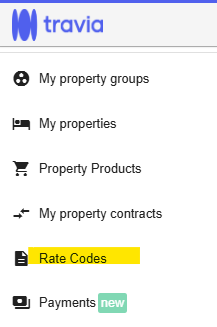
When you open the Rate Codes section, you will see an overview of all rate codes created for the property.
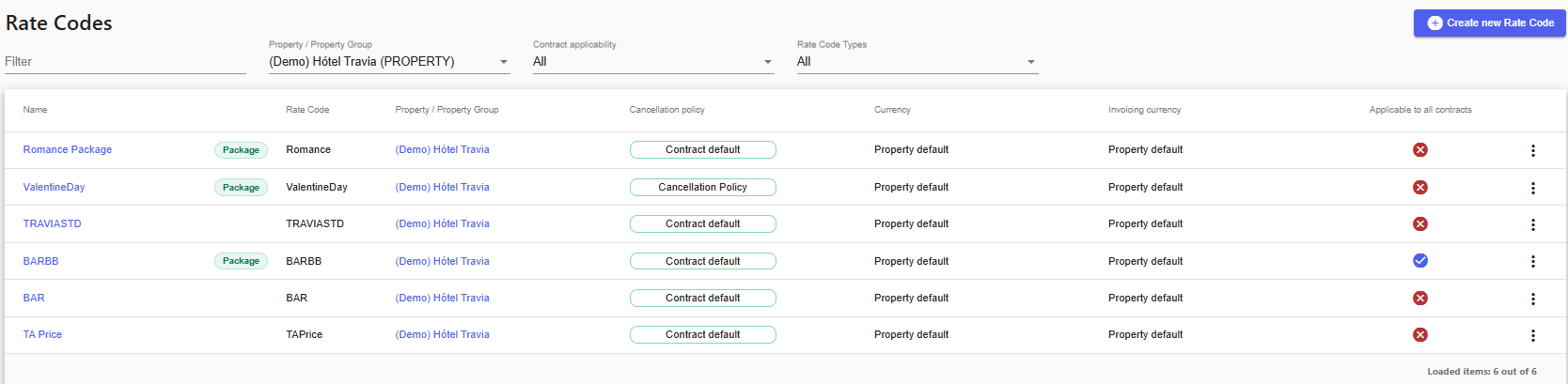
There are two types of rate codes:
Room Rate Codes
Contract Rate Codes
Room Rate Codes are managed from the Rate Codes menu.
To add or edit room rate codes, go to the Rate Codes menu and make the required changes there.
The rate code section in the room setup is read-only. It shows which rate codes the room is linked to, but changes cannot be made from the room setup.

Contract Rate Codes are also managed from the Rate Codes menu.
On the contract level, the rate codes shown are the codes available for the cooperation. These rate codes need to be assigned to the contract.
Contract rate codes are merged with any rate codes linked on the room level. When a booking is made, the lowest available rate will be used.
If all rate codes defined on the contract are closed, the contract will also be considered closed. In that case, only BAR rates will be used, if available.
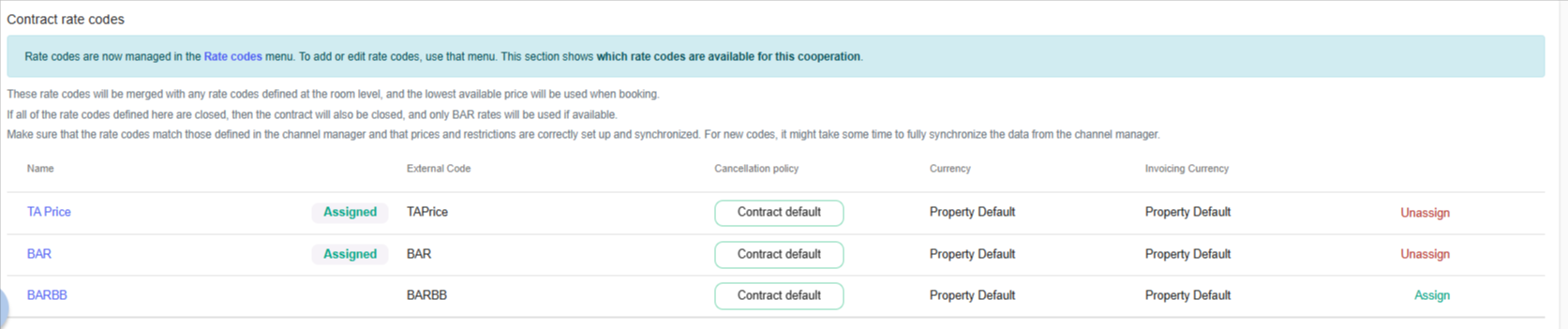
Before creating a rate plan, it is important to make sure that rate codes match those defined in the channel manager and that prices and restrictions need to be correctly setup and connected.
Please note that when new codes are created, it may take some time for the data to fully synchronize from the channel manager.
To create a new rate code, click Create new Rate code. You will then be guided through the setup process.
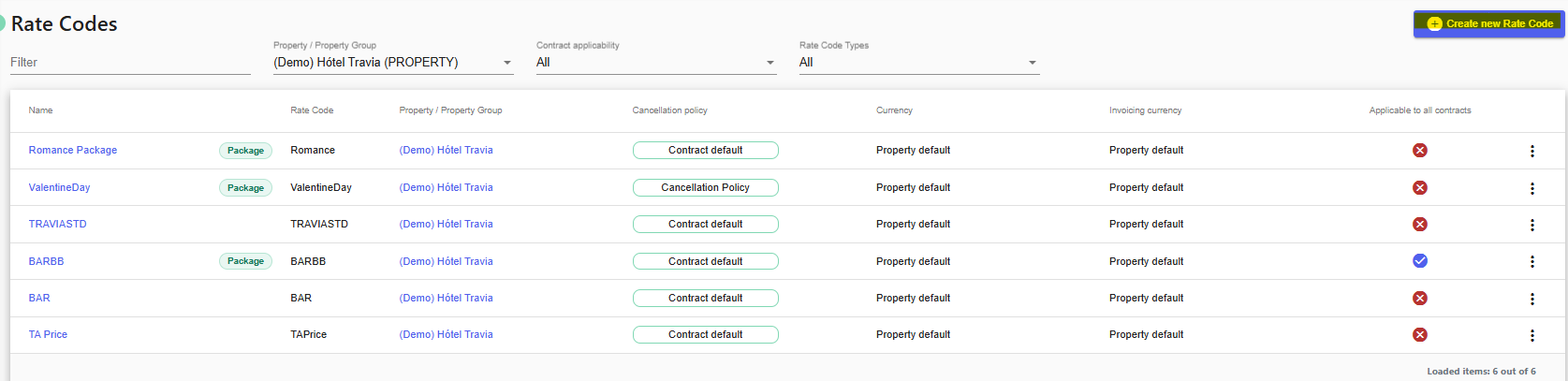
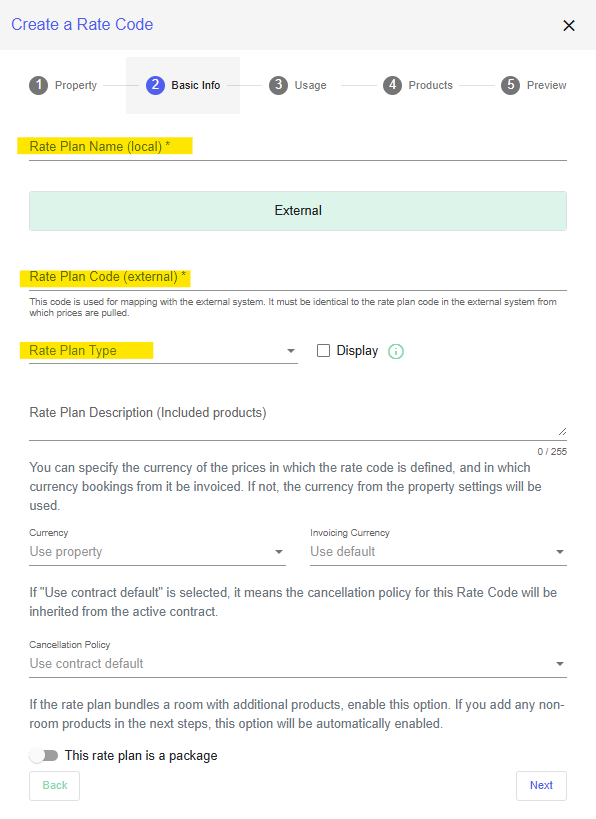
In the Basic Info tab, enter the required information for the rate code. This includes:
The internal name of the rate plan
The external name of the rate plan
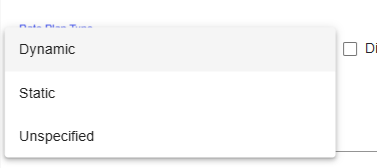
The rate code type
The available rate code types are:
Dynamic
Static
Unspecified
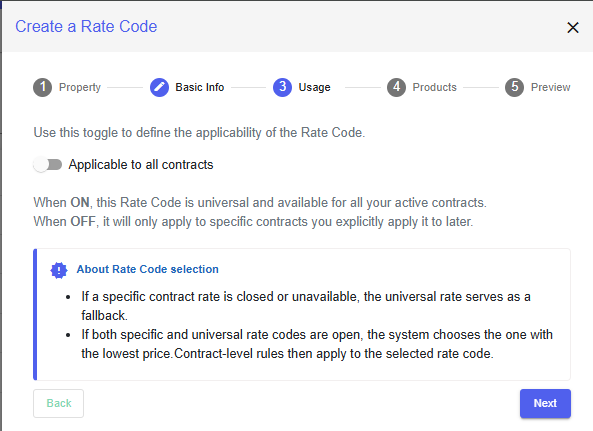
In the Usage tab, choose whether the rate code should be applicable to all contracts.
-If the rate code is applicable to all contracts, it will be available across all contracts.
-If the rate code is not applicable to all contracts, it must be assigned manually to the relevant contracts.
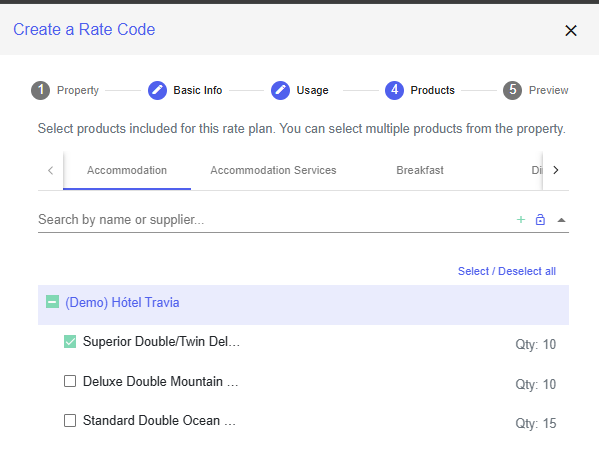
In the Products tab, select which rooms the rate code should apply to. This determines which rooms the rate code is applicable for.
After completing the setup, review the rate code settings to make sure all information is correct in the Preview tab.
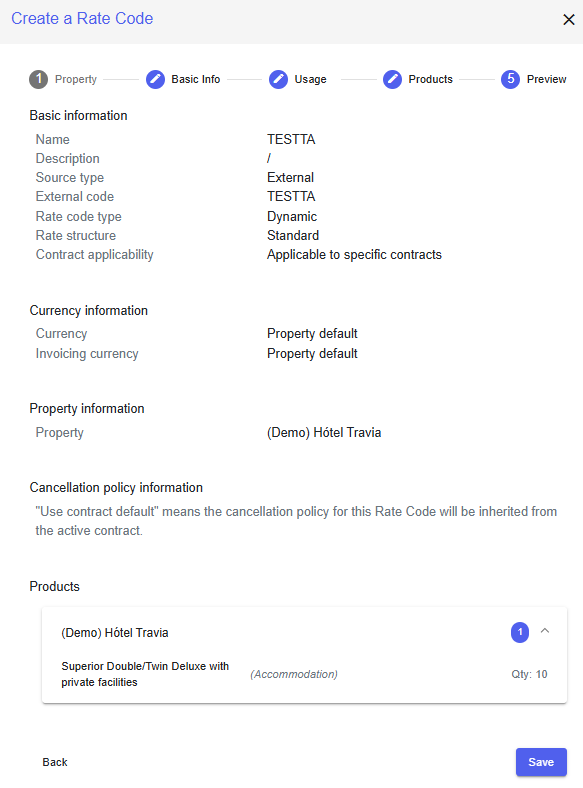
Once the rate code has been created, it will appear in the Rate Codes overview.
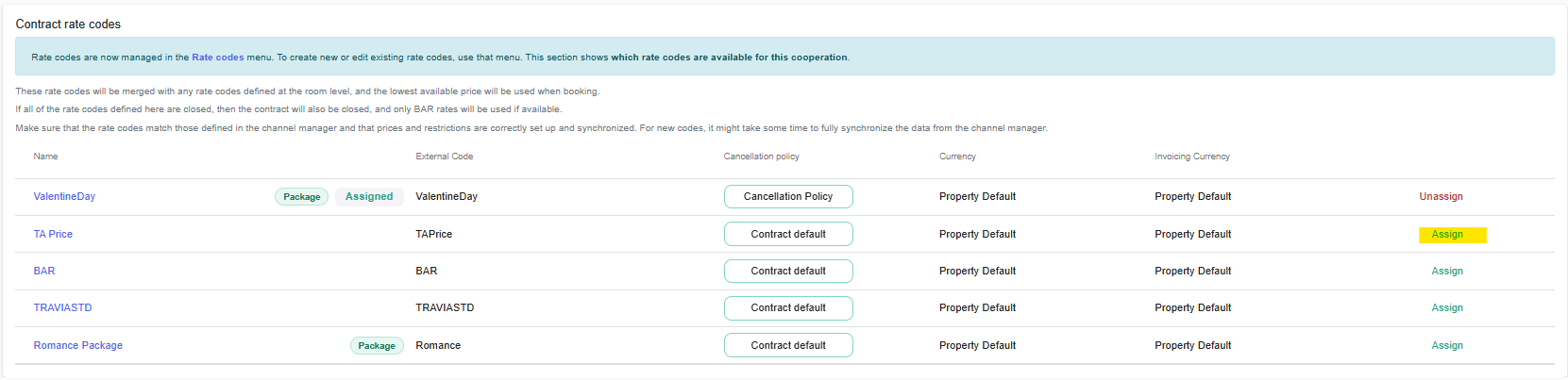
If a rate code is not applicable to all contracts, it must be assigned to a specific contract manually.
1. Open the relevant contract through My property contracts.
2. Go to the Contract rate codes section.
3. Assign the rate code to the contract.
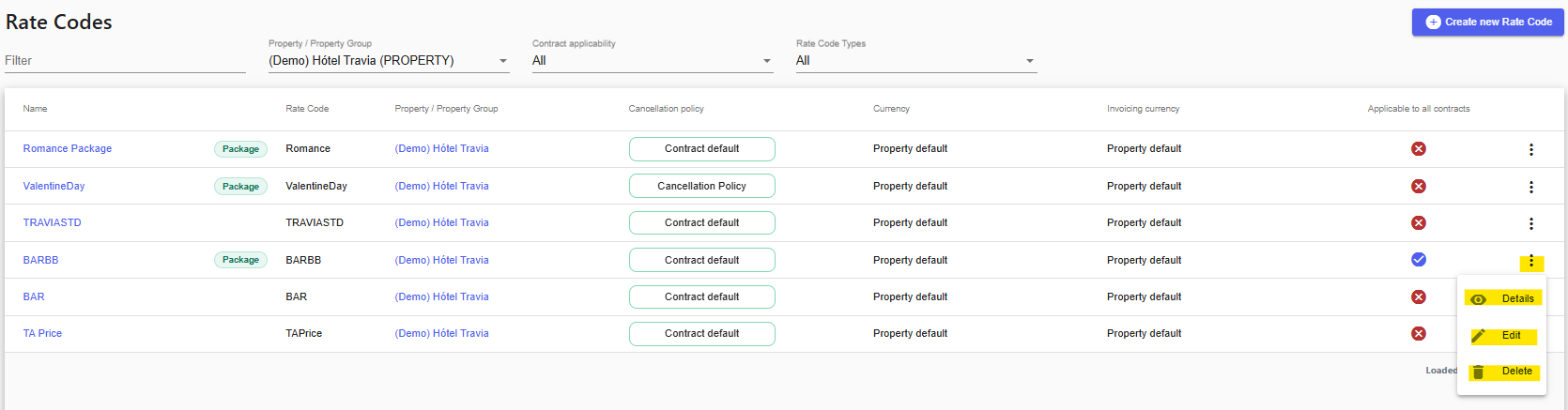
For rate codes that are not applicable to all contracts, you can view an overview from the Rate codes menu.
Click the three dots next to a rate code to view, edit or delete the rate code.
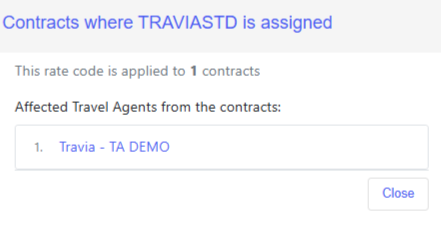
To see which contracts a rate code has been assigned to, open the Contracts view for the rate code.
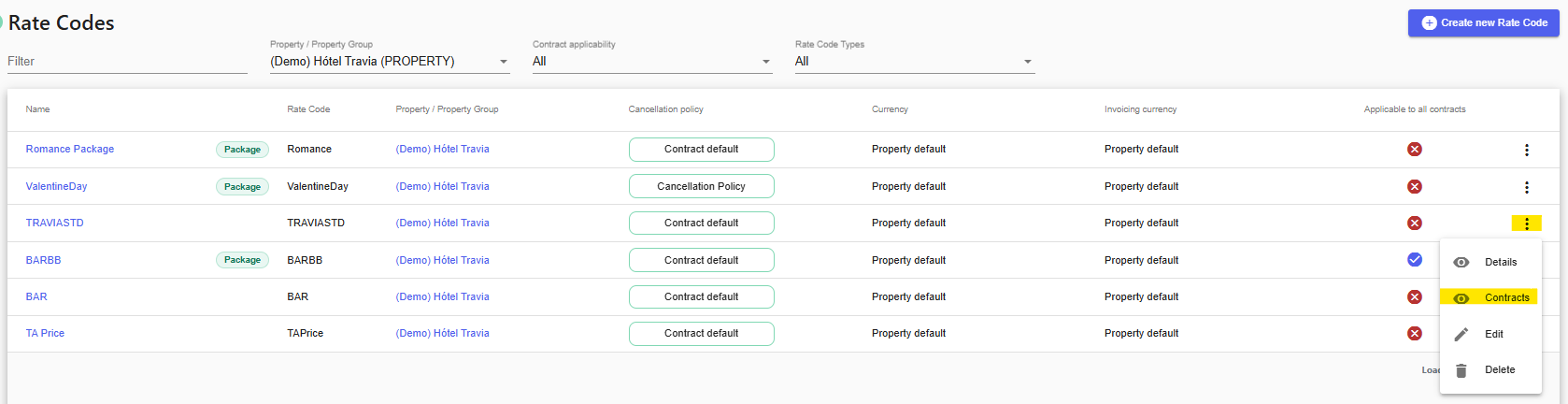
This will show an overview of all contracts where the rate code has been assigned.
When new rate codes are created, it may take some time for the data to fully synchronize from the channel manager.
Was this article helpful?
That’s Great!
Thank you for your feedback
Sorry! We couldn't be helpful
Thank you for your feedback
Feedback sent
We appreciate your effort and will try to fix the article