A NET price agreement is a price list where the prices shown to travel agencies are the actual prices they receive when making a booking with your property.
NET agreements are commonly used when you want to provide travel agencies with agreed contract rates. They are also used when allotments are offered.
You can create as many price agreements as needed in Travia. For example, you may want to have one general price list and separate NET agreements for selected travel agencies.
1. Go to My Properties from the left-hand menu.
2. Click on the property you want to update. This opens the property information page.
3. From the property menu, select the Seasons & Prices tab.
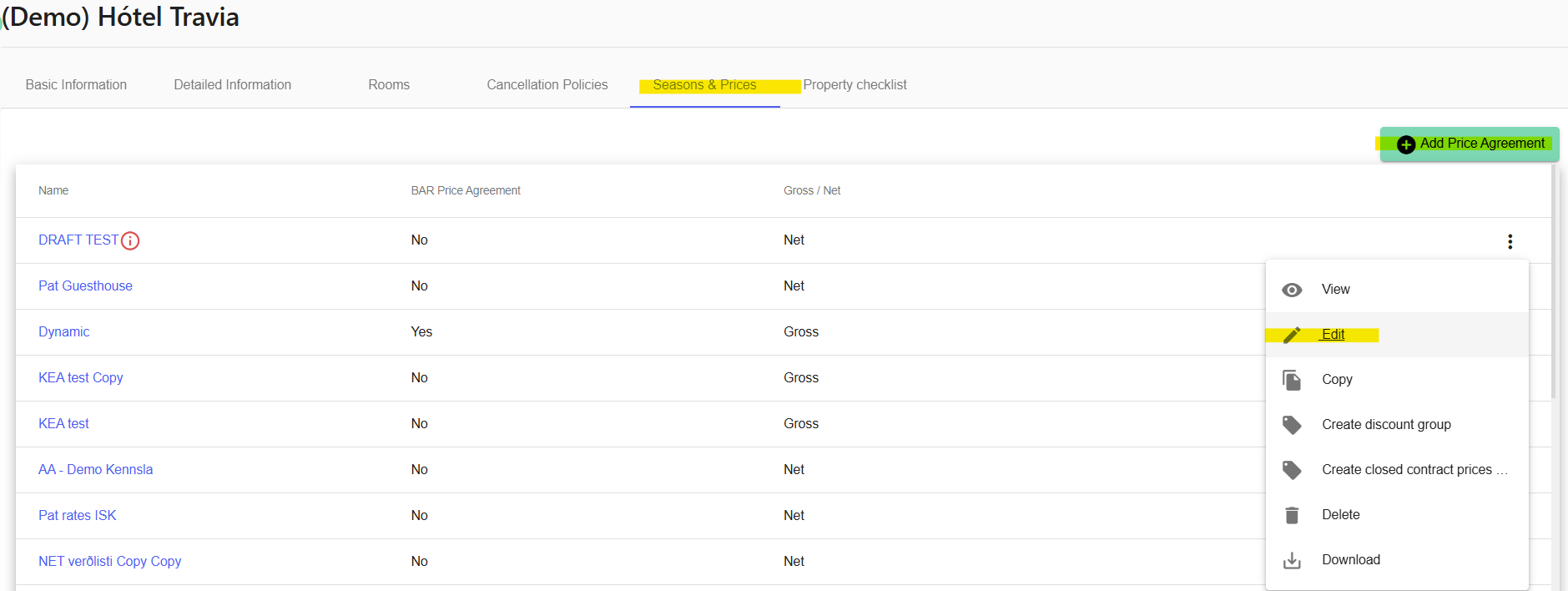
4. From here, you can either edit an existing price agreement or create a new one.
-To modify an existing price agreement, click the three dots to the right of the price agreement and select Edit.
-To create a new price agreement, click Add Price Agreement.
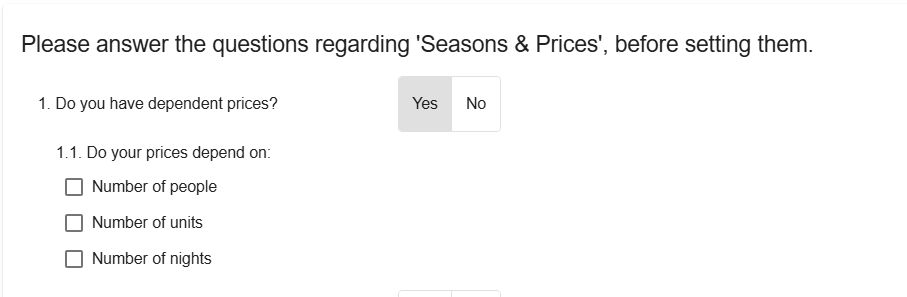
Choose how prices should be calculated. Travia will ask how you want to set up the pricing for this agreement.
You can base your prices on the number of adults, rooms and/or number of nights.
You can also combine these options, depending on how your pricing is structured. For example, you may want prices to change based on occupancy, length of stay, or number of rooms booked.
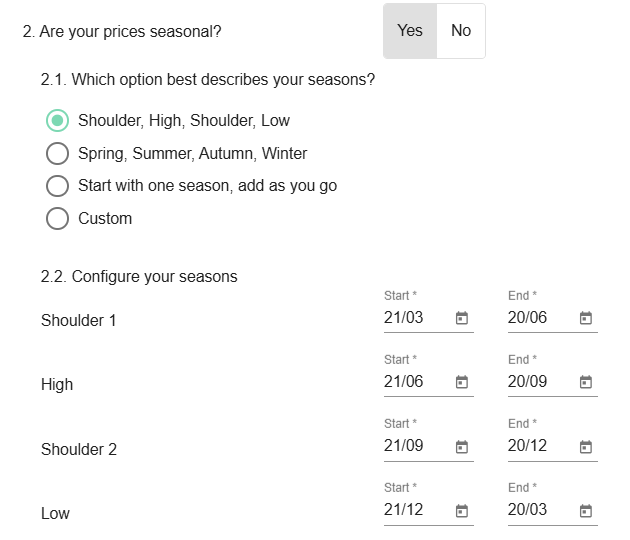
Next, Travia will ask if your price agreement is seasonal. Select Yes if your prices change depending on the season.
If you select Yes, you can:
-Choose an existing season template
-Select Custom and create your own season date ranges
-Configure the seasons before continuing
If your prices are the same throughout the year, select No. You can edit the price agreement later if you need to add or change seasons.
Click Next when you have selected the pricing structure.
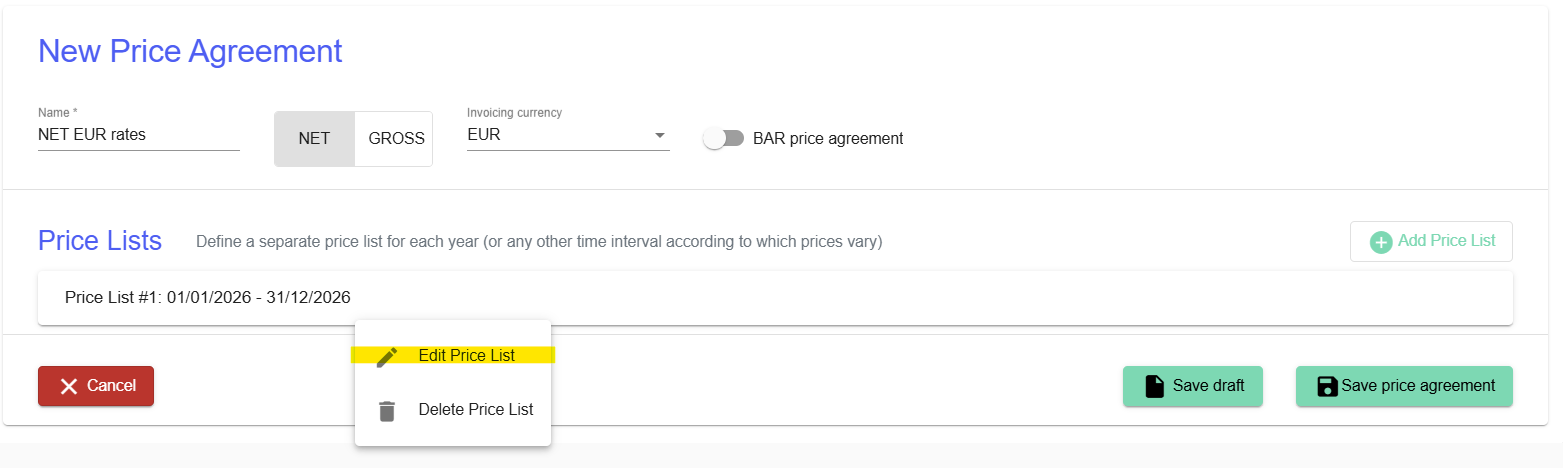
1. Enter a Name for the price agreement and select NET.
A NET price agreement means that the prices shown to travel agencies are the prices they receive when making a reservation. These are the agreed contract rates between your property and the travel agency.
You may also see other agreement types:
- GROSS - means the prices do not include commission. You will need to define how much commission each travel agency receives. The discount is selected later when you set up cooperation with travel agencies.
- BAR - means Best Available Rate. In this case, Travia retrieves the rates from your PMS system.
2. Define the Invoicing currency in which you want the prices to be sent to your system for invoicing. If not selected, by default, all prices are sent to your PMS in the currency selected in Basic Information tab when the property was created.
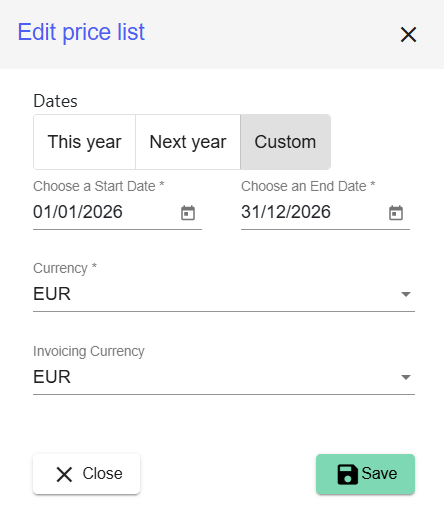
3. Define your Price List dates during which the price agreement is valid. Click the three dots next to the price agreement and select Edit Price List. A new window will open. Select the dates and click Save.
For each room or product, enter the NET rates according to the pricing structure you selected earlier.
For example, if your prices depend on the number of adults, you can enter a different price for 1 adult, 2 adults, additional adults if applicable etc.
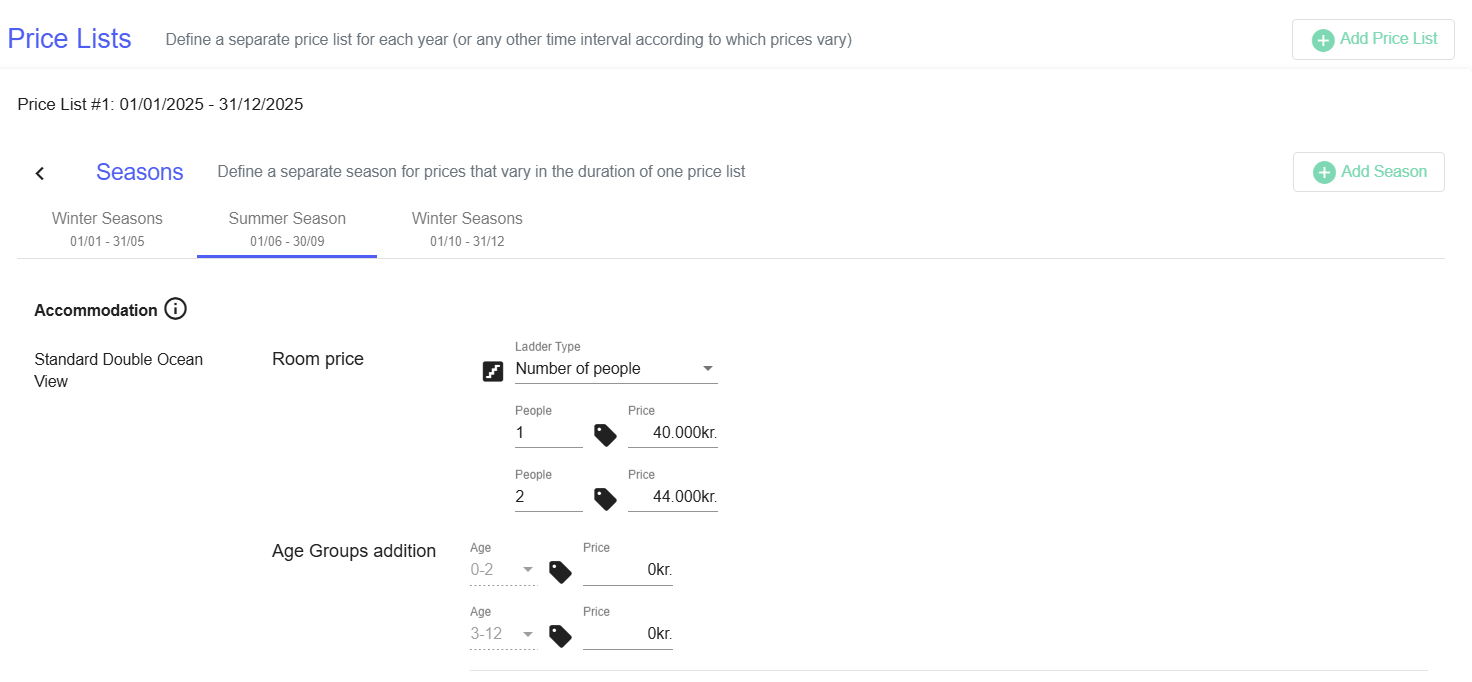
If your price agreement is seasonal, make sure to enter prices for each season. Below the price setup, you will see the Seasons section.
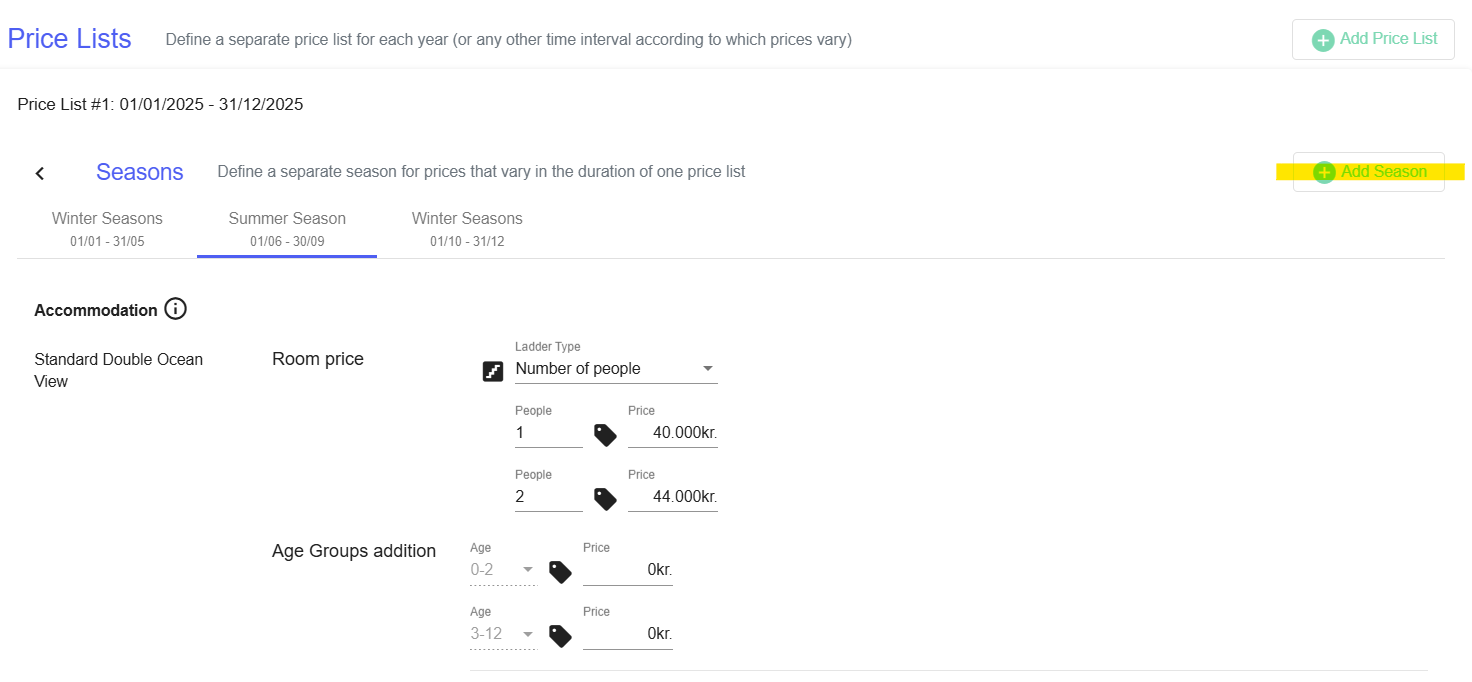
To create a new season, click Add Season and enter the season details.
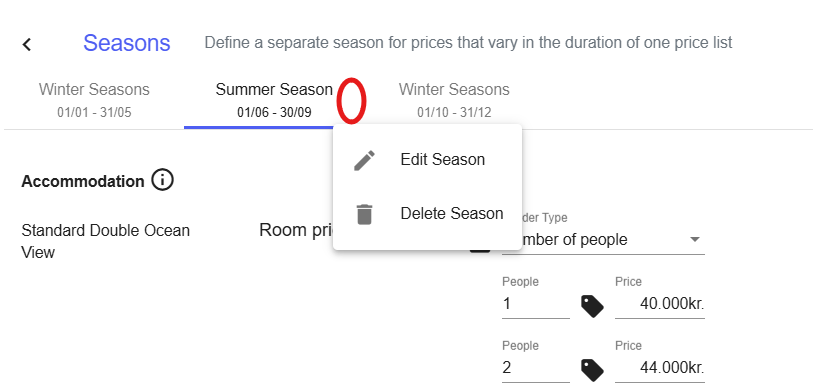
To edit or delete a season, hover your mouse over the season. The three dots will appear. Click the three dots to open the available options.
If you have several seasons, you can copy prices from one season to another. Use Copy prices from to select the season you want to copy prices from.
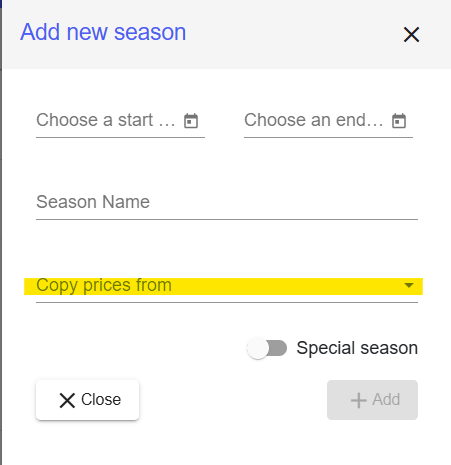
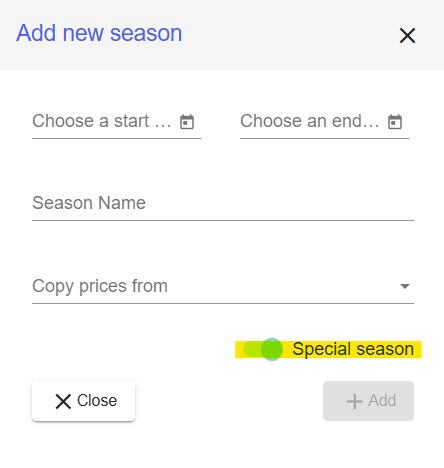
You can use a Special Season when you need different prices for a specific period within an existing season.
This can be useful for periods such as Christmas, New Year, Easter, public holidays, local events, high-demand dates etc.
A Special Season overrides the regular seasonal prices for the selected date range. Make sure to enter the correct rates for the special season before saving the price agreement.
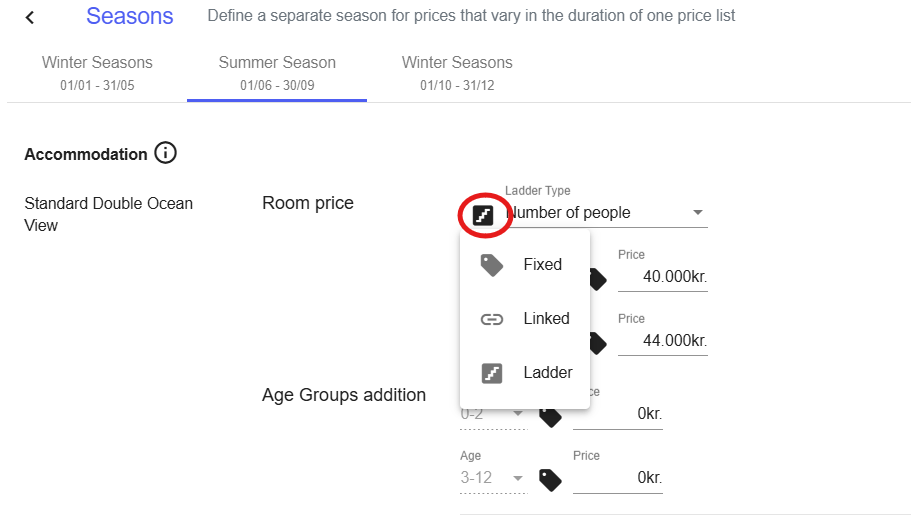
For each room or accommodation type, you can choose how the price should be calculated.
Click the price type icon and select the relevant option. The available price types are:
- FIXED - enter a fixed price for the room or accommodation type.
- LINKED - link the price to another price rule.
- LADDER - use stepped pricing based on conditions such as occupancy, number of rooms, or length of stay.
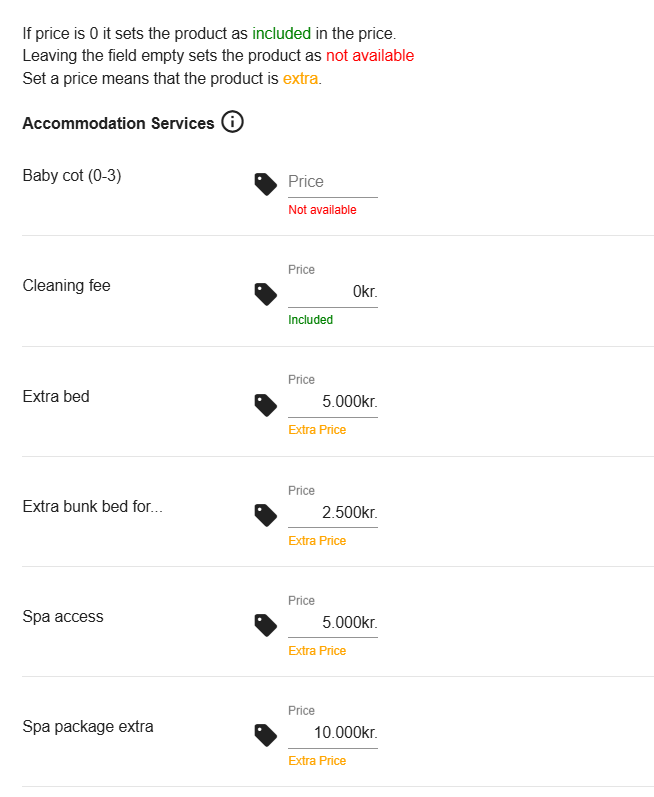
Add accommodation services and meal plans.
Below the accommodation prices, you can set up additional services connected to the price agreement. These may include extra bed. breakfast, meal plans or other property products or services.
You can define whether these services are included in the price or added as an extra cost.
If you need to add more products or services to your property, go to Property Products. Once the products have been added there, they will be available when setting up the price agreement.
You can save your progress by clicking Save draft. This allows you to return to the price agreement and continue editing later, as long as the agreement is not connected to an active cooperation.
When the NET price agreement is complete, click Save price agreement. The price agreement can then be used when setting up cooperation with travel agencies.

Was this article helpful?
That’s Great!
Thank you for your feedback
Sorry! We couldn't be helpful
Thank you for your feedback
Feedback sent
We appreciate your effort and will try to fix the article