Property Group Requests let properties respond to requests for a block of rooms for a group stay.
In Travia, a group request is always started by a travel agency. When an agency sends a request for a room block, it appears in your Property Group Requests overview, waiting for your response on status.
To review or respond to a group request:
1. Navigate to Property Group Requests section from the main navigation menu.
2. Locate the group request you want to respond to. Requests waiting for your action will show the status Requested.
3. Next to the request you want to respond to, click the three dots (⋯) on the right-hand side and select Respond.

This will open the request so you can review the full Group Details. From here you have two options:
Decline request – decline the request straight away if you do not have the availability or cannot accommodate the group.
Next – continue to the Rooms step.

At the top of the Rooms step, you’ll see a summary of what the agency has requested, including the total rooms requested, the total guests, and the specific room types and quantities the agency has asked for.

Enter the offer details for the requested rooms:
1. Select the applicable Price Agreement and Cancellation Policy from the dropdown.
2. Select Hold availability if you want to hold availability for the room block. When enabled, a Sync As dropdown appears for each room type. Use it to choose the allotment booking status - that is, the status the block booking will sync into your PMS with: Confirmed, Request, Blocked or Inquiry.
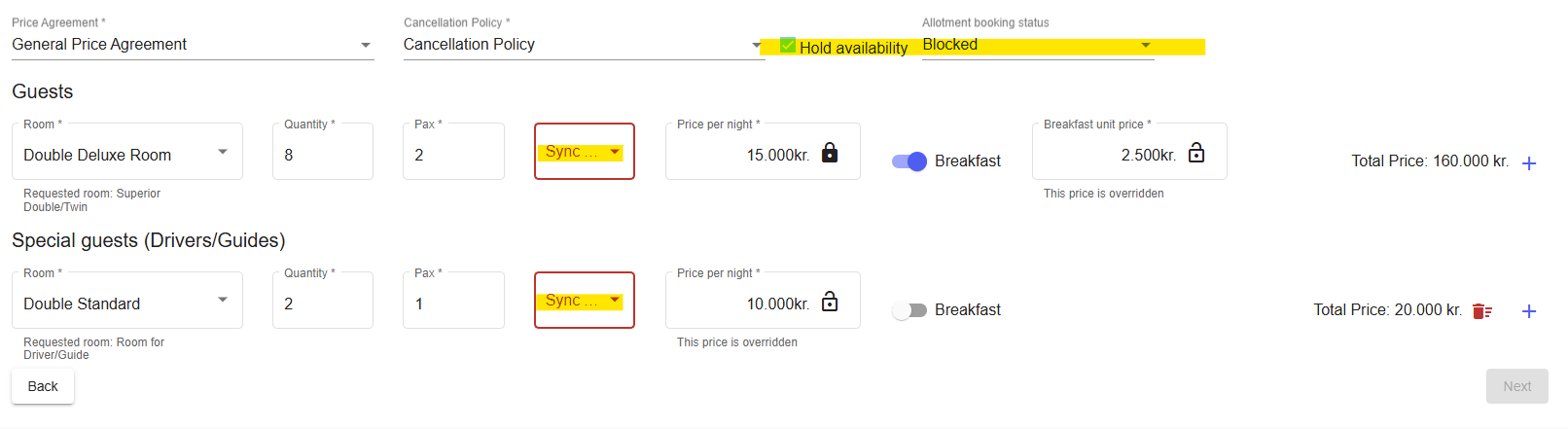
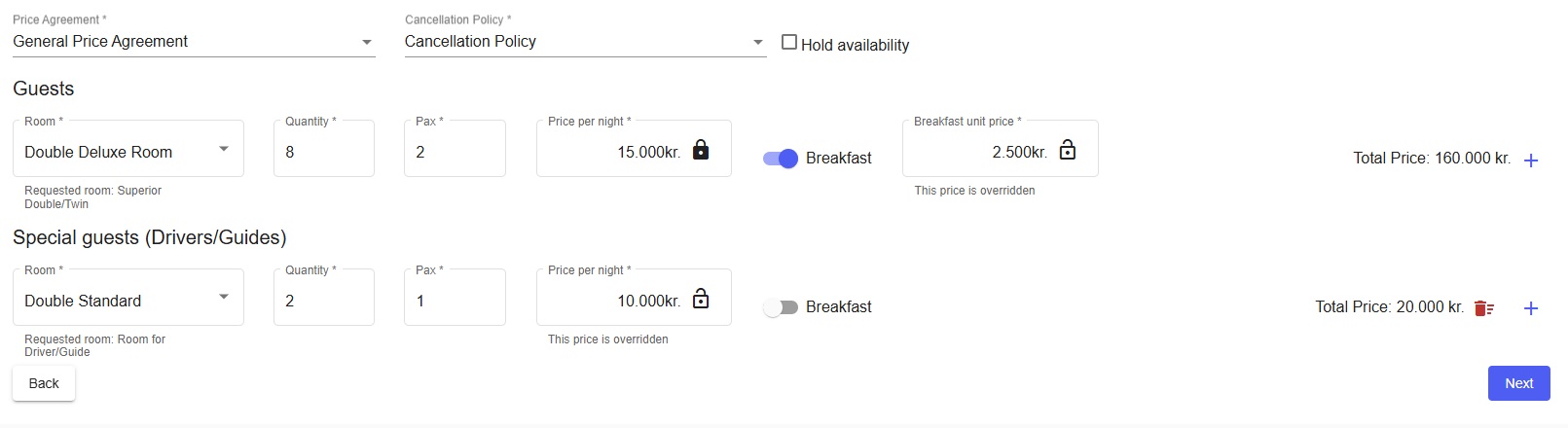
3. For each requested room type, select the room, set the quantity, number of pax, and toggle breakfast on or off.
Prices are taken from the Price Agreement you selected. Once you choose a room type, the price per night is filled in automatically. To override it, click the lock icon next to the price. The price is then marked as overridden, and you can click Use price agreement price to go back to the price from the agreement. The breakfast unit price works the same way.
The Add-ons step is where you select the add-ons to include in the offer for each room type. Add-ons are optional - if you do not want to offer any, click Continue without add-ons to move on to the next step.
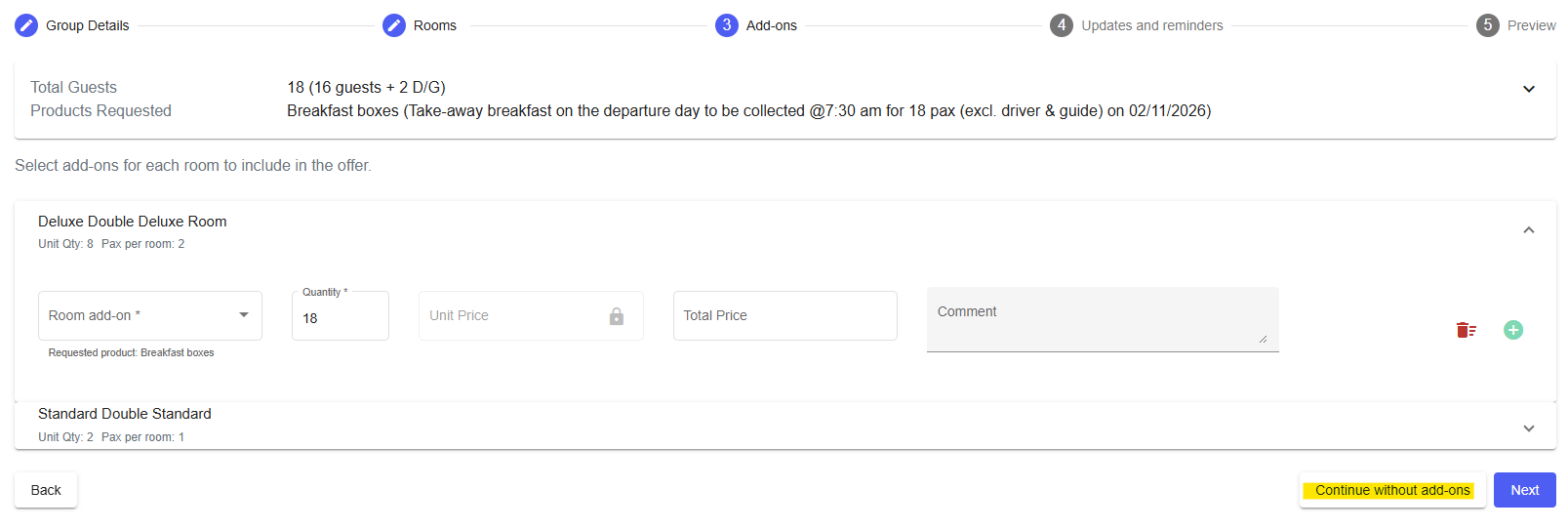
At the top of the step, the summary shows the total guests and any products the agency requested, together with the agency's comments. For example, if the agency asked for breakfast boxes, the requested product and its details appear here.

Each room type appears as a card showing the unit quantity and the number of guests per room.
To add an add-on to a room type:
1. Select add-ons for each room to include in the offer.
Room add-on – select the add-on you want to include. The card shows the product the agency requested as a hint.
Quantity – set the number of units to include in the offer.
Unit Price – taken from the selected price agreement. Click the lock icon to override it.
Total Price – calculated automatically from the quantity and the unit price.
Comment – add any details for the travel agency, such as a collection time or other instructions.
2. Use the + button to add another add-on to the same room type, and the bin icon to remove one.
3. Click Next to continue to the Updates and reminders step.
The Updates and reminders step is where you set when unused rooms are released back to your general availability, and the reminders the travel agency receives before each release.
1. Choose one of the pre-configured templates to get started quickly, or click Create custom to build your own schedule.
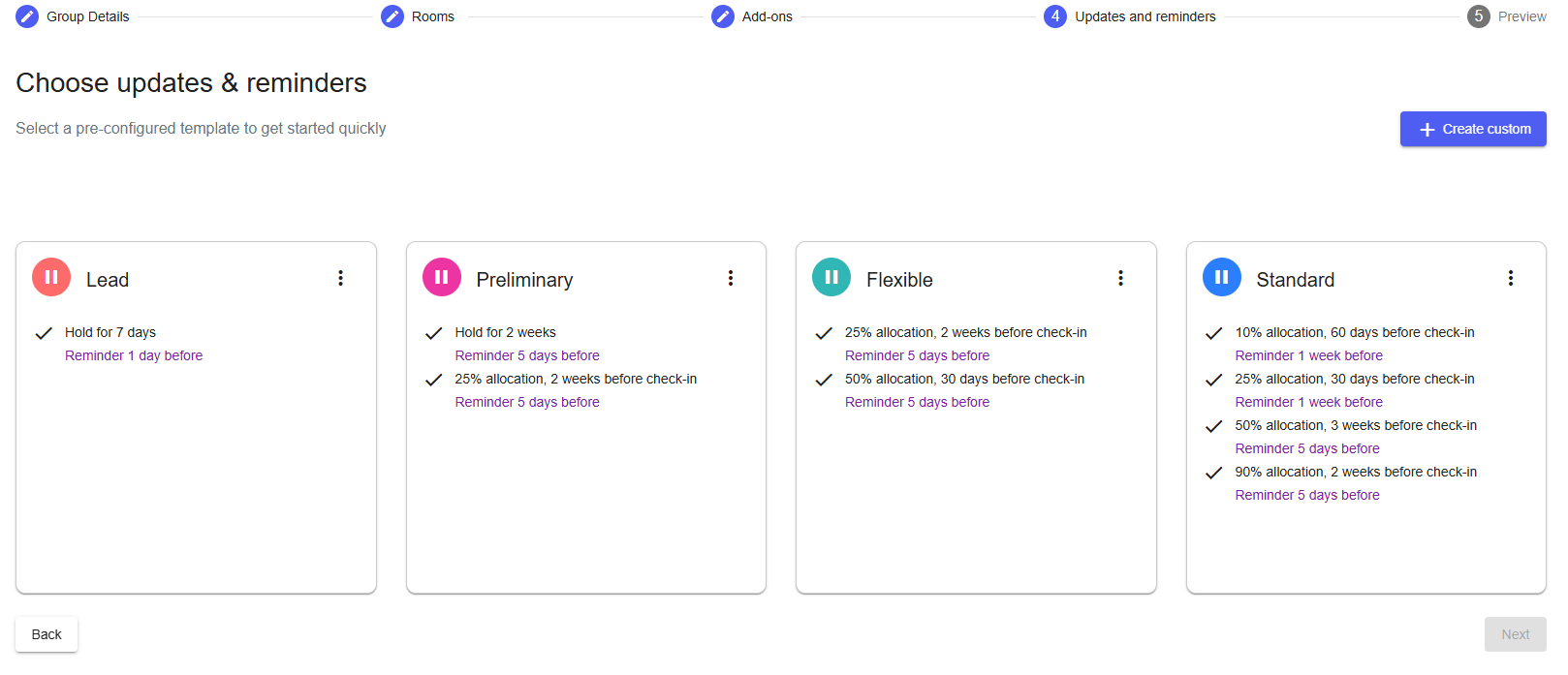
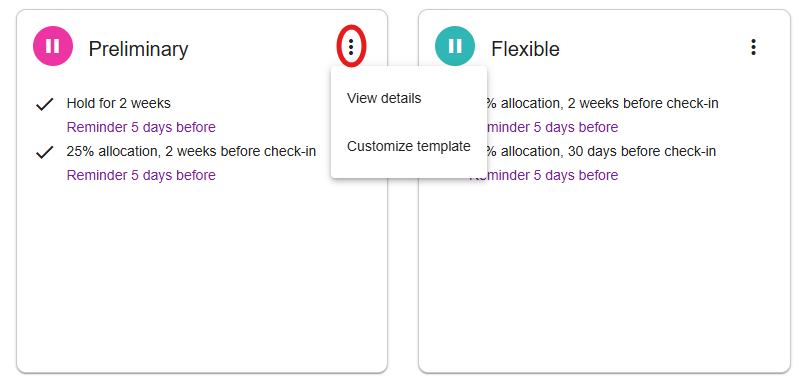
Each template card lists its release schedule and the reminders that go with it:
Lead - hold for 7 days, with a reminder 1 day before.
Preliminary – hold for 2 weeks, with a reminder 5 days before; then release 25% of the allocation 2 weeks before check-in, with a reminder 5 days before.
Flexible – release 25% of the allocation 2 weeks before check-in and 50% 30 days before check-in, with a reminder 5 days before each release.
Standard – release 10% of the allocation 60 days before check-in, 25% 30 days before, 50% 3 weeks before and 90% 2 weeks before, with a reminder 1 week before the first two releases and 5 days before the last two.
Each template card has a three-dot menu (⋮) with two options: View details and Customize template.
2. Create custom and Customize template both open the Create updates & reminders template window, where you can build your own schedule and add up to five rules.
3. Give the template a name in the Template Name field, then set up each rule:
Type – the action to take (Hold or Update).
Period – how long the rule applies, for example 7 days.
Room Percentage – for Update rules, the percentage of the allocation to release, for example 25%.
Reminder – how long before the period ends the reminder is sent, for example 1 day.
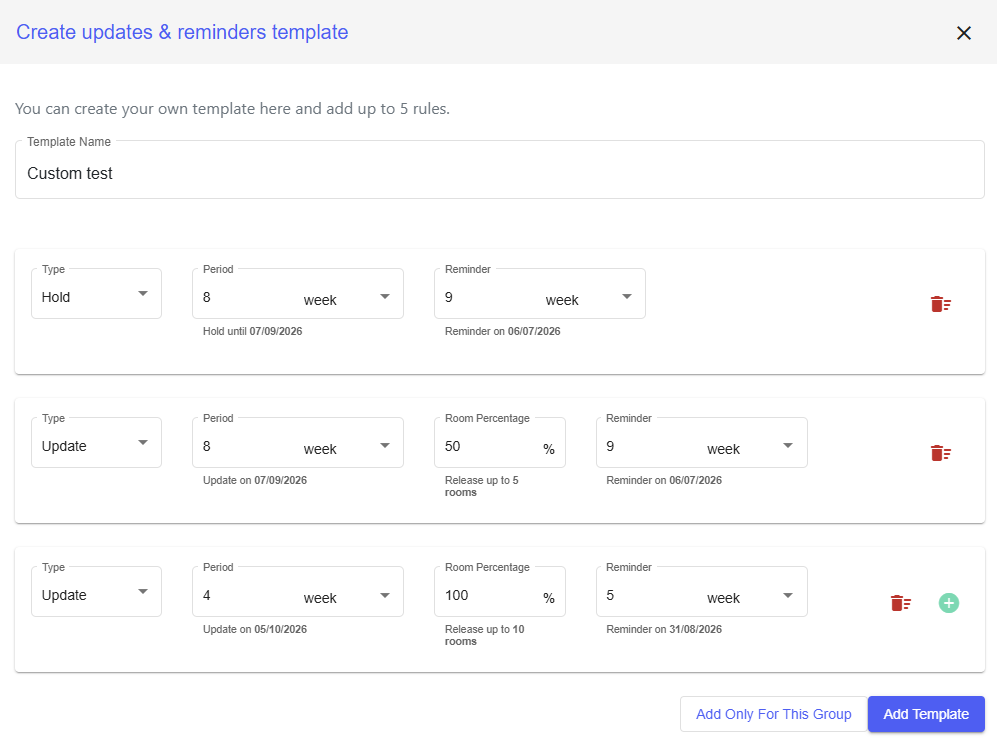
The window shows the dates each rule works out to, and for Update rules it also shows how many rooms the percentage releases. For example:
Hold, period 8 weeks, reminder 9 weeks - Hold until 07/09/2026 and Reminder on 06/07/2026.
Update, period 8 weeks, room percentage 50%, reminder 9 weeks - Update on 07/09/2026, Release up to 5 rooms and Reminder on 06/07/2026.
Update, period 4 weeks, room percentage 100%, reminder 5 weeks - Update on 05/10/2026, Release up to 10 rooms and Reminder on 31/08/2026.
Use the + button to add another rule, up to a maximum of five.
When you are done, click Add Template to save the template, or Add Only For This Group to apply it to this group request only.
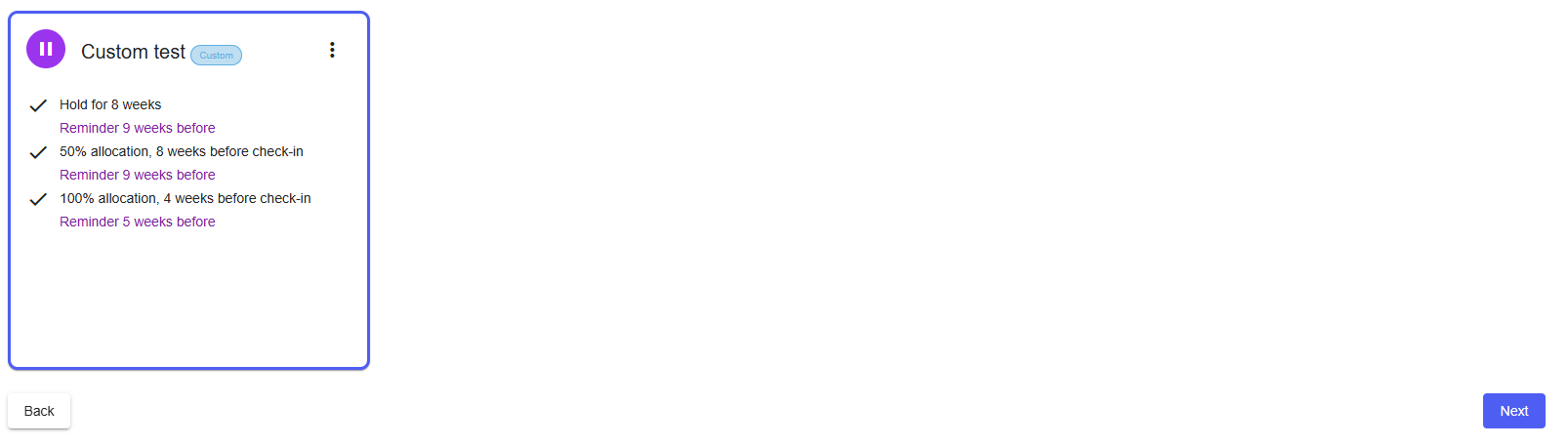
Once you have selected a template, click Next to continue to the Preview step.
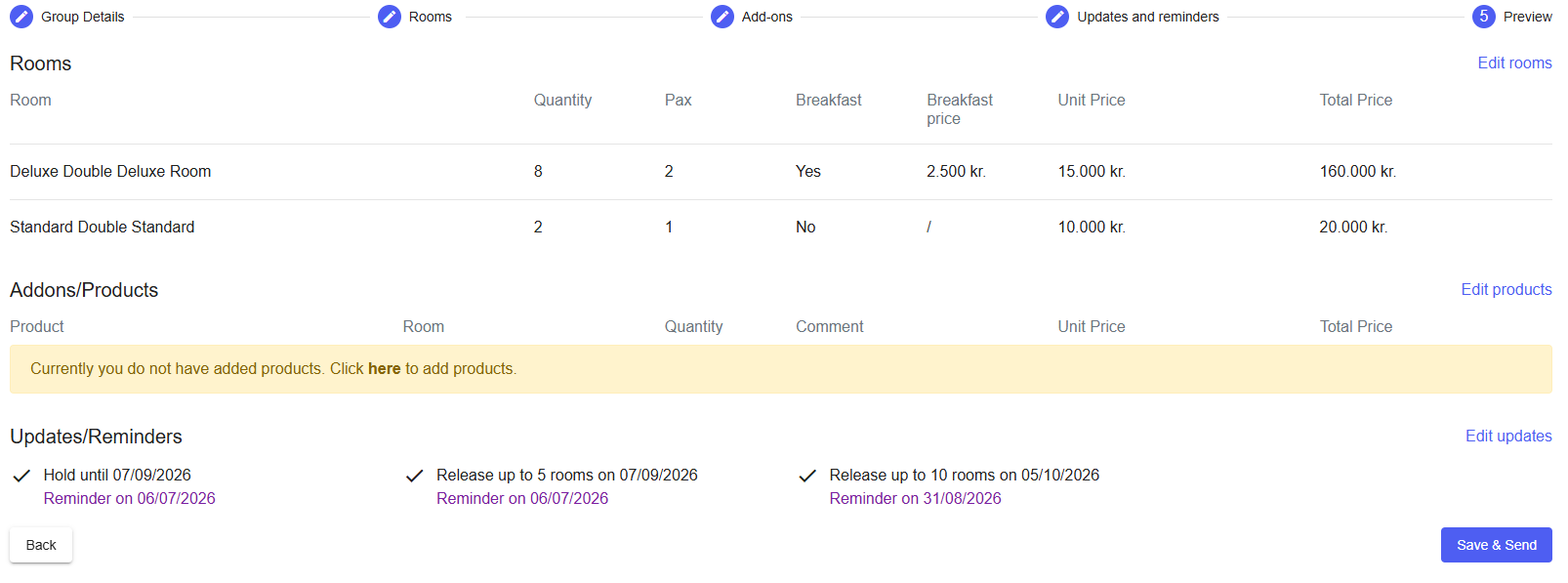
The Preview step shows a summary of the offer before you send.
Use Back to return to the previous step, or edit a specific field if you need to make changes. If you are satisfied with the offer, click Save & Send to send the offer to the travel agency.
Was this article helpful?
That’s Great!
Thank you for your feedback
Sorry! We couldn't be helpful
Thank you for your feedback
Feedback sent
We appreciate your effort and will try to fix the article