A Group Allotment can begin with a request from a travel agency, or a property can create and offer an allotment in Travia. This article explains how to review a travel agency’s Group allotment request and send an offer in response.
When a travel agency sends you a Group Allotment request, you’ll receive an email notification with a link that takes you to the request in Travia.
1. Go to Property allotments from the main menu.
2. Use the Status filter and select Requested to show only the allotment requests that are waiting for your answer.
3. Find the group allotment request you want to review. Click the three dots on the right of the allotment and select Edit.

4. The request opens with an overview of the group. The Allotments section lists all the allotments included in the allotment group, with their status, name, dates, room type, total rooms, and fill percentage.
If you want unused rooms to become available to others automatically, enable Auto Release and configure the release options. Set the number of Auto Release Days to specify how many days before the relevant date the rooms should be released, then click Save.
Group release- Unused rooms are released one day at a time.
Whole allotment - All unused rooms for the allotment period are released together.

5. If the travel agency has requested multiple dates, each date is a separate allotment in the group. You can review them, confirm them, or, if you have some questions, ask the travel agent through the message screen. To review an individual allotment, click the three dots on the right of its row and select View. A side drawer opens from the right.

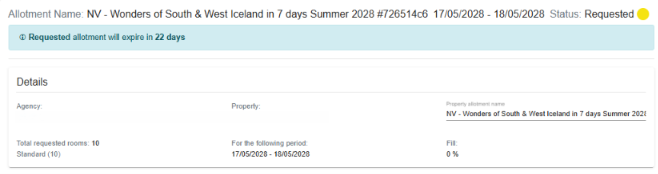
6. The allotment opens with the full request Details such as the travel agency, property, property allotment name, total requested rooms, the requested period, and the fill percentage. A banner at the top tells you how many days are left before the requested allotment expires.
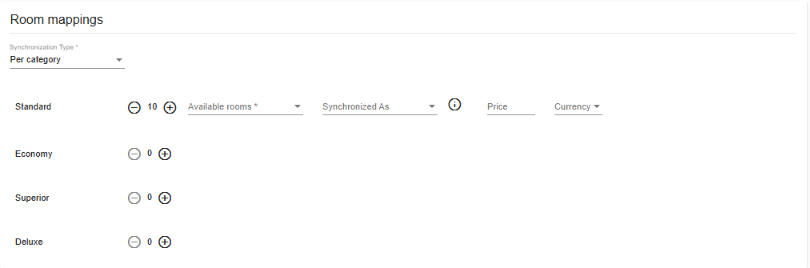
7. In Room mappings, choose a Synchronization Type and configure the rooms you are offering. Select the Available rooms, then choose the matching room under Synchronizes As.
Synchronization Type determines how the rooms are matched:
Per category- You offer a quantity of rooms in a room category, for example 4 Superior rooms. The travel agency can book any room type within that category. You can include multiple room types in the category, but only one of them can be synchronized, so the mapping is less specific.
Per room- You set the quantity for each specific room type, so each type is offered and synchronized separately. Use the plus button to increase the quantity, or the green plus above to add another room type.
You can connect a Rate plan code and a fixed Price to the unused block bookings. When the travel agency then books from the allotment, the prices from the default price agreement selected below apply and override the price on the booking in your hotel system.
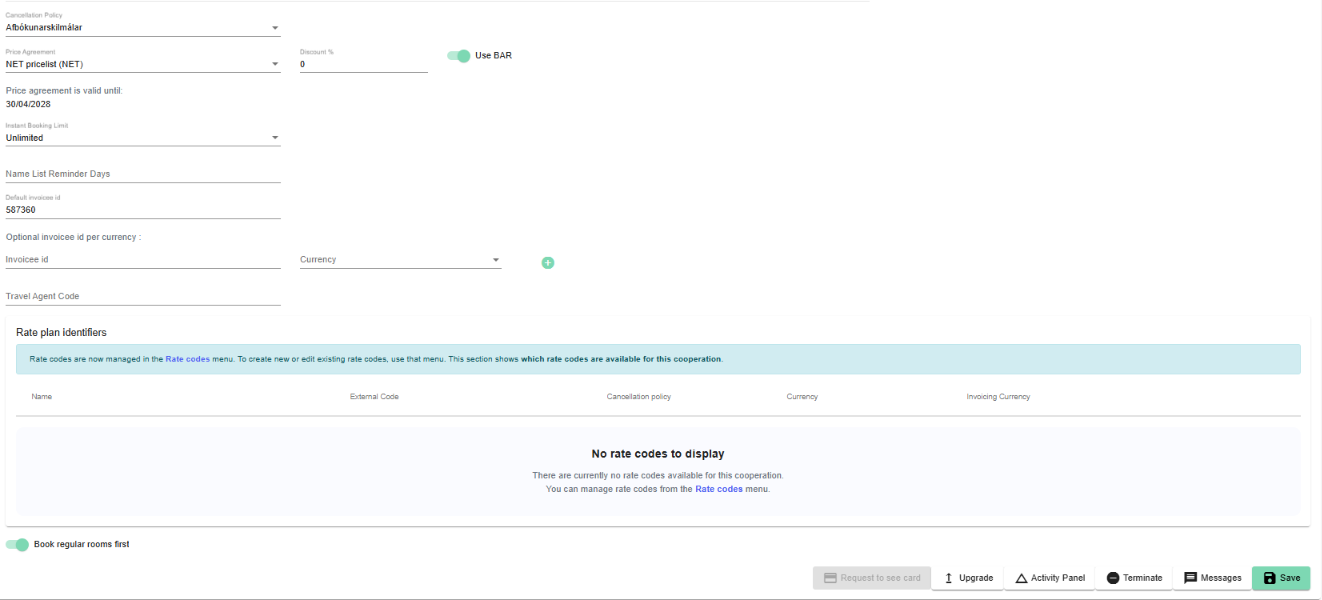
8. In Settings & Rules, select the Price Agreement and Cancellation Policy. Set the Allotment booking status, which determines the status the allotment will have in your PMS.

9. To send your offer, click Offer. The travel agency will be notified and can accept or decline it. Once the travel agency accepts, all the bookings are synced to your channel manager. If you do not want to make an offer, select Reject.
***PLEASE NOTE***
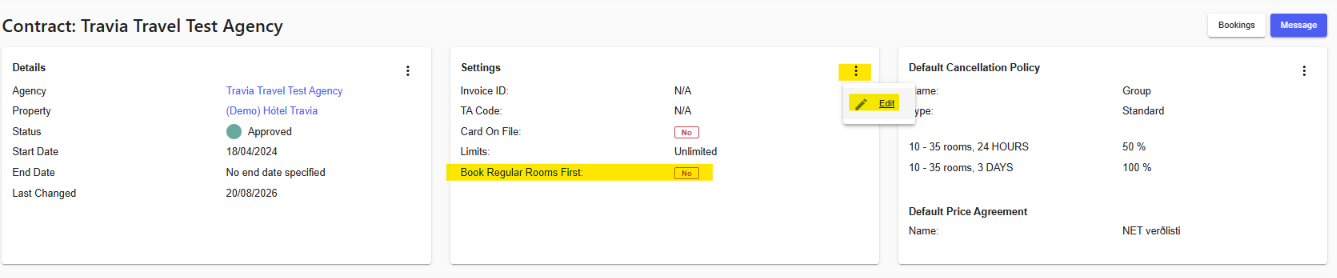
At the bottom of each cooperation (My property contracts), there is a Book regular rooms first option. When selected, the agent must book from the allotment first before booking this room type, subject to availability. If you want the agent to choose whether to book from the allotment or request a regular room for this specific room type, select Book regular rooms first.
Was this article helpful?
That’s Great!
Thank you for your feedback
Sorry! We couldn't be helpful
Thank you for your feedback
Feedback sent
We appreciate your effort and will try to fix the article