A Group Allotment lets you offer rooms to a travel agency for one or more groups travelling on separate dates. Unlike a FIT allotment, you set up the group names, dates, and length of stay before selecting the property and room quantities.
1. From the main navigation menu, select Property allotments, then click Offer new allotment.

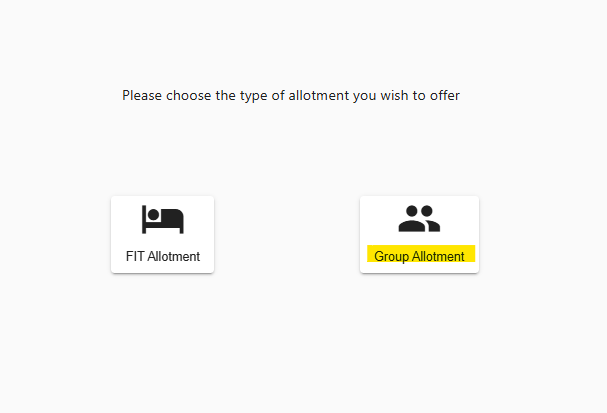
2. Select Group Allotment.
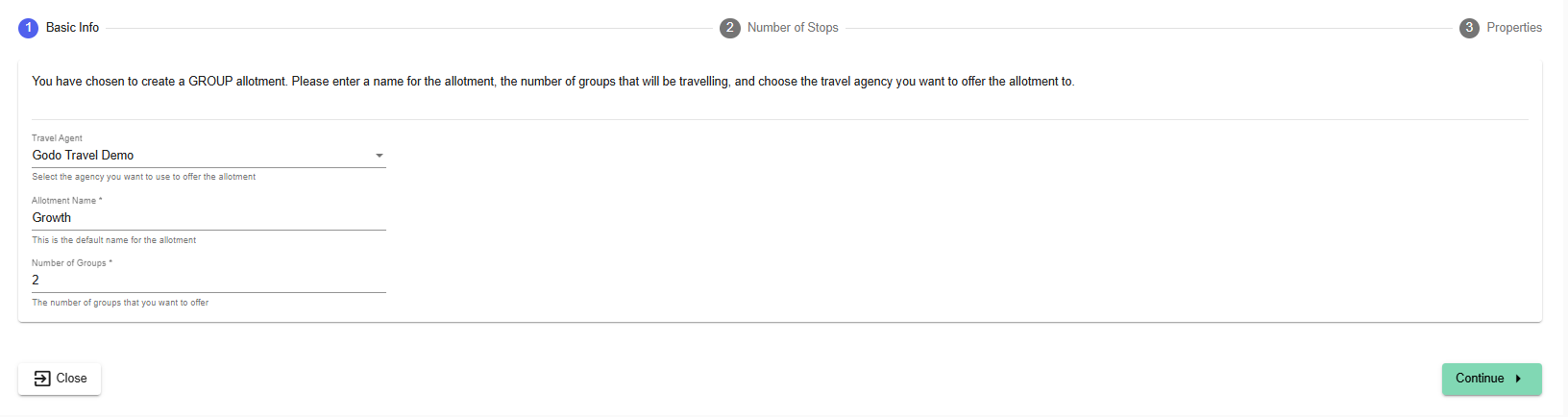
3. In Basic Info, select the Travel Agent, enter an Allotment Name, and enter the Number of Groups included in the offer. Click Continue.
4. In Number of Stops, enter the details for each group:
Name - Enter a name for the group.
Start Date- Select the group’s arrival date.
Number of Days - Enter the length of the group’s stay.
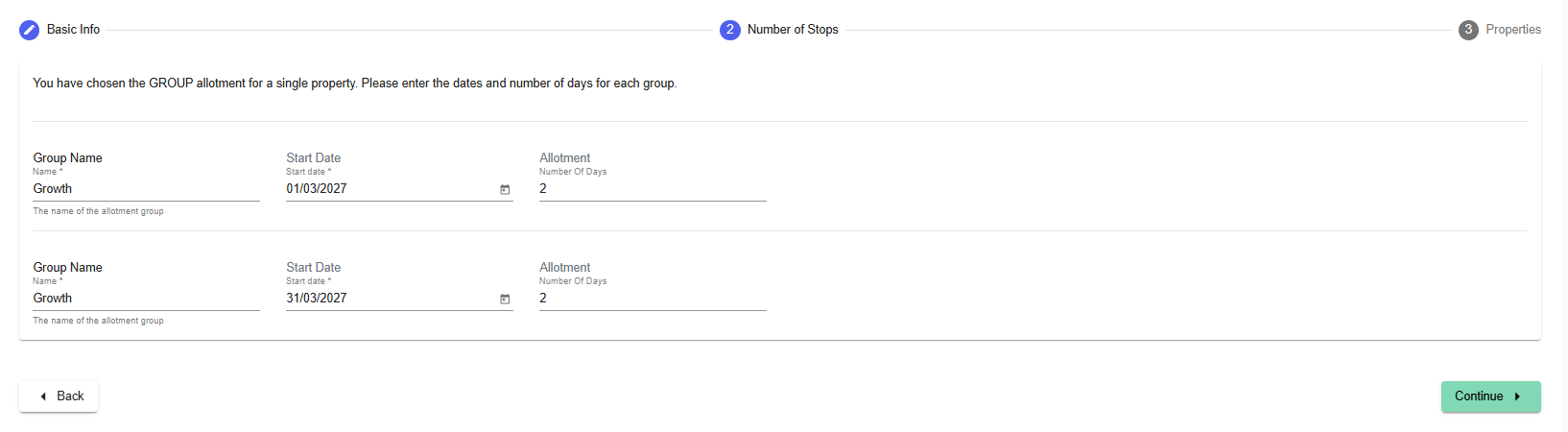
5. Repeat for each group, then click Continue.
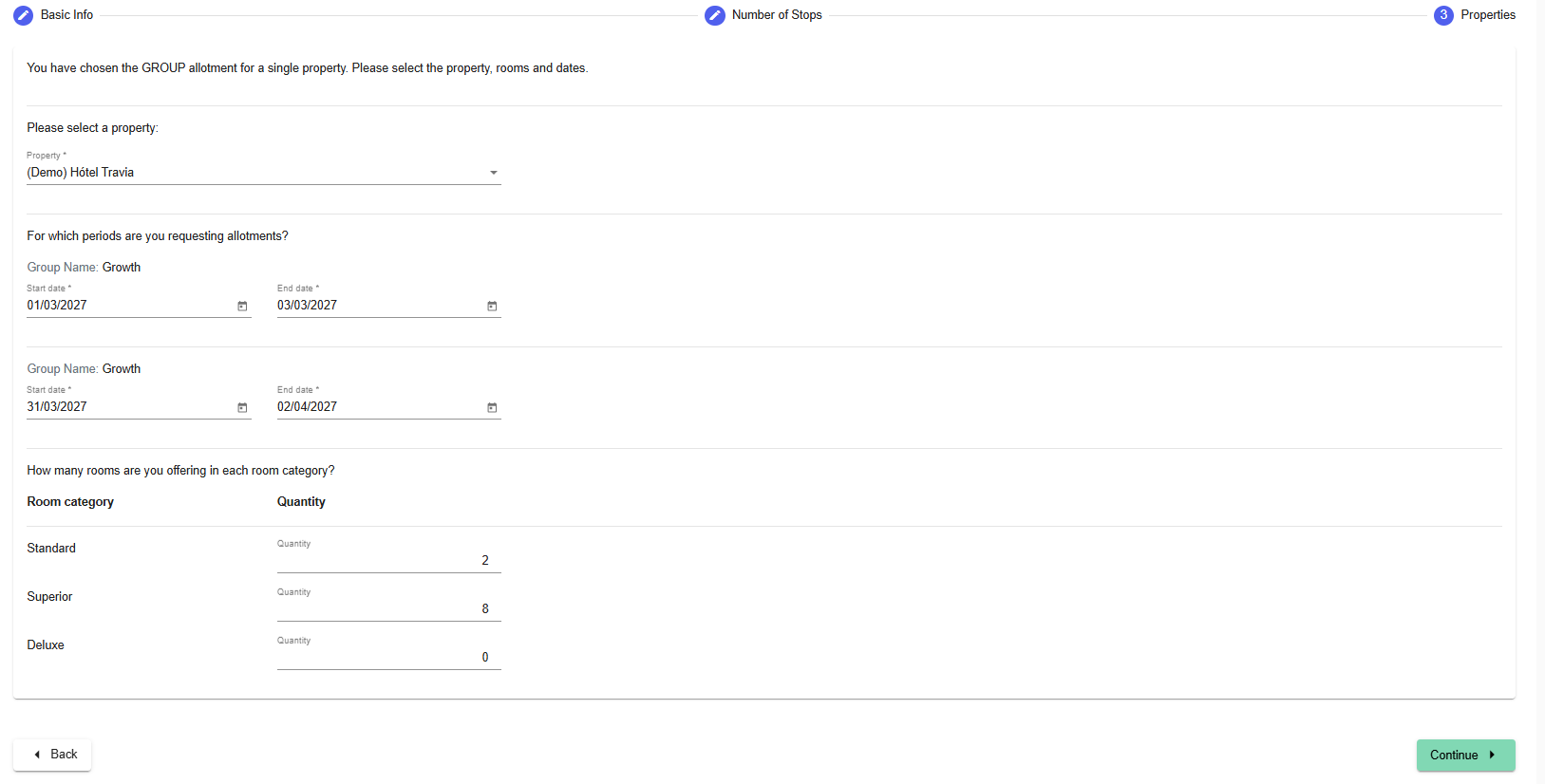
6. In Properties, select the property for the offer. For each group, check the dates and enter the number of rooms you are offering in each room category. Click Continue.
7. Set the Auto Release options. Choose the release type and set the Auto Release Days. Click Save.
Group Release - Unused rooms are released for each group according to the selected release period.
Whole Allotment - Unused rooms across the allotment are released together.

8. Set up each group in the allotment list. Click the three dots on the right of an allotment to open it. The allotment opens with its Details, Room mappings, and Settings & Rules.

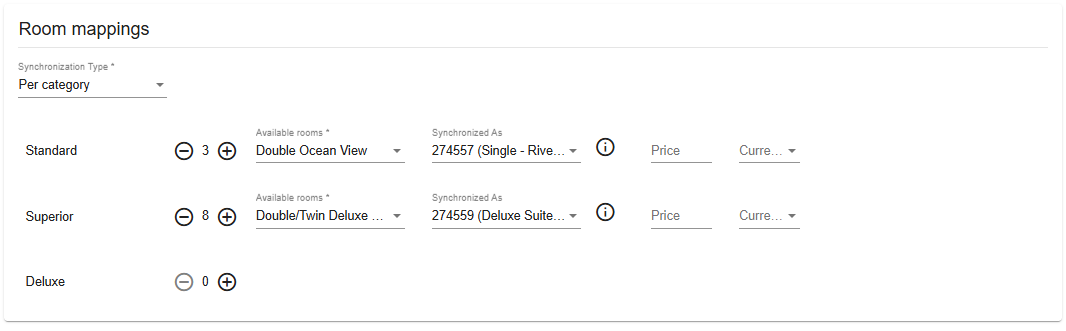
9. In Room mappings, choose the Synchronization Type, then set up the rooms you are offering. Select the Available rooms, choose the matching room under Synchronizes As, and add a Price and Currency if needed.
The Synchronization Type decides whether the allotment is offered by room category or by specific room:
Per category - You offer a quantity of rooms in a room category, for example 10 Standard rooms. The travel agency can book any room type within that category, such as Standard Double or Standard Single. You can offer several room types in the category, but only one can be synced, so the mapping is less precise.
- Per room - You define the quantity for each specific room type, so each room type is offered and synced separately. Use the plus button to increase the quantity, and the green plus above to add another room. Choose this option when you want to control the number of rooms per room type and sync more room types correctly.
10. In Settings & Rules, select the Price Agreement, add a Discount % if needed, select the Cancellation Policy, and set the Allotment booking status, which determines the status the allotment will have in your PMS.

11. Click Offer to send the offer for that group, then repeat for each remaining group in the allotment. The travel agency is notified and can accept or decline the offer.
Was this article helpful?
That’s Great!
Thank you for your feedback
Sorry! We couldn't be helpful
Thank you for your feedback
Feedback sent
We appreciate your effort and will try to fix the article