A FIT allotment lets you offer a block of rooms to a travel agency for individual travelers.
1. From the main navigation menu, select Property allotments, then click Offer new allotment.

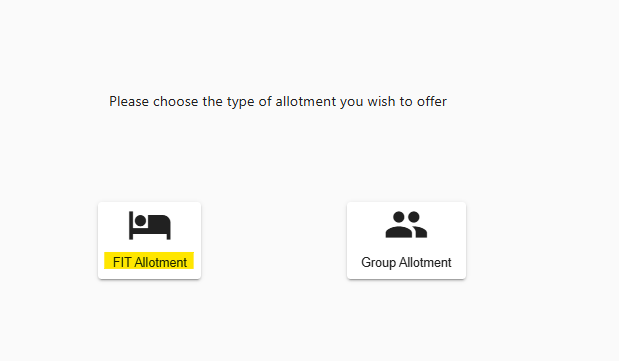
2. Select FIT Allotment.
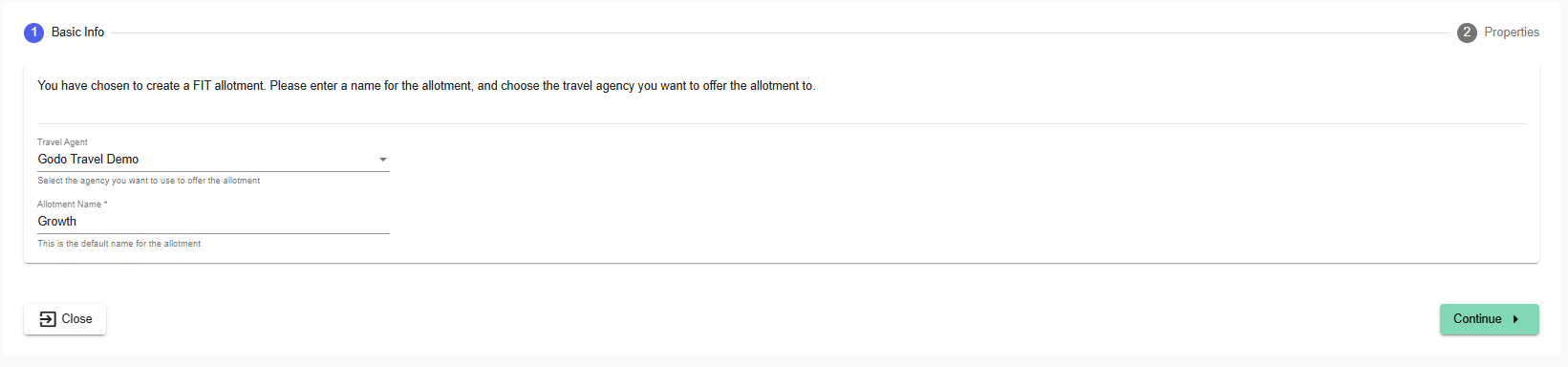
3. In the Basic Info step, select the Travel Agent you want to offer the allotment to and enter an Allotment Name.
4. Click Continue to go to the Properties step.
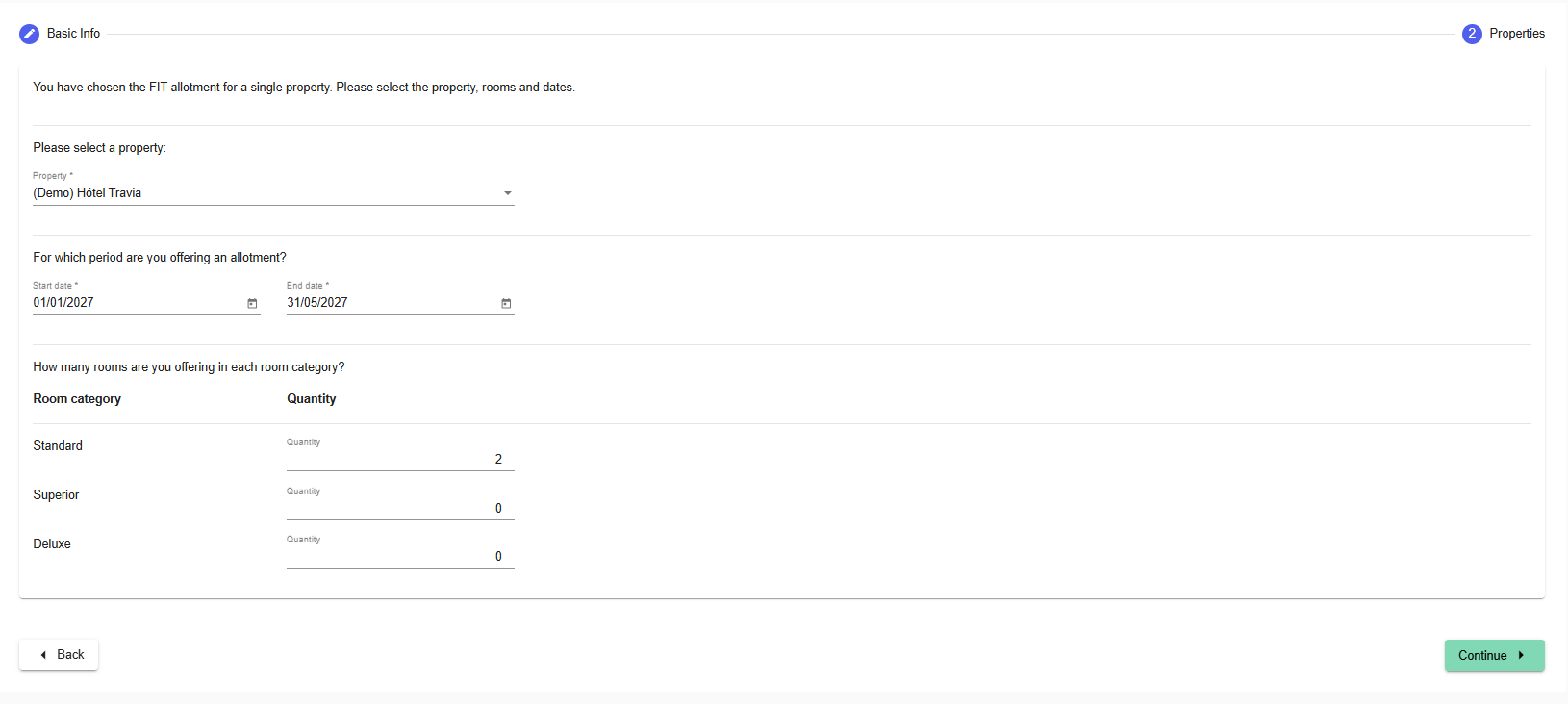
5. In the Properties step, select the Property you want to offer the allotment for, then set the Start date and End date for the period you are offering. Once you have selected a property, choose the room categories you want to offer. Then click Continue.
6. When you click Continue, the allotment opens with the details you entered. Check the Details section to confirm the agency, property, period, and requested rooms.

6. In Room mappings, set up each room category. Choose the Room allocation Type and Auto Release Type, then for each room category set the quantity, select the Available rooms, choose the matching room under Synchronizes As, and set the Auto Release Days.
Synchronizes As: Choose which room in your Channel Manager the allotment bookings should be sent to. Enter the quantity you want to offer, then map it to the matching room.
Auto Release Days: Set how many days before arrival the unused, unconfirmed allotment rooms are released. Those rooms return to your property's inventory and are removed from the allotment automatically.
Price and Currency: Optional. Leave these blank if the price and cancellation policy should come from the default contract chosen below.

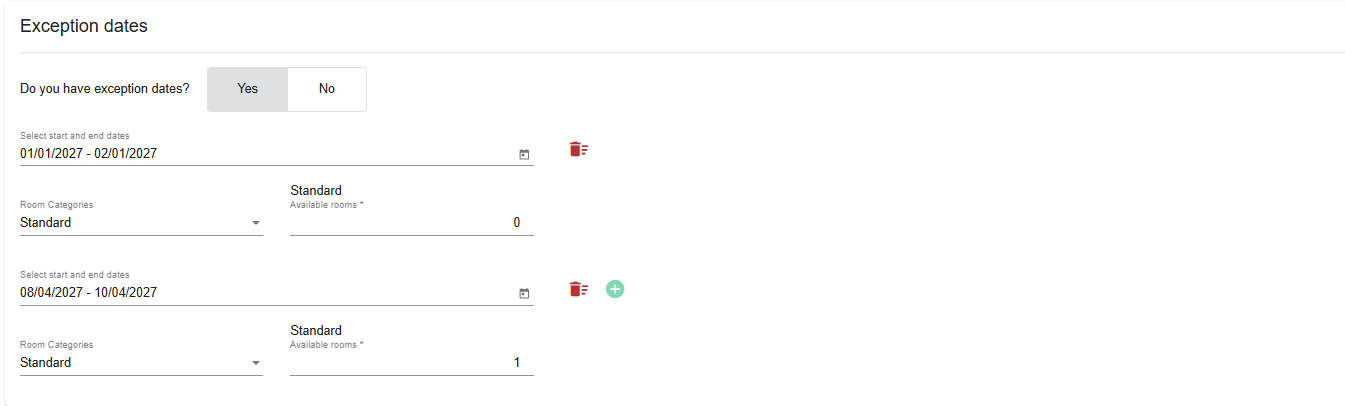
7. In Exception dates, choose Yes or No. If you choose Yes, add the dates that should not be included in the allotment period.
8. In Settings & Rules, select the Price Agreement, add a Discount % if needed, select the Cancellation Policy, and set the Allotment booking status which is the status the allotment will have in your PMS system.

9. Click Offer. The travel agency is notified and can accept or decline.
Was this article helpful?
That’s Great!
Thank you for your feedback
Sorry! We couldn't be helpful
Thank you for your feedback
Feedback sent
We appreciate your effort and will try to fix the article