In Travia, you can assign multiple combinations of price agreements and cancellation policies at the contract level. Each combination is called a Contract Condition.
Contract Conditions let you manage different commercial setups within the same contract.
A condition can have optional start and end dates.
A condition can have an optional cancellation policy. If none is selected, the default cancellation policy will apply.
One or multiple conditions can be active at the same time.
In the Property contract settings, there is an option to upgrade the contract to use contract conditions.
1. Navigate to My Property contracts.
2. Find a contract and go to the edit section to the right next to the contract you wish to upgrade (3 dots) and click on Details.

3. Scroll to the bottom of the contract and click on Upgrade.

After the contract is upgraded, the contract layout will change. The settings remain the same, but they are shown in different places.
To view the Activity Panel or downgrade the contract, click the three dots in the Details box.

To update the contract settings, click the three dots in the Settings box. From there, you can edit the contract details.

A panel opens on the right side of the screen where you can Edit Contract Settings.
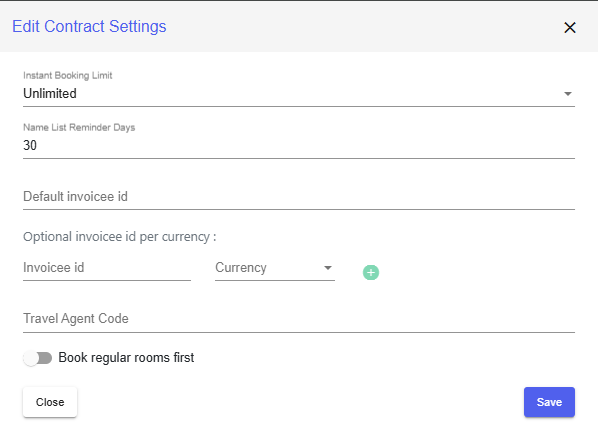
You can define one or multiple price agreements and cancellation policies for a contract.
Each Contract Condition can be limited to a specific date period. The booking check-in date determines which condition applies. If multiple price agreements and cancellation policies are active at the same time, the travel agent can choose which option applies to the booking they are creating. If there is only one cancellation policy but multiple price agreements, Travia will offer only the lowest price.
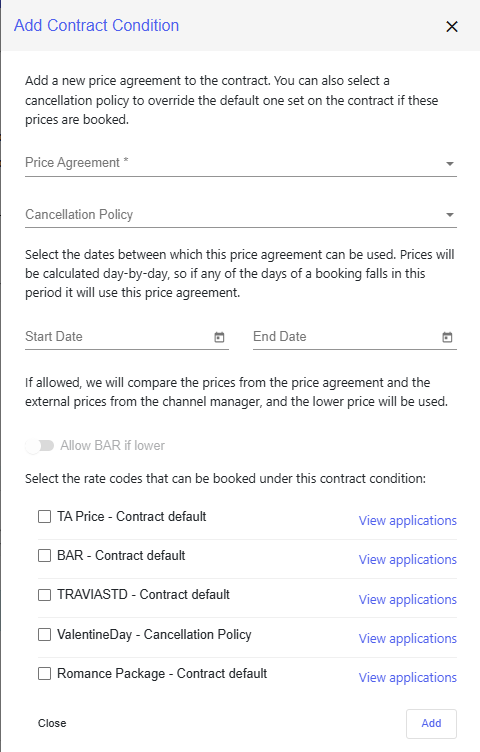
1. To add another price agreement to the contract, click Add in the Contract conditions section. A panel will open on the right side of the screen.

2. Select the Price Agreement and Cancellation Policy to apply. If no cancellation policy is selected, the default cancellation policy will be used.
3. Choose the date period, including the start date and end date, for when the condition should be valid.
4. Click Add to save the condition to the contract.
You can define rate codes that are used specifically for the contract. You can add a rate code for a single room or add one for multiple rooms at the same time. These rate codes are merged with any rate codes defined at room level, and the lowest available price will be used when booking. If all defined rate codes are closed, the contract will also be closed. In that case, only BAR rates will be used, if applicable.
Make sure the rate codes match those defined in the channel manager and that prices and restrictions are set up and synchronized correctly.
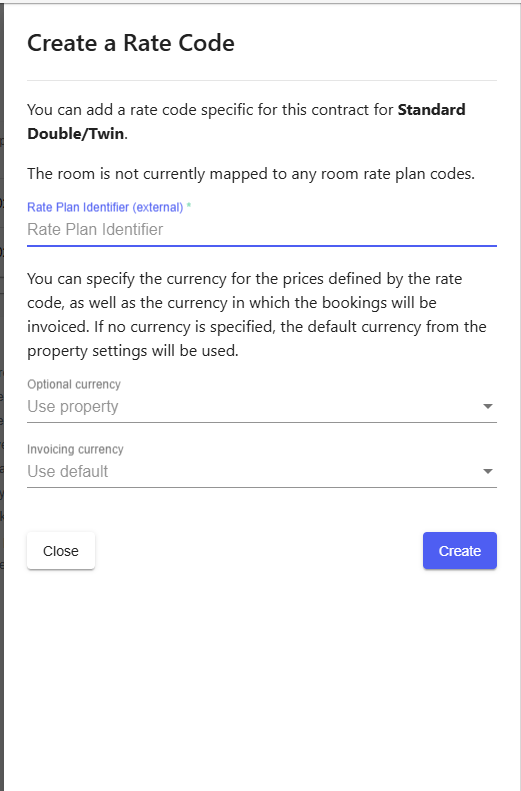
Please note that for new rate codes, it may take some time for data to be fully synchronized from the channel manager.
If the property upgrades the contract, the contract on the travel agency side will also be upgraded.
When a travel agency creates a booking and multiple price agreements and cancellation policies are applicable, they can choose the option that is best suited for the booking and its conditions.
Was this article helpful?
That’s Great!
Thank you for your feedback
Sorry! We couldn't be helpful
Thank you for your feedback
Feedback sent
We appreciate your effort and will try to fix the article