This feature allows you to update price agreements across multiple approved property contracts at once, helping you save time when applying the same agreement to several contracts.
To enable this feature, please contact support@travia.is.
1.Navigate to My property contracts.
2. Use the available filters to display Status of Approved contracts.
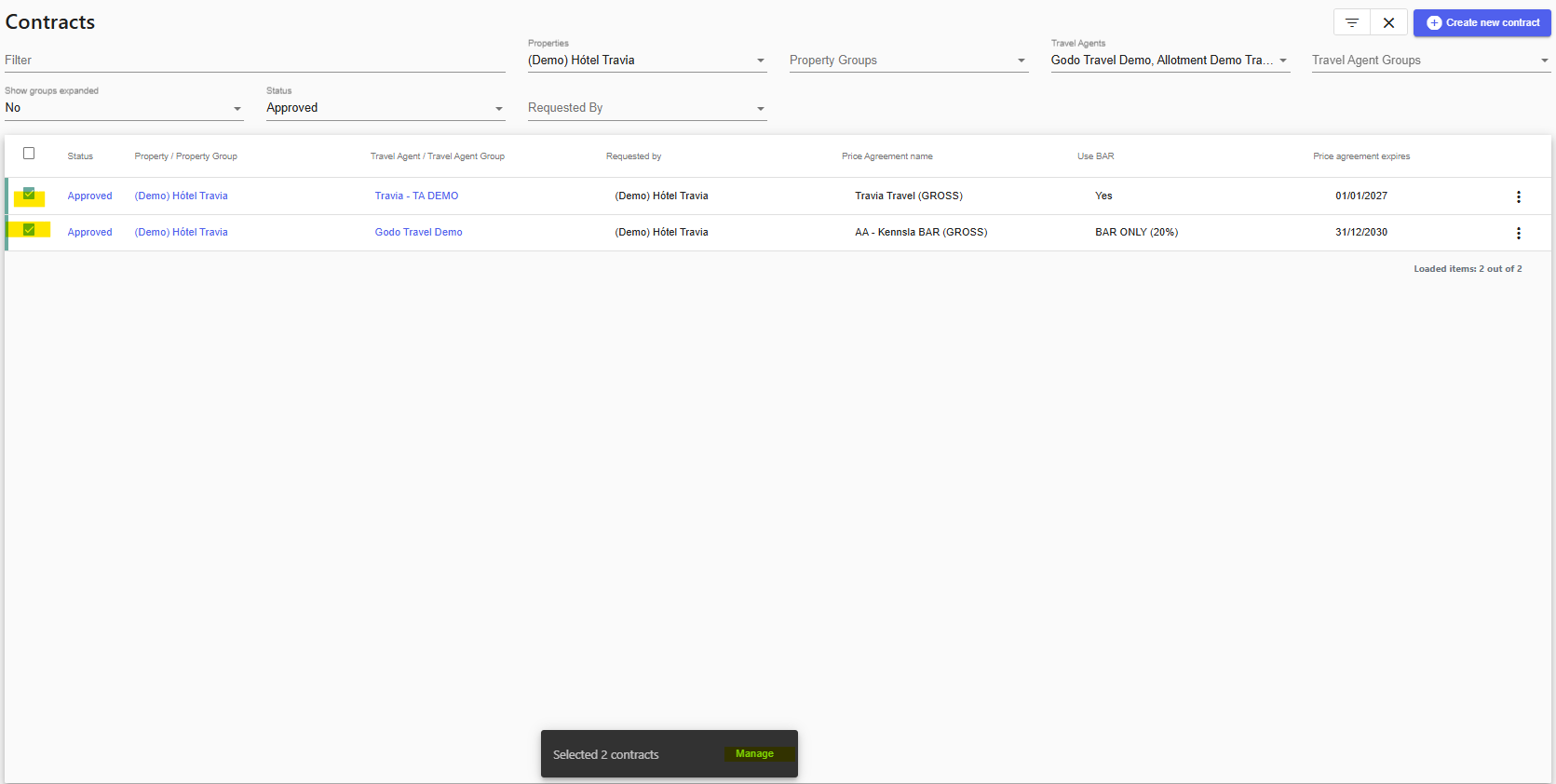
3. From the list, select the contracts you would like to update.
4. Once you have selected the relevant contracts, click Manage.
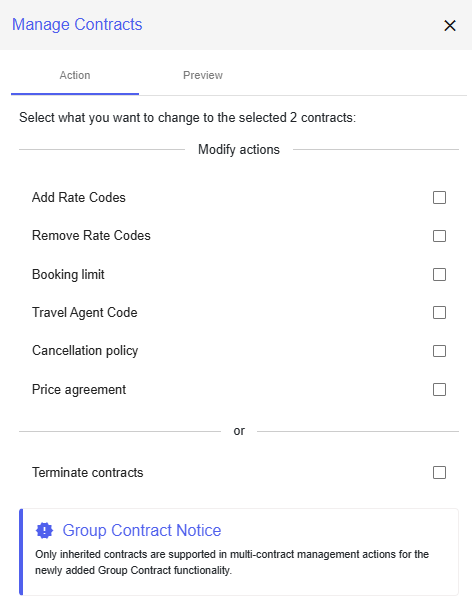
A drawer will open, showing the available actions for the selected contracts.
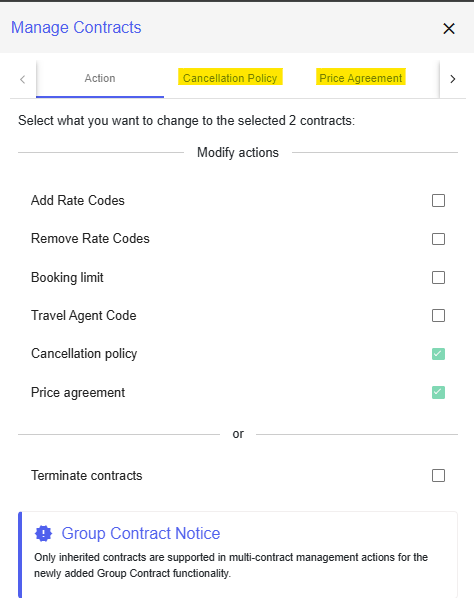
After selecting the actions you want to modify, a new tab will be created for each selected action at the top of the drawer. Use these tabs to move between the selected actions and complete the required details.
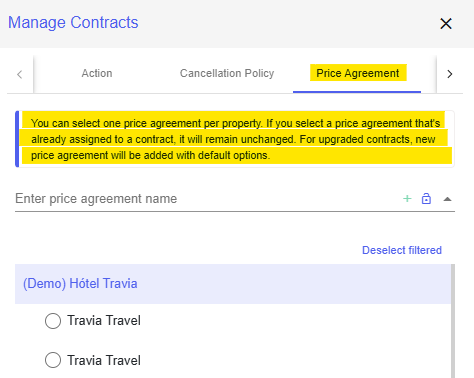
You can select one Price Agreement per property.
An information pop-up will appear to explain how the selection is applied.
Changes can also be applied to Upgraded Contracts.
When a price agreement is added to an upgraded contract:
-The Cancellation Policy will be set to Default.
-The From and To date range will be omitted
For more information about upgraded contracts, see Multiple price agreements option on an upgraded contract.
Was this article helpful?
That’s Great!
Thank you for your feedback
Sorry! We couldn't be helpful
Thank you for your feedback
Feedback sent
We appreciate your effort and will try to fix the article