Travel agencies can respond to several contract requests at the same time instead of opening each property contract one by one. This is done through My agency contracts, where several single contracts from the same hotel chain are grouped together and can be accepted or terminated/rejected in bulk.
1. Navigate to My agency contracts.
2. Click on the Waiting for response tile to open the list of contracts that are waiting for your response.

3. In the Status column, group contracts are shown as Multiple.
Please note that Multiple is not a standalone status that you can filter by. Group contracts belong to the Requested status, so use the Status filter and select Requested to find them.

4. Click on the three dots on the right side of the group contract and select Details.
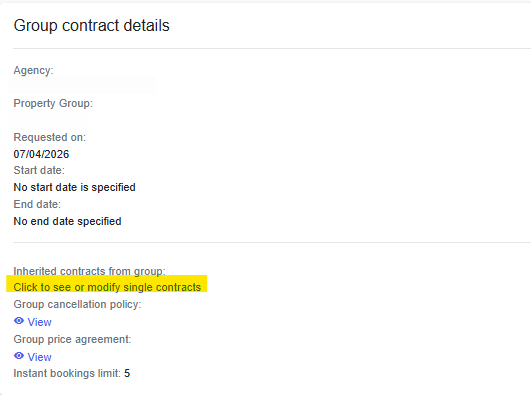
5. The Group contract details window opens. Here you can also view the cancellation policy and the price agreement chosen by the property. Click on Click to see or modify single contracts to continue.
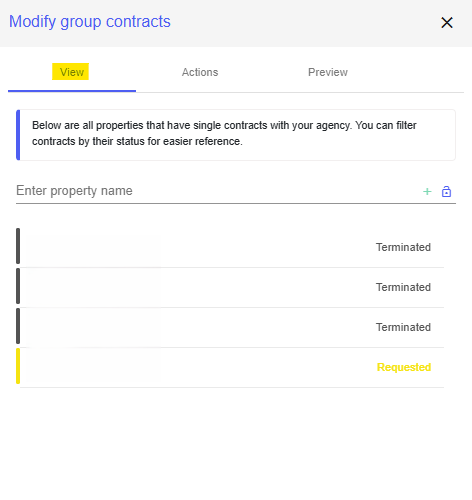
6. The Modify group contracts window opens on the View tab. Here you get an overview of all the properties in the hotel chain that have single contracts with your agency. You can filter the contracts by their status and search for a specific property by name.
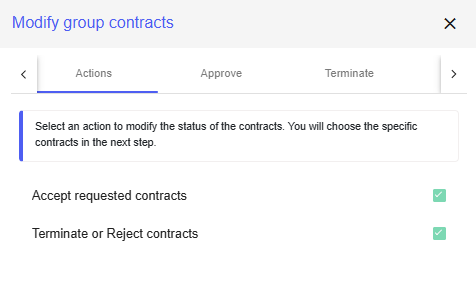
7. Go to the Actions tab and select the action you want to apply:
Accept requested contracts
Terminate or Reject contracts
If you want to approve some contracts and terminate or reject the others, select both options.
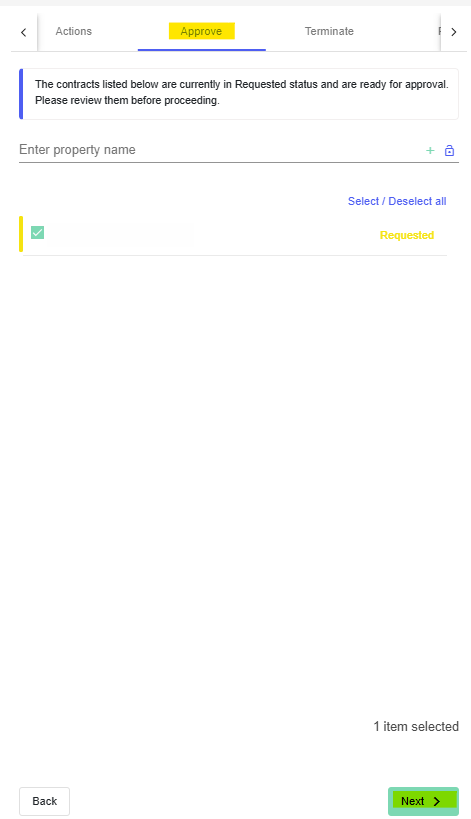
8. A new tab appears for each action you selected: Approve and Terminate. In each of these tabs, a list of the currently requested cooperations appears. Select the contracts you want to approve or terminate.
9. Click Next.
10. In the Preview tab, you will see a list of the changes that will be applied before you confirm them. Click Confirm.
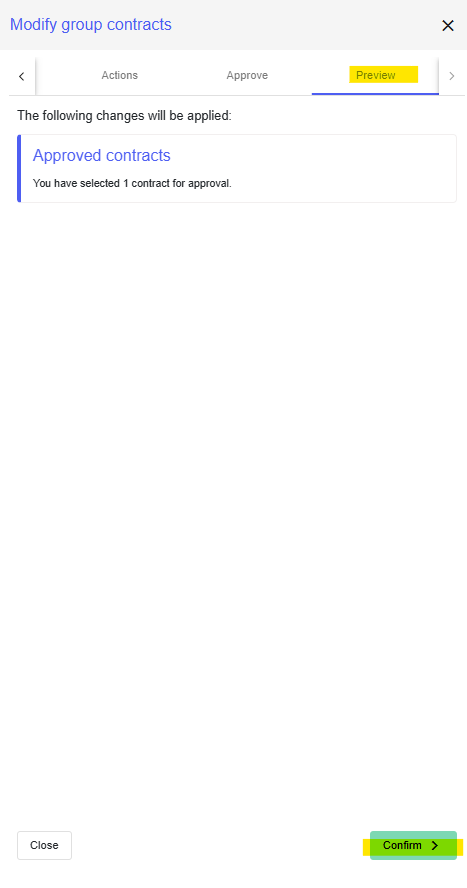
The selected contracts are now updated in one go, and the group contract no longer shows as waiting for a response.
Was this article helpful?
That’s Great!
Thank you for your feedback
Sorry! We couldn't be helpful
Thank you for your feedback
Feedback sent
We appreciate your effort and will try to fix the article