Once you have created a property, you can send a cooperation request to travel agencies in Travia.
There are 2 ways of sending out an invite to a travel agent. One is to an agent already registered in Travia and the other one is to send out an invite to an agency not registered on Travia.
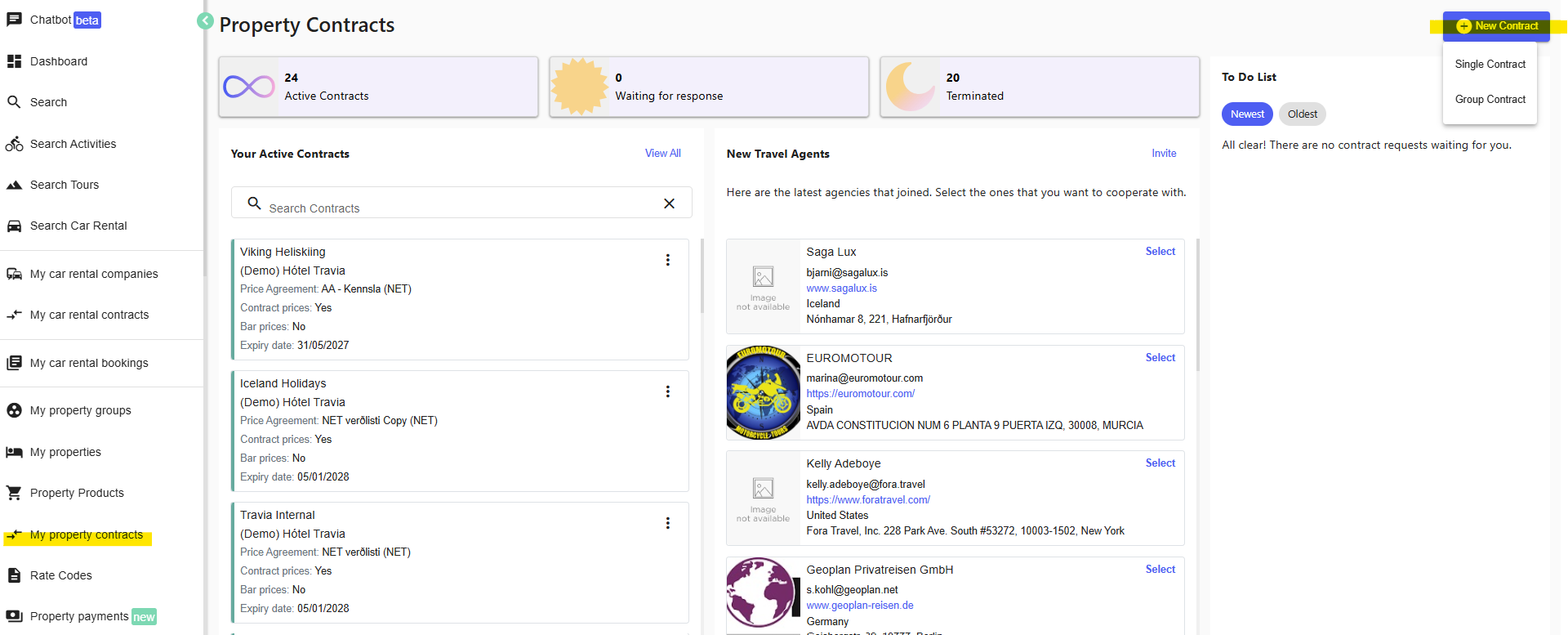
1. To start a new cooperation, go to My property contracts in the left menu.
2. Select New Contract at the top right and choose Single Contract or Group Contract.
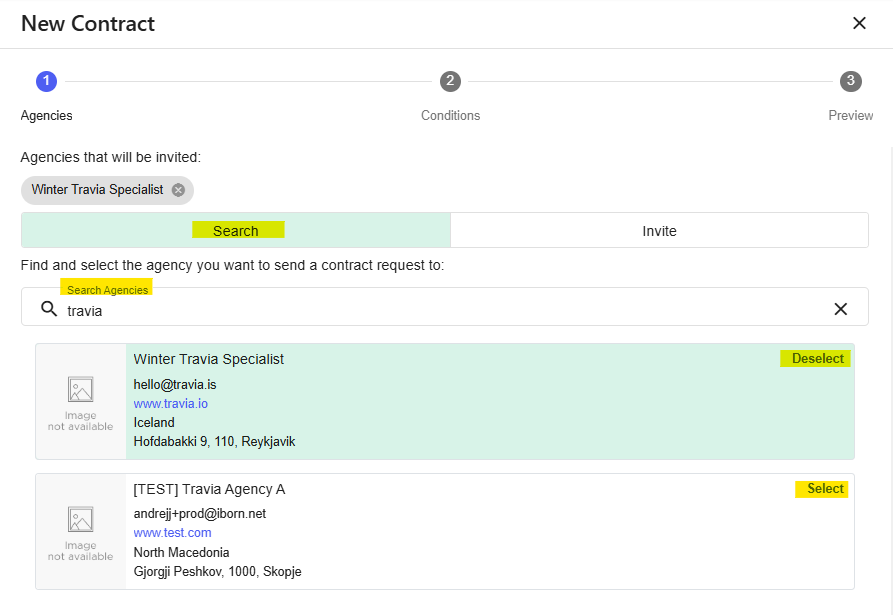
The New Contract window opens with three steps: Agencies, Conditions, and Preview.
In the Agencies step you can search for the agency you want to work with, or send an invite.
3. Select Search to find an agency that is already in Travia. Enter the agency name in the Search Agencies field, then select Select next to the agency you want to send a contract request to. You can select up to 10 travel agencies.
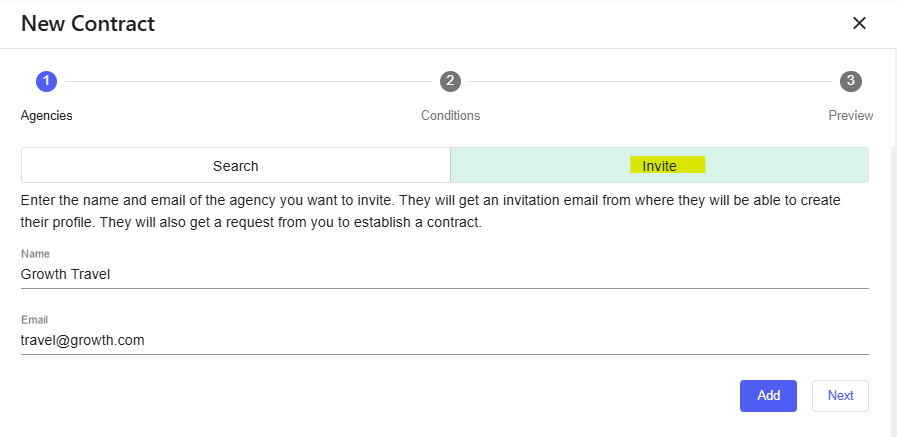
4. Select Invite to invite an agency that is not in Travia. Enter the agency's email address and name to invite them to join Travia.
5. Select Next to continue to the Conditions step.
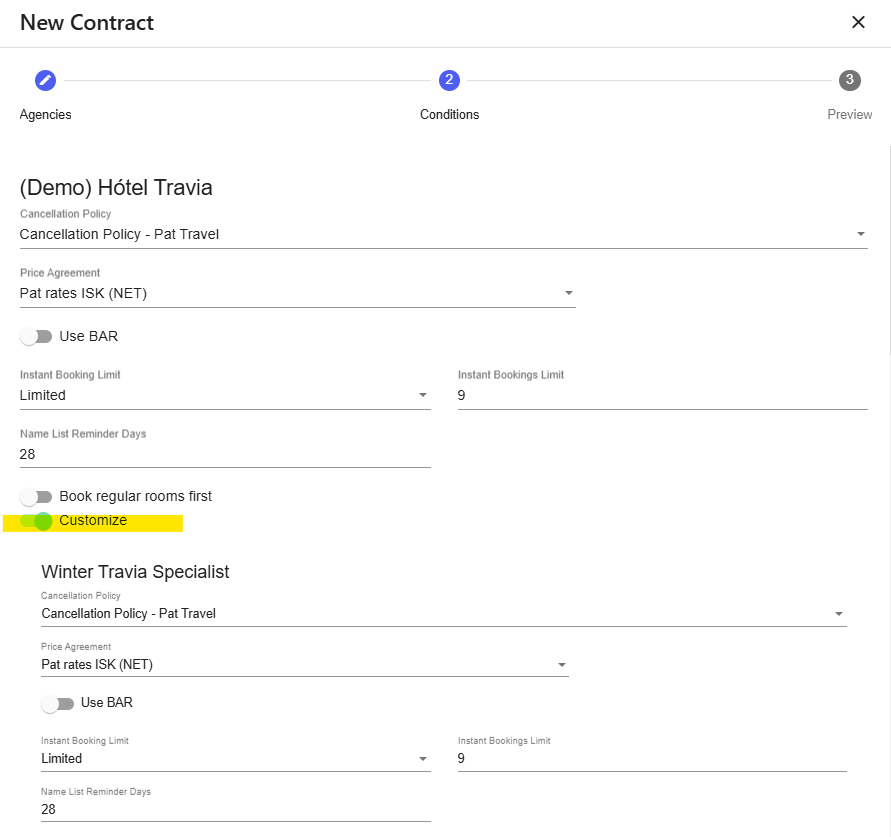
6. Choose the Cancellation Policy and Price Agreement that will apply when the travel agency books your property.
7. Choose an Instant Booking Limit if you want to limit how many rooms the agency can book instantly. For example, if you set the limit to 9 rooms and the agency tries to book 10, the entire booking will become a request. You will receive an email notification so you can approve or reject it.
8. In Name List Reminder Days, enter how many days before check-in Travia should remind the agency to send you the full guest name list. You can also add a message for the agency in Invite message.
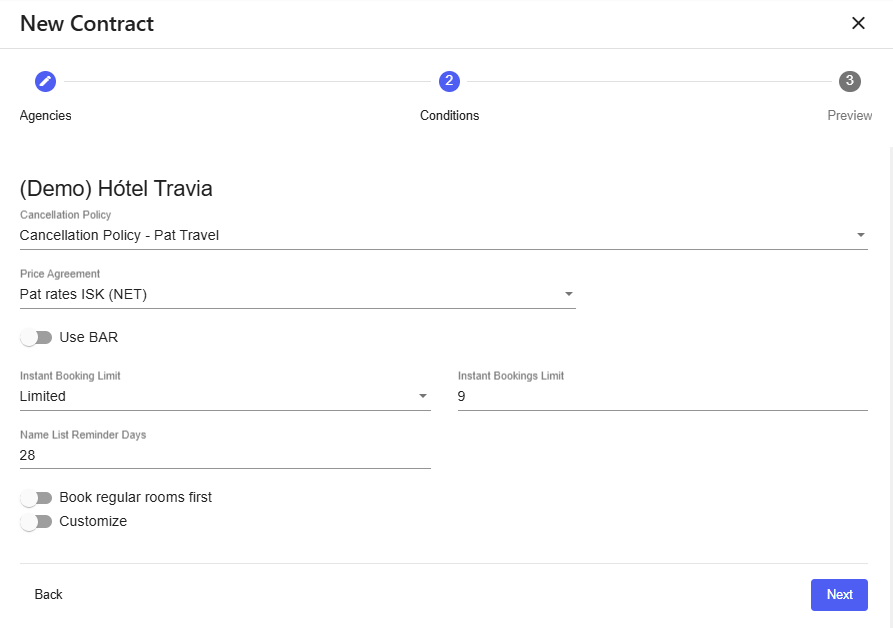
If you turn on Use BAR, Travia can use prices from your channel manager when they are lower than the prices in your Price Agreement.
NET pricelist - the prices in the NET pricelist are shown to travel agencies when they book your property in Travia.
GROSS or BAR pricelist - you can give travel agencies a commission, or discount, on your prices. The prices shown to agencies include that commission or discount.

If you are sending requests to multiple agencies and want one agency to have different terms, such as a different Price Agreement or commission, select Customize and adjust that agency’s settings.
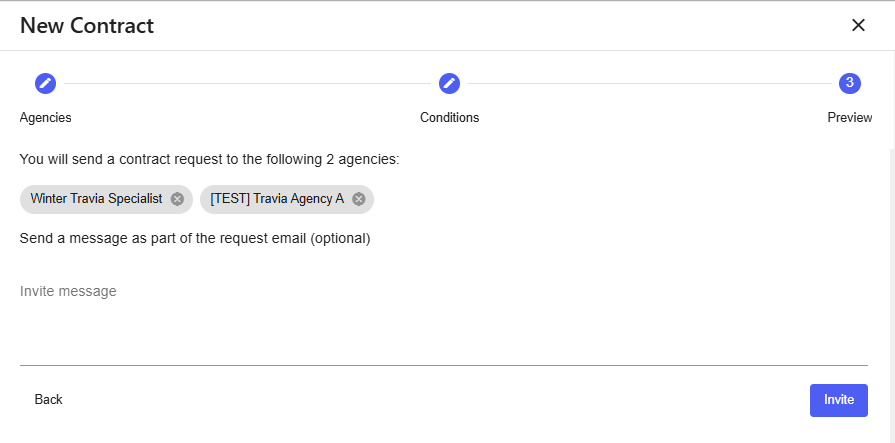
9. In the Preview step, review the contract and send the request. Travia will email the agency, and they can accept or reject the request. Once they accept, they can find your property in their search and book according to the terms and settings you selected.
Was this article helpful?
That’s Great!
Thank you for your feedback
Sorry! We couldn't be helpful
Thank you for your feedback
Feedback sent
We appreciate your effort and will try to fix the article